- How to view an Action Plan
- Consult history
- Assessment information
- Add a solution
- Frequently Asked Questions (FAQ)
How to view an Action Plan
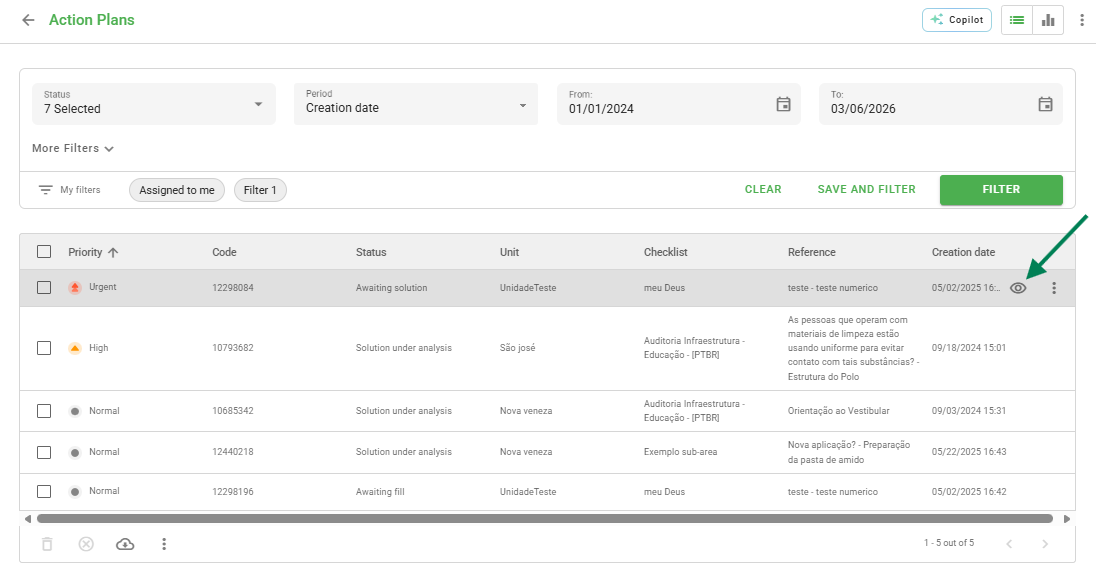
On the Action Plans page, when hovering over an item in the list view, you will find the view icon (represented by an eye) to access the plan details.
Consult history
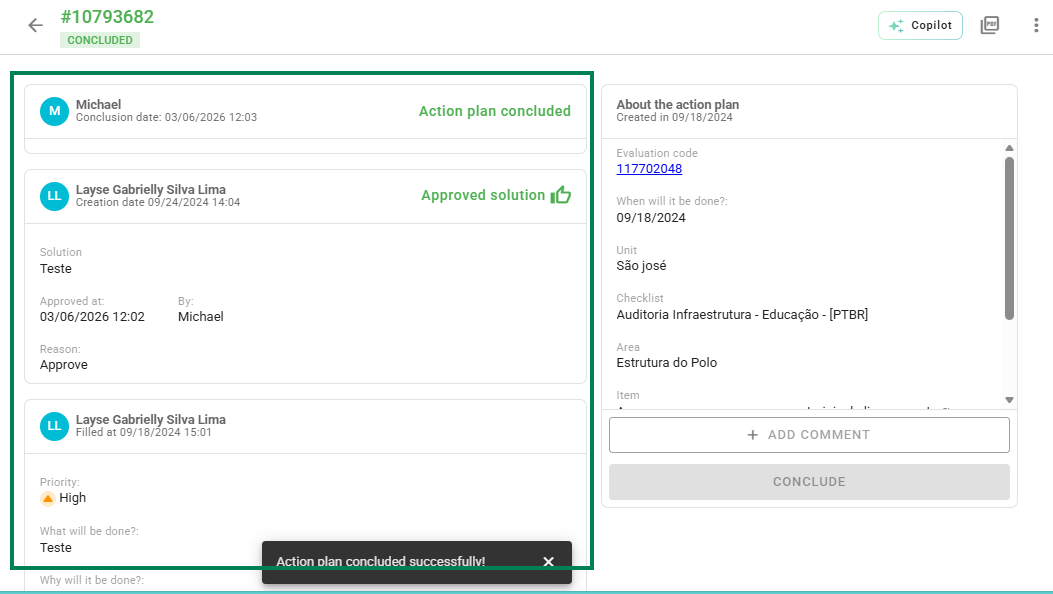
In the center of the screen, you can view the complete history of the Action Plan. This space centralizes all recorded actions and movements, allowing for detailed monitoring of task progress.
Assessment information
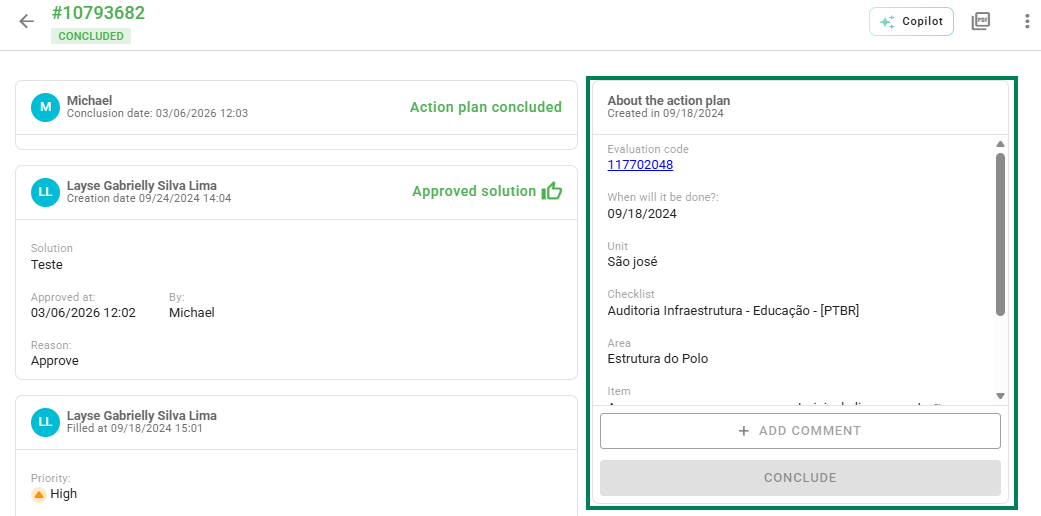
In the right side block, under About the Action Plan, the source assessment data is available. Here you can quickly identify which inspection or survey this plan is linked to.
Add a solution
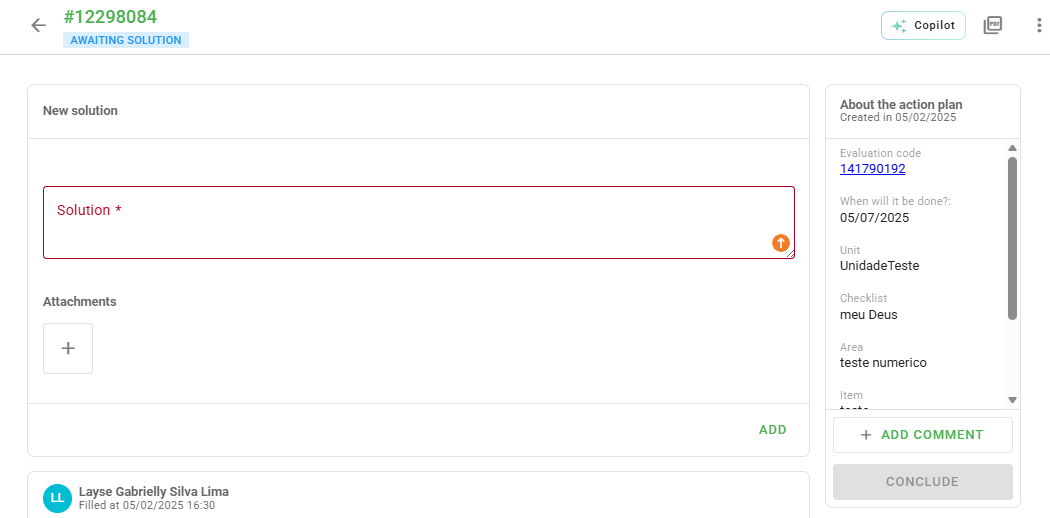
To record what was done to resolve the nonconformity, use the solution feature:
You can insert attachments to prove the execution of the solution before saving.
1. Click the + Add Solution button.
2. Describe the action performed in the text field.
3. Insert attachments if necessary.
4. Click Add to confirm or Cancel to discard.
Frequently Asked Questions (FAQ)
1. Who can view the Action Plan history?
All users with access permission to the Action Plans of the corresponding unit or sector can view the history of changes.
❓Tem dúvidas? Entre em contato com nosso time de suporte.