How the import works
It is possible to import items, questions, and areas from other already configured checklists into a new checklist. This functionality is ideal for streamlining the creation process when you want similar checklists.
Use this feature to avoid rework in manually creating questions that already exist in other models.
Step by step
1. Navigate to the Settings > Checklists menu.
2. Click Edit on the desired checklist and access the Structure tab.
3. Locate and click on the Import from another Checklist option.
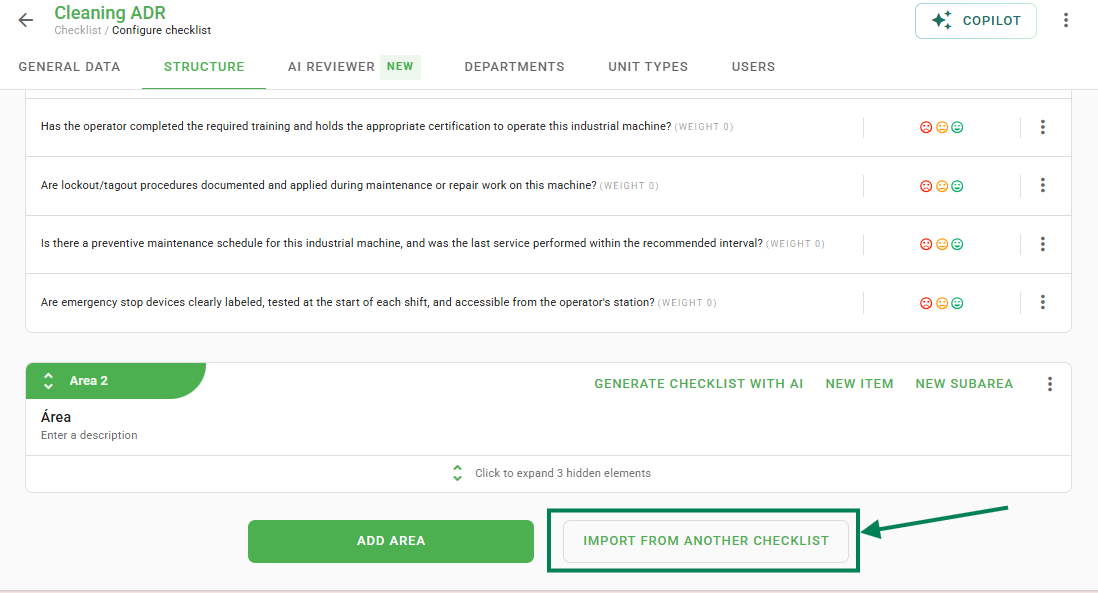
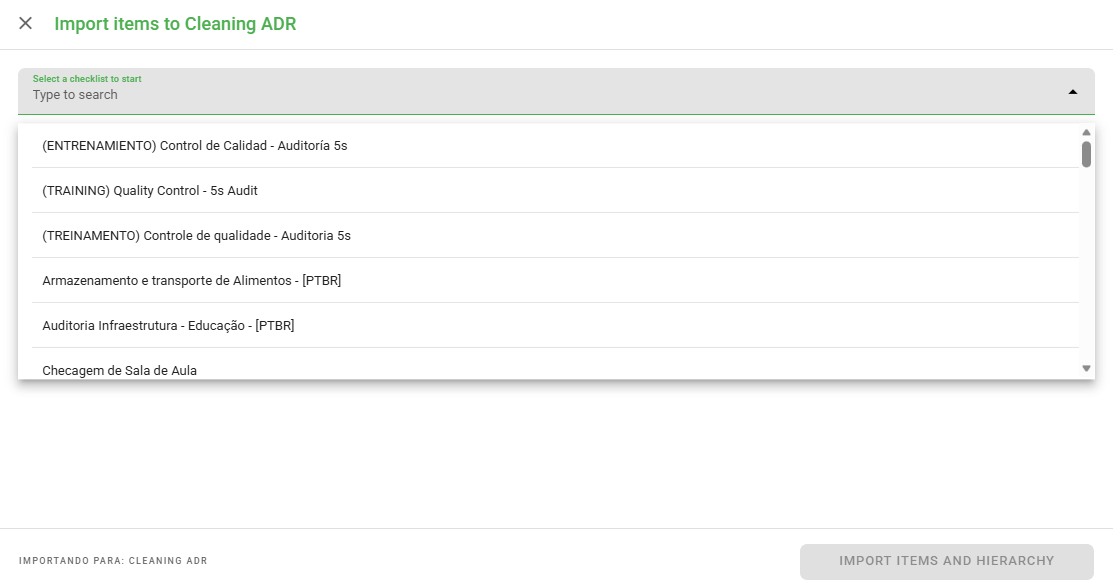
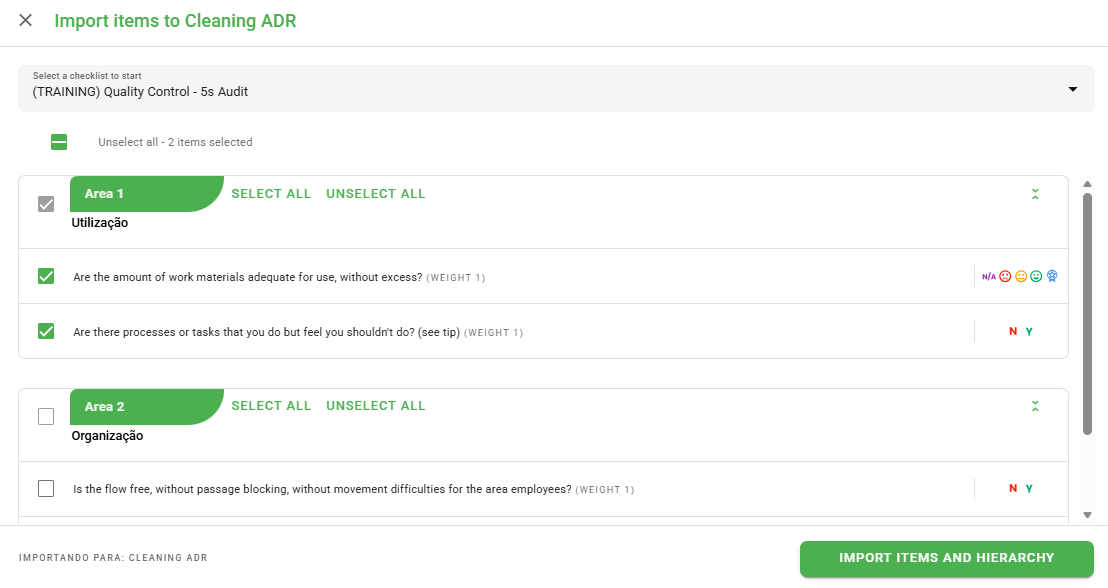
4. Select the source Checklist (where you will copy the data from) and, right below, choose which elements (items and areas) you want to import.
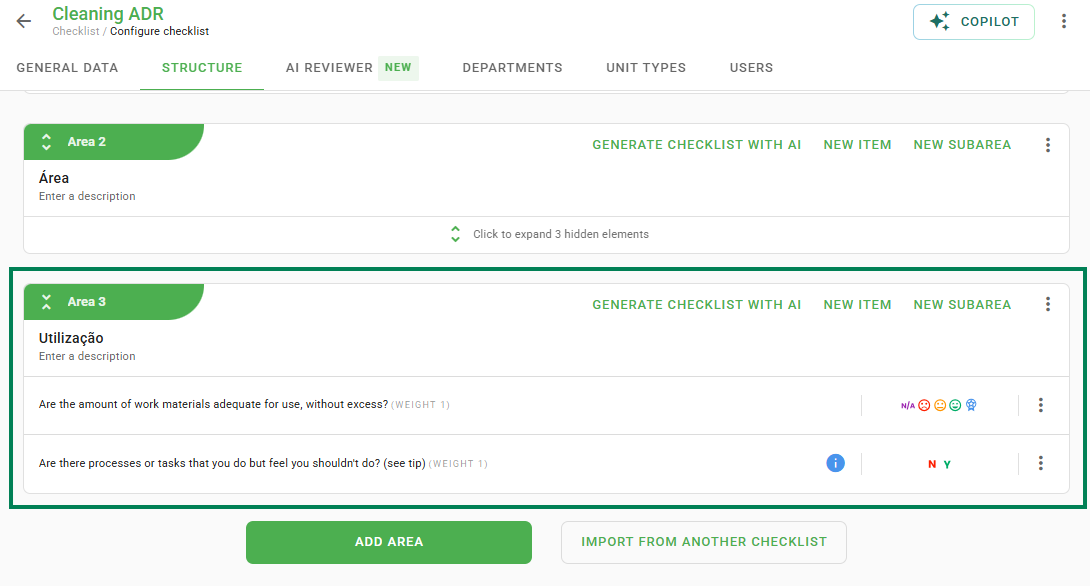
5. After performing the import, you will find the copied areas and items already inserted into the structure of your new Checklist, as shown in the example below:
Frequently Asked Questions (FAQ)
1. Can I import only a specific question?
Yes. When selecting the source checklist, the system allows you to select specifically which elements (questions or areas) you wish to bring into the new checklist.
2. What happens to the current structure of my checklist?
The imported items will be added to the existing structure. They do not replace what has already been created; they are simply added to the current content.
❓Tem dúvidas? Entre em contato com nosso time de suporte.