When creating or editing a checklist, it is possible to insert add-ons into the items. This functionality allows users to add rich information and collect more detailed data during the inspection.
How to configure add-ons
To manage this functionality, access the path below on the web platform:
Settings > Checklists > Structure and locate the Add-ons column.

When creating a new item, all add-ons are already enabled by default. To change this, simply click on the desired icon.
Icon status:
• Green Color: Enabled
• Gray Color: Disabled
Available options
You can activate the following resources for each item in your checklist:
Comment: Free text field for the user to add necessary observations.
Action Plan: Allows creating corrective actions to resolve nonconformities, using the 5W2H methodology or customized templates.
Attachments: Enables inserting evidence into responses through images, videos, audios, and documents.
Signature: Ensures identification of the person responsible for the response in critical items.
Attention: The Signature add-on is available only for application via the app (Checklist Fácil App).
View in the application
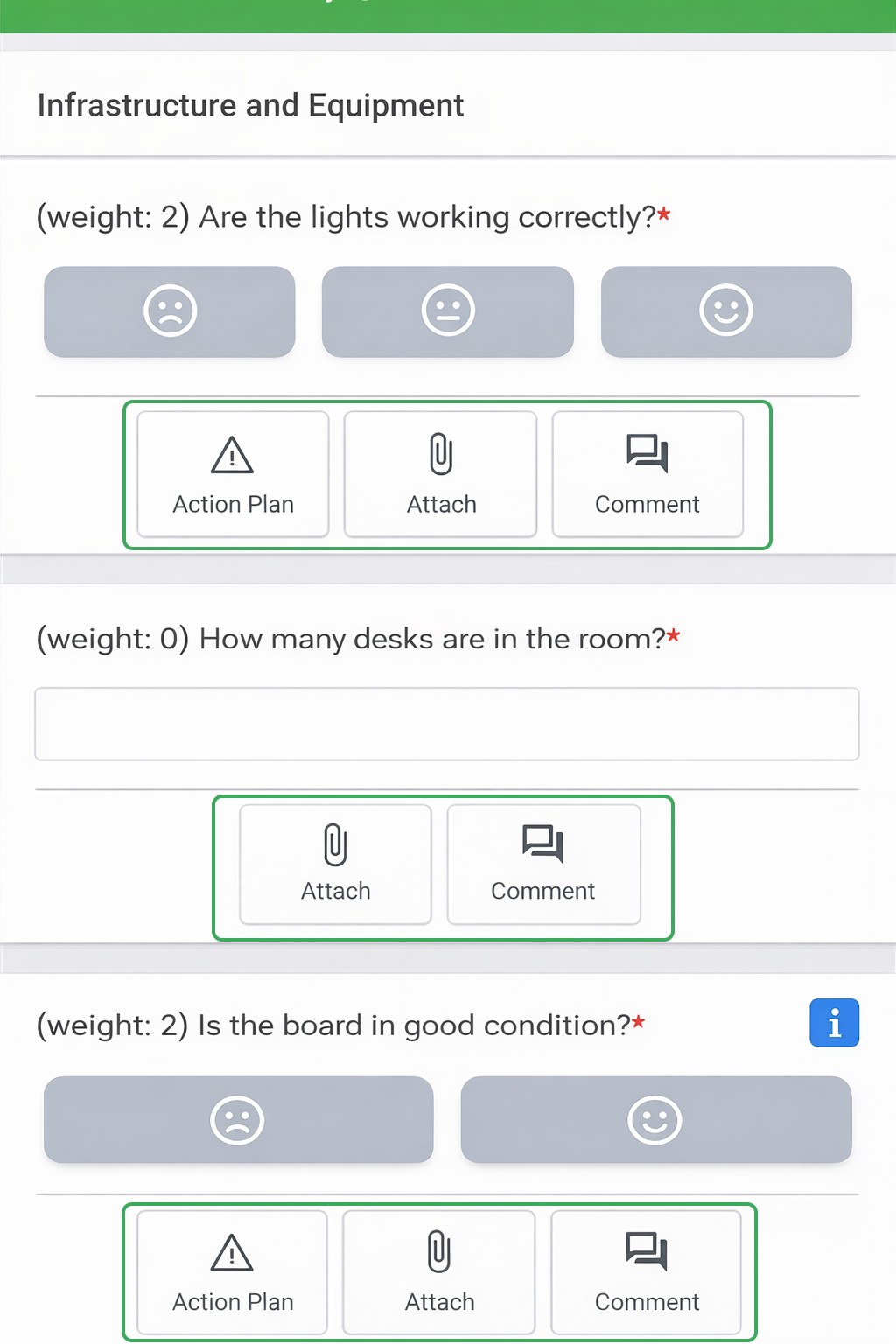
While filling out the checklist, the enabled add-ons will be displayed as follows:
On Web:

In the App:
Frequently Asked Questions (FAQ)
1. Can I use the signature on the Web version?
No. The signature add-on was developed specifically for collections carried out through the mobile application.
2. Is it possible to disable an add-on after creating the checklist?
Yes. You can edit the checklist structure at any time and click on the green icon to make it gray (disabled).
❓Tem dúvidas? Entre em contato com nosso time de suporte.