Sometimes, an incorrect selection of the Unit may occur at the beginning of a checklist application. With the Unit change feature, it is possible to correct this information after the application is completed, provided that certain requirements are met.
Requirements to change the Unit
Before starting the change, verify if all the criteria below are met:
The applied checklist status is Concluded;
The application was performed manually (not via schedule, workflow, or integration with Sienge);
Your user has the General Administration permission.
How to make the change
Follow the step-by-step instructions below to perform the unit correction in the system:
- Access the Applied Checklists screen in the system.
- Locate the checklist you wish to modify.
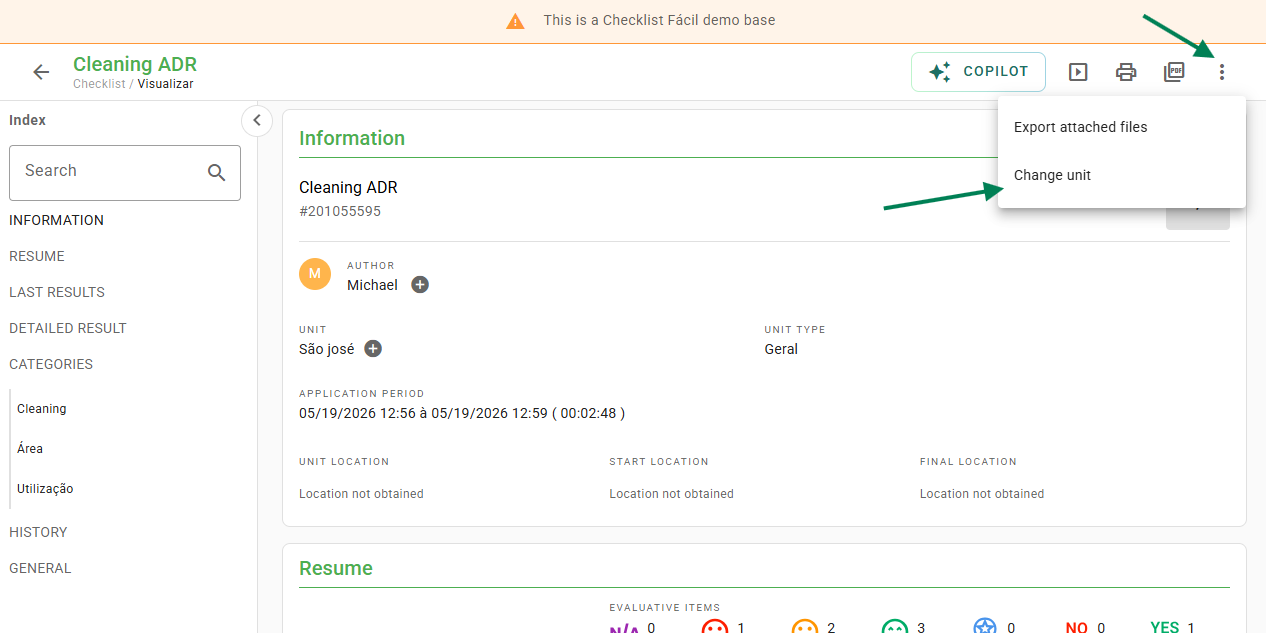
- Click on the options menu (icon in the top right corner of the report).
- Select the Change Unit option.
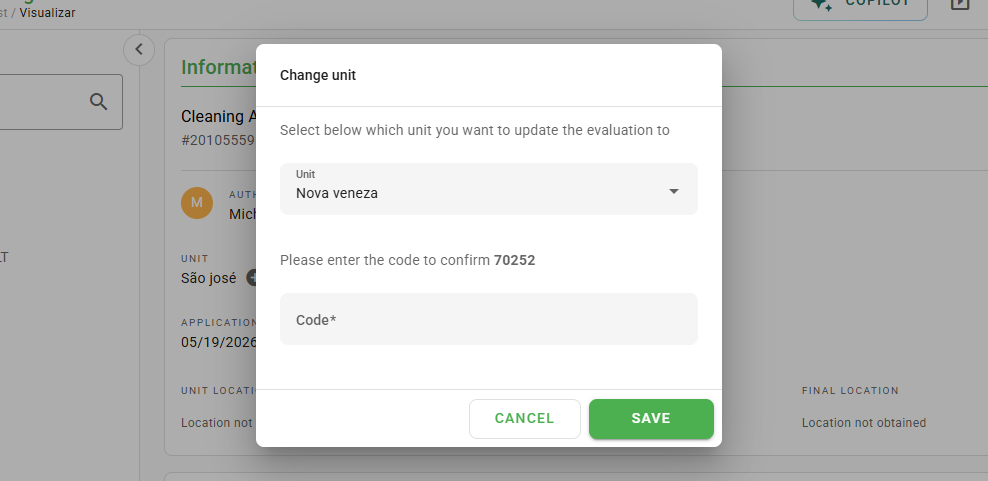
- Choose the desired new Unit.
- Enter the requested confirmation code.
- Click Save to complete the change.
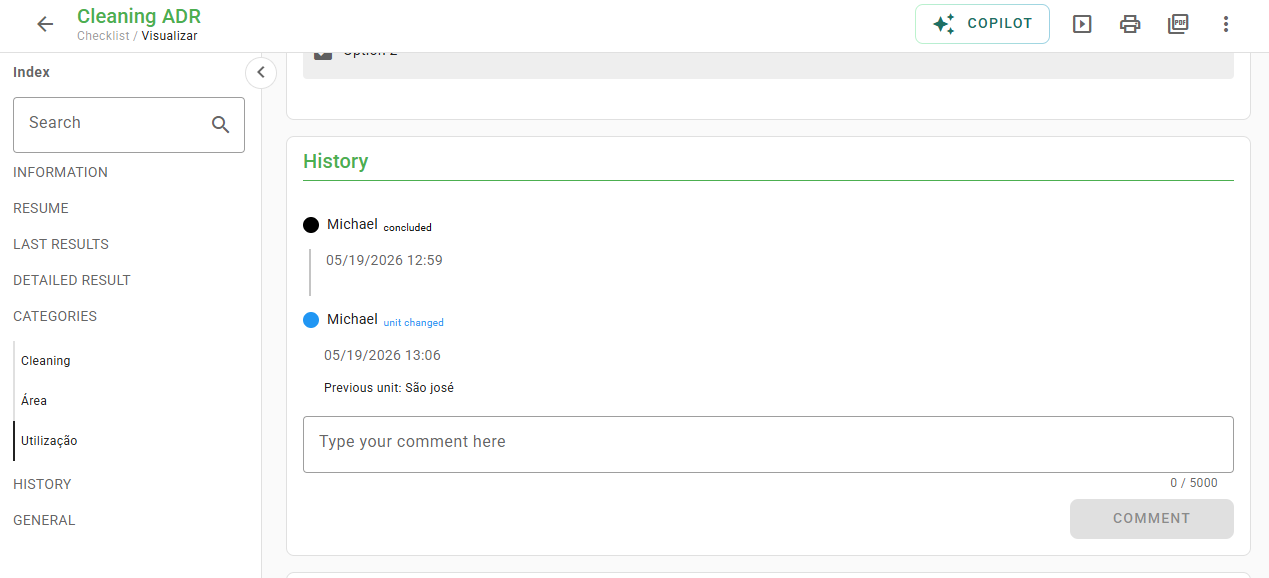
The Unit changes will be recorded in the checklist history:
Frequently Asked Questions (FAQ)
1. Can I change the unit of a scheduled checklist?
No. The change is only allowed for applications performed manually. Schedules, workflows, or integrations do not allow this modification.
2. Who has permission to perform this change?
Only users who have the General Administration profile configured in the system can change the unit of a concluded checklist.
❓Tem dúvidas? Entre em contato com nosso time de suporte.