This article contains instructions on how to find and view the Checklist Fácil Team Map.
*This article is about wan additional module functionality already available for the Enterprise plan. Check availability through your Account Manager or Solution Team.
- How to find this feature in the Easy Checklist?
- Which units appear on the map?
- Which users appear on the map?
How to find this feature in the Easy Checklist?
Click Reports and Team Map to use this Map.
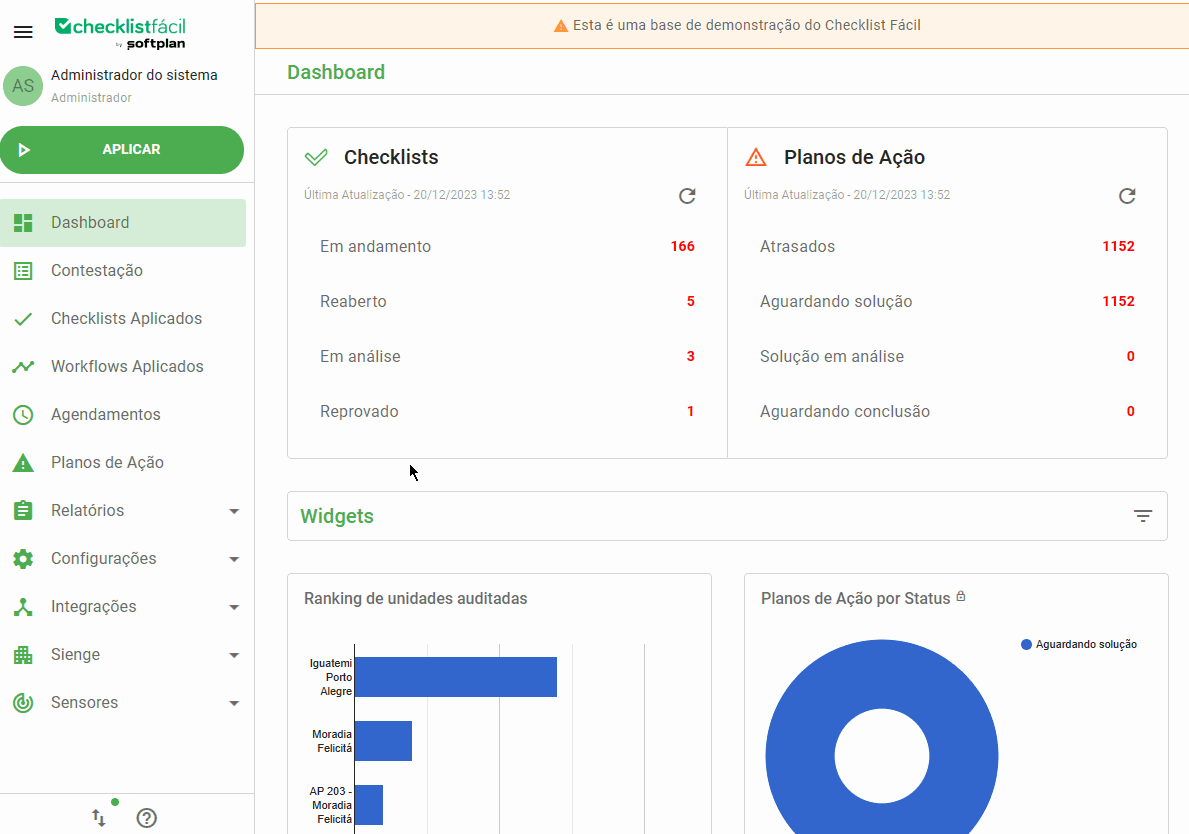
It is possible to view users and units on the map, as well as pins with different data and periods.
The location of the users will be updated in real-time. And depending on the time that has elapsed since the last location obtained, the pins will change accordingly:
: Updated within 24 hours;
: Updated more than 24 hours;
: Updated over 1 week ago;
: Units


Which units appear on the map?
To make the units appear on the map, it is necessary to register latitude and longitude in the unit's register, in Settings > Units > Edit > Latitude and Longitude.
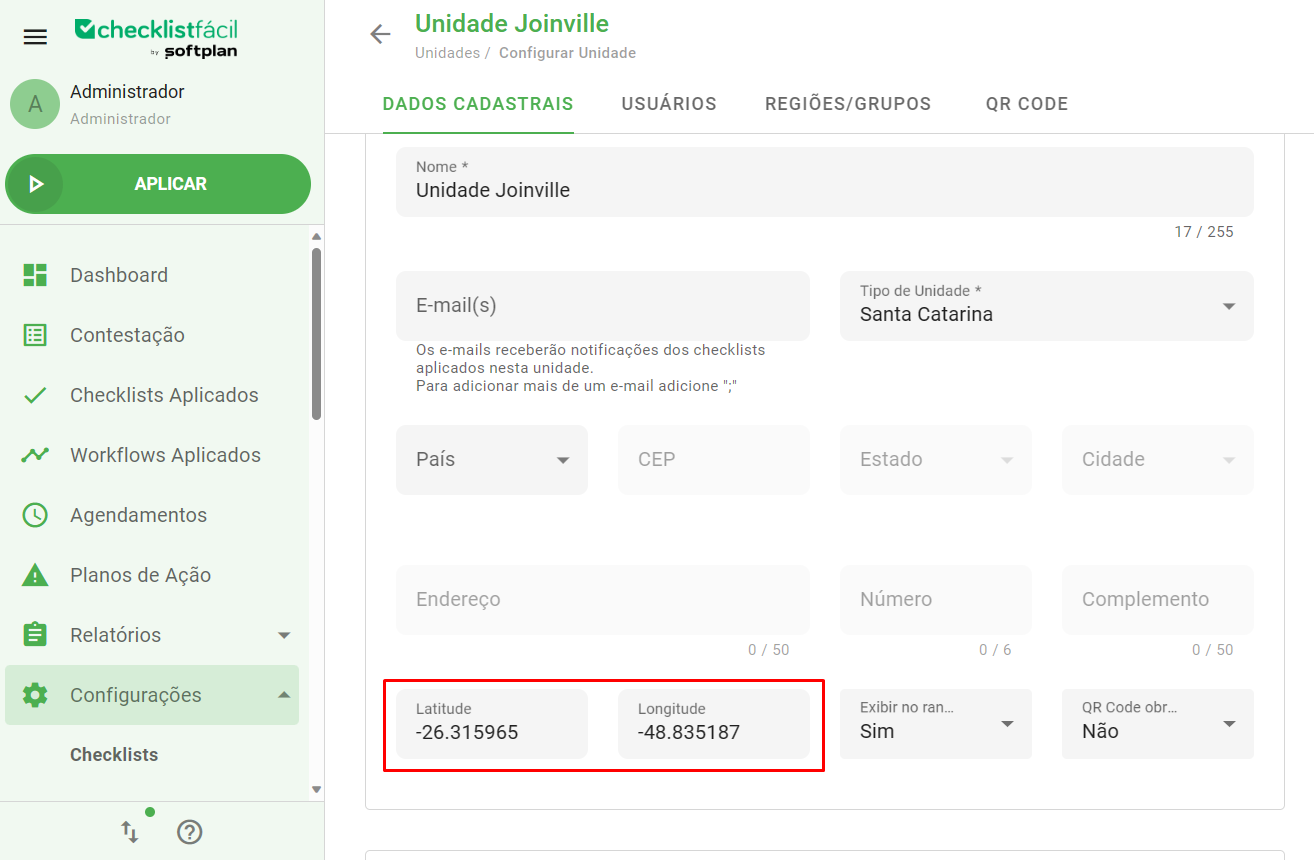
To find this information is quite simple:
Go to Google Maps and search for the address of the Unit;
Right-click on the location icon;
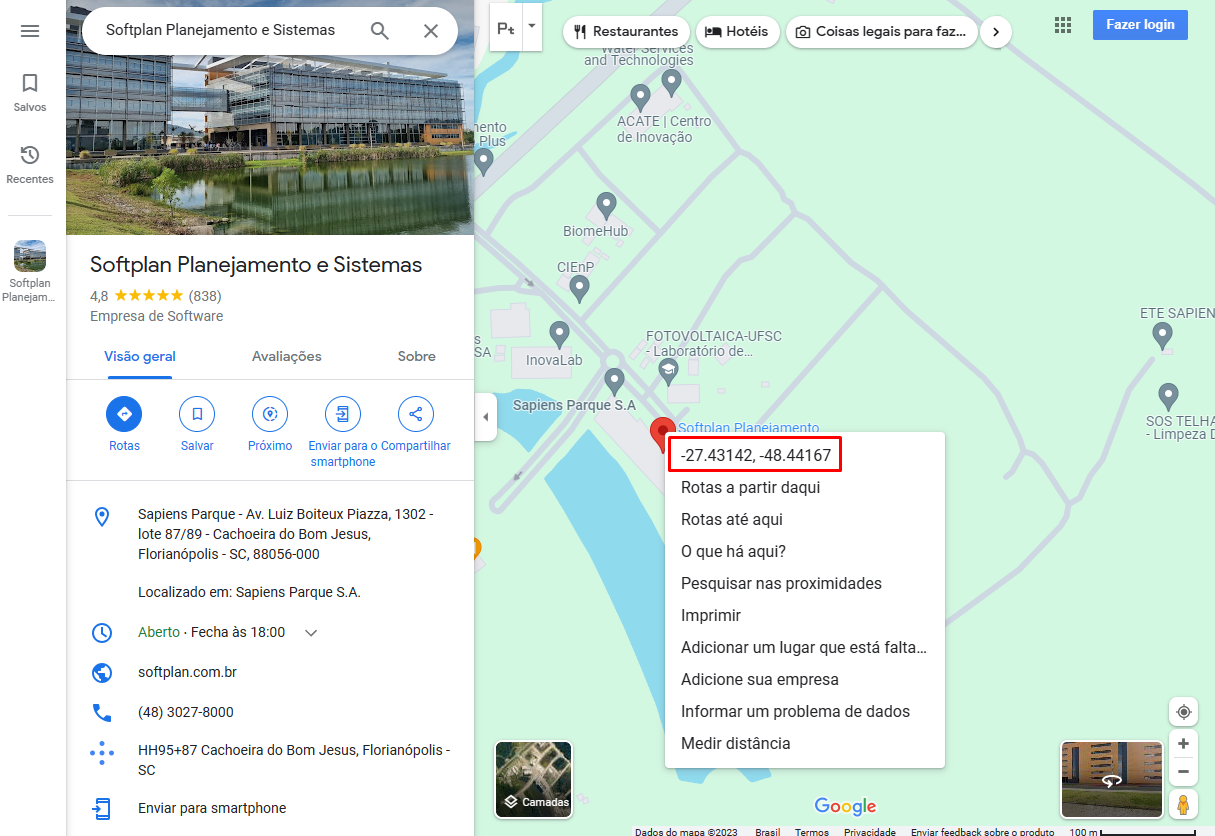
The first topic corresponds to Latitude and Longitude; Click on it to copy;
Enter the copied data into the platform.
Which users appear on the map?
Users who start routes through the app will be visible on the map. To start routes, users must enable the option in the menu:
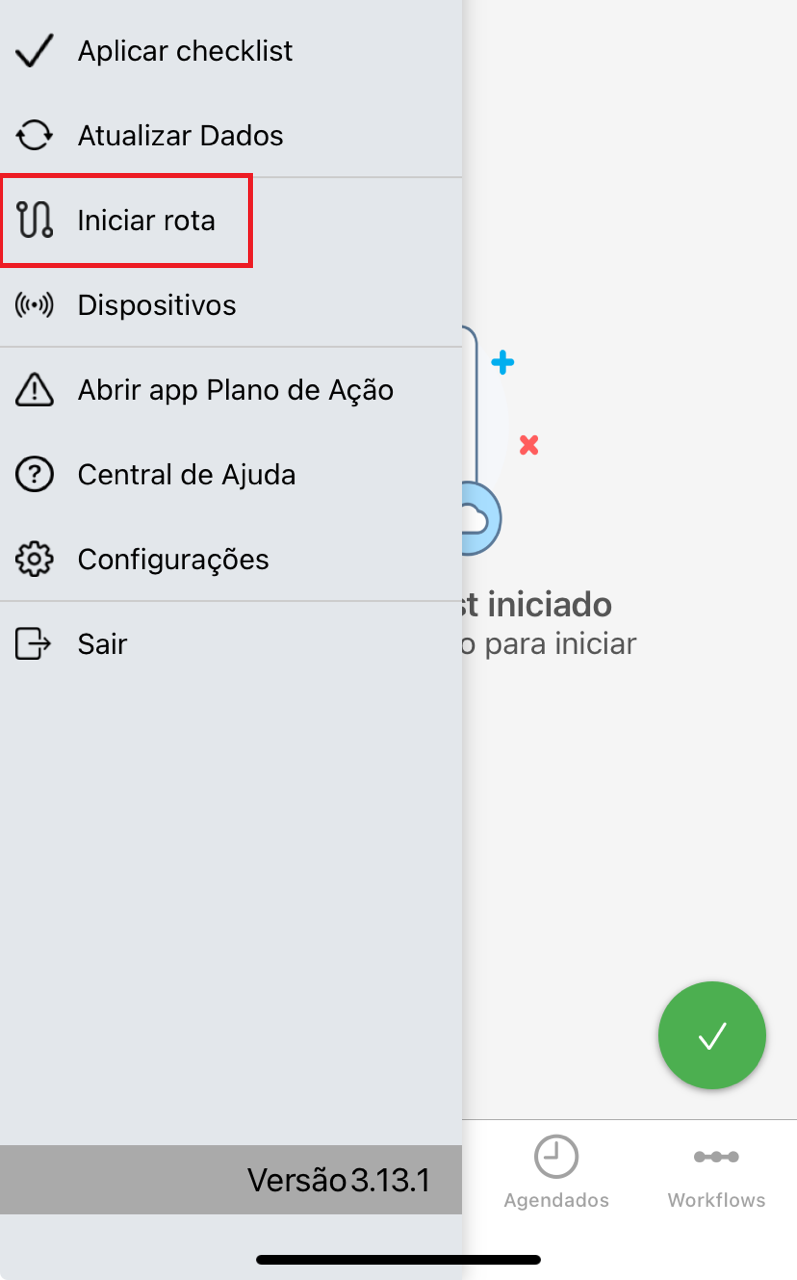
By activating Start Route, the user will receive confirmation notifications: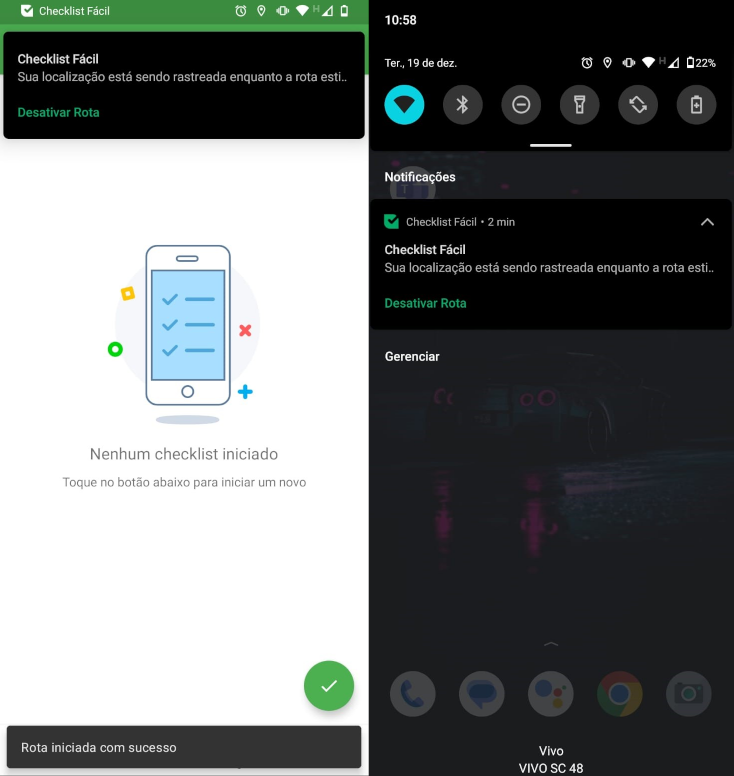
Remember that the user must leave the cell phone's GPS activated for the Route tracking to be effective.
➡️ Was this article useful? Leave your review!
❓Do you still have questions? Contact us via chat or ticket!
❓Tem dúvidas? Entre em contato com nosso time de suporte.