What is the Sequential Label
The sequential label enables the configuration of a label or prefix to organize your applied checklists. It can be used as an alternative or in conjunction with the assessment code to facilitate locating your results.
Note: this article covers a feature from an additional module. Please verify availability with your Account Manager (CS) or Solution Team.
How to configure
To configure the label, simply navigate to the settings of your desired checklist, following the path: Settings > Checklists > Edit.
In the Registration Data tab, expand the Reports section. Activate the option and configure the desired label.
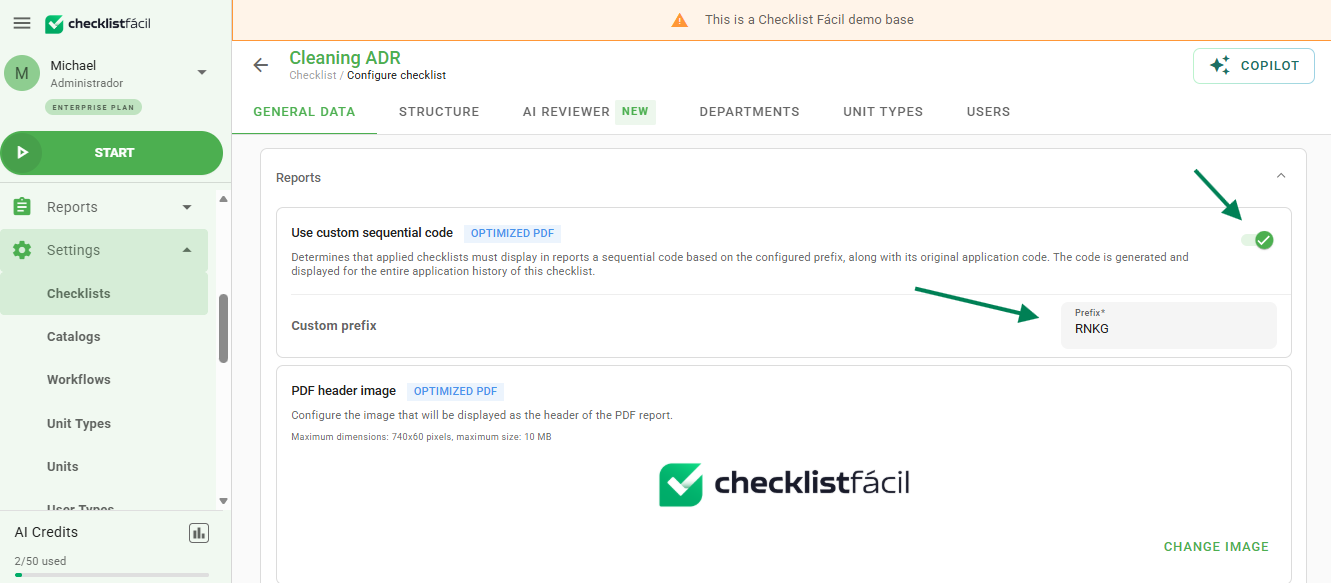
After performing the configuration, click Save at the bottom of the page.
View and Search
After configuration, all notifications sent from that moment on will feature the configured label. It will be accompanied by an incremental number as more checklists of this same model are applied.
The label will appear in the subject line of the notification email:

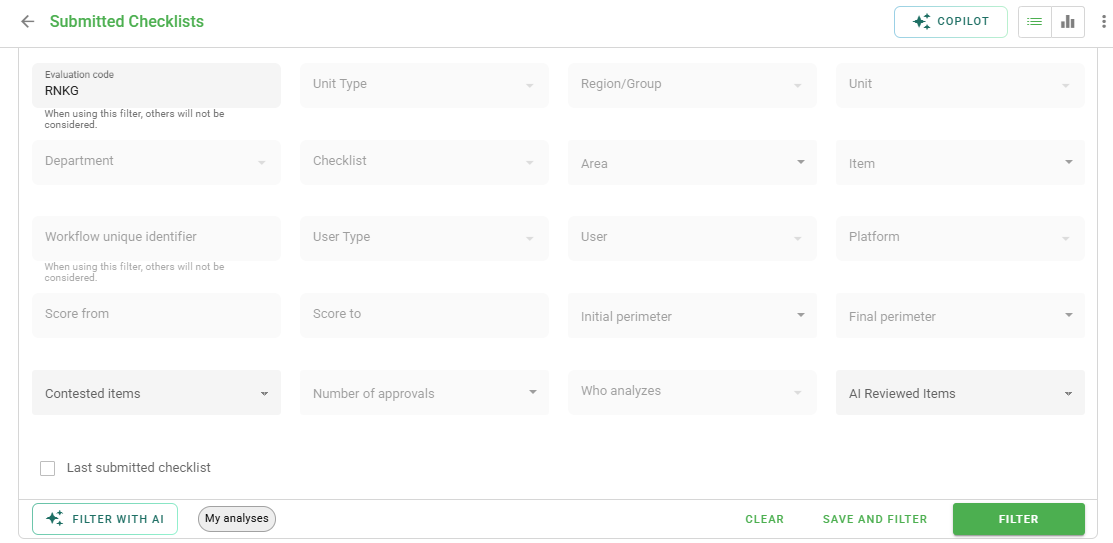
In addition, this label can also be used to locate your applied checklist, instead of the assessment code:
Frequently Asked Questions (FAQ)
1. Does the label replace the original checklist ID?
No. The label works as an additional and personalized identifier. The system maintains the original ID for internal tracking purposes.
2. Is the label numbering retroactive?
No. The personalized sequential numbering only applies to checklists applied after the feature has been activated and configured.
❓Tem dúvidas? Entre em contato com nosso time de suporte.