It is now possible to configure, on demand, the option to define a value above 100% for medals in a customized checklist evaluation scale.
How the option works
Recently, we released the possibility to configure a medal value above 100%. This feature is not available for the other evaluation scale options (N/A, smilies, Yes and No), as shown in the image below:
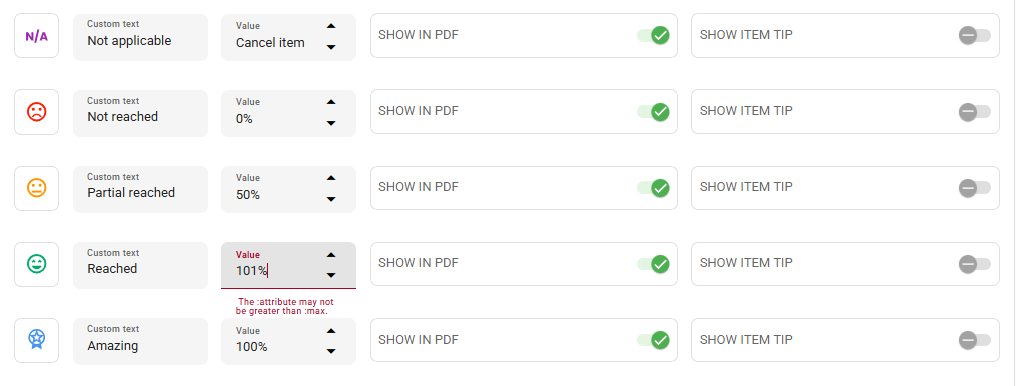
With this change, the checklist can present a score higher than 100, even when using the weighted average.
The main benefit for the customer is being able to use this differentiated score as a form of bonus or reward.
How to enable it?
This feature is available upon request, allowing us to evaluate each case individually.
If you are interested, please contact your Account Manager (CS) or our support team directly to check for availability.
I enabled it, now how do I configure it?
To configure this option, you must have access to the Checklist editing features. If you do not have this access yet, please request it internally from your immediate leadership.
Once access is granted, follow the steps below:
- Go to Settings > Checklist;
- Select the checklist you wish to edit by clicking on the pencil icon that appears when hovering over its name;
- In the window that opens, access the Registration Data tab;
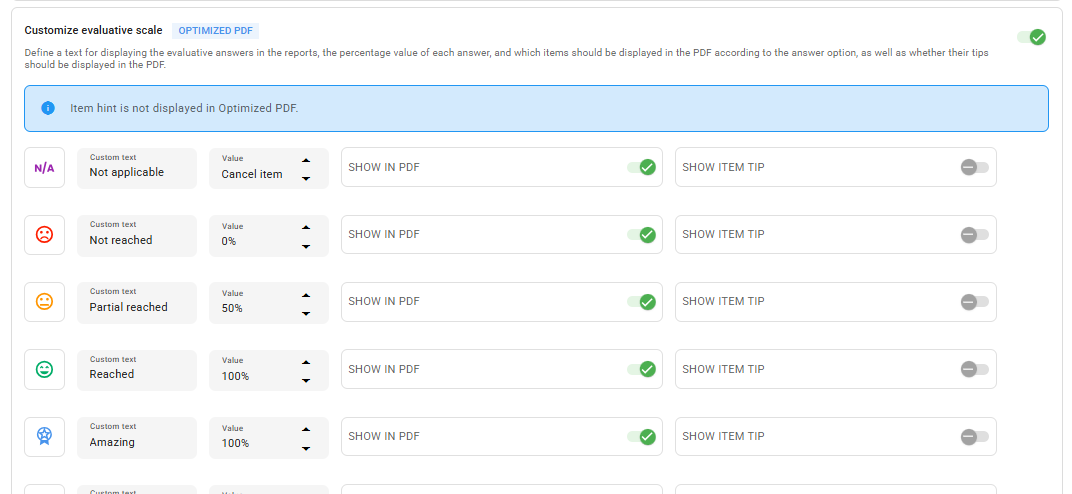
- Locate the Reports section and scroll down to the Customize evaluation scale area;
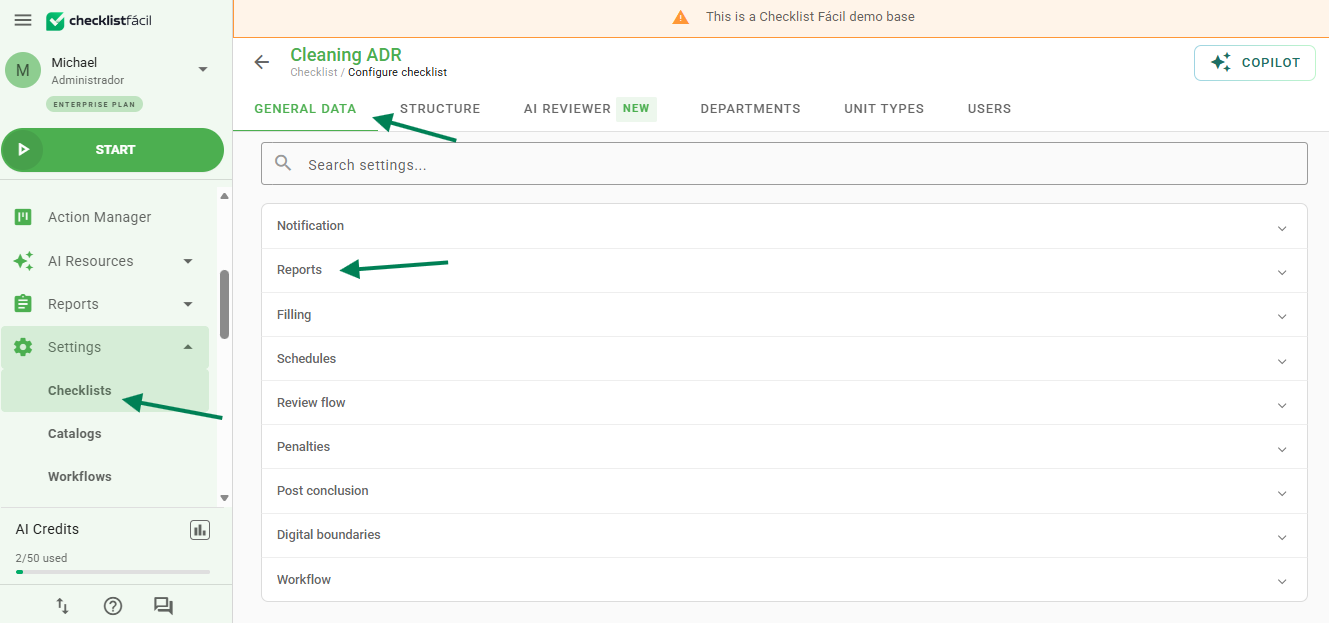
- There, you will be able to enable the option and adjust the values according to your preference.
Frequently Asked Questions (FAQ)
1. Can I use values above 100% in Yes/No or Smilies questions?
No. The functionality to configure values above 100% is exclusive to the medal scale. Options such as N/A, smilies, Yes and No remain with the current standard.
❓Tem dúvidas? Entre em contato com nosso time de suporte.