How bulk response works
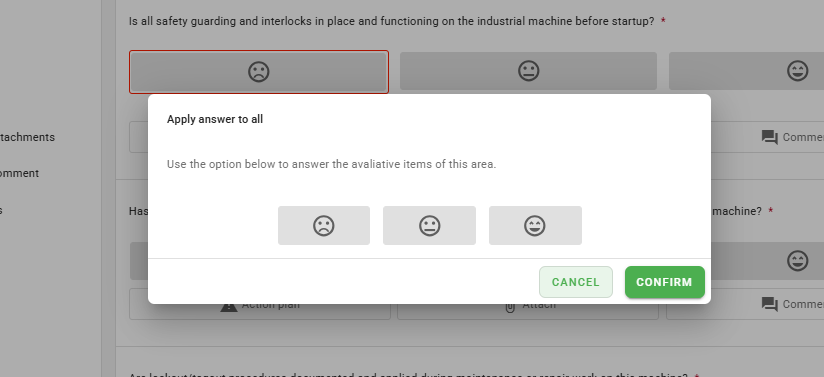
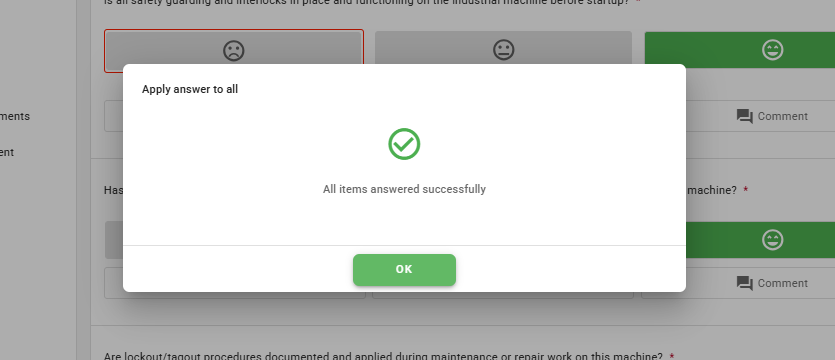
The bulk response feature streamlines checklist completion by replicating a response to all items within the same area.
The option will only be available for areas and checklists that contain at least one Evaluative type item.
To use this resource during an application, follow the steps below:
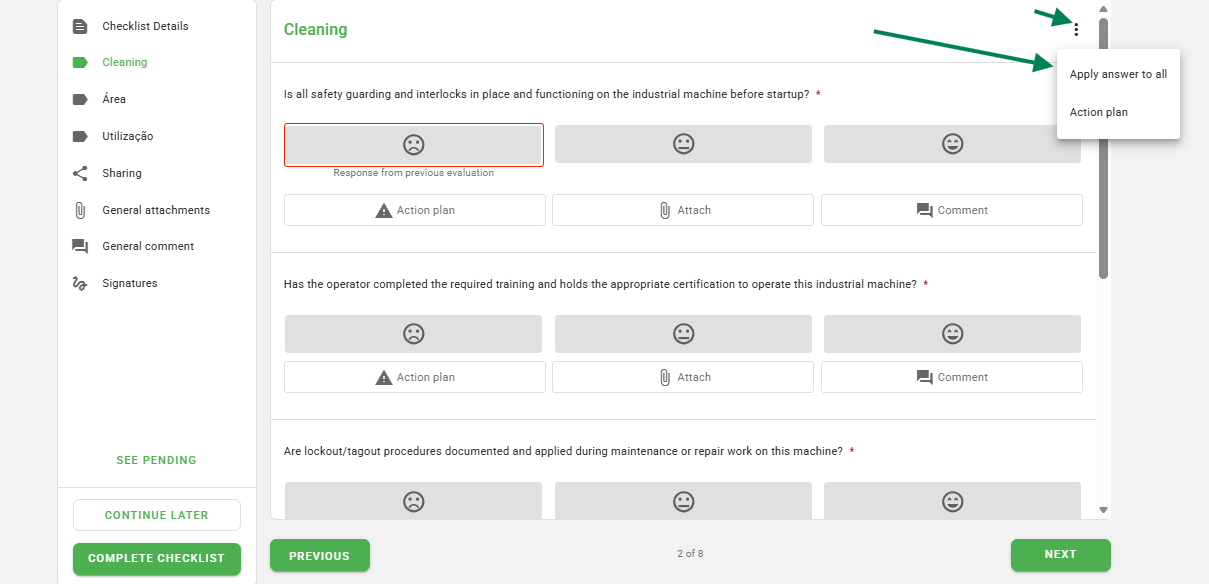
1. Click the menu icon (three dots) located in the checklist area header;
2. Select the option Apply response to all.
How to enable the feature
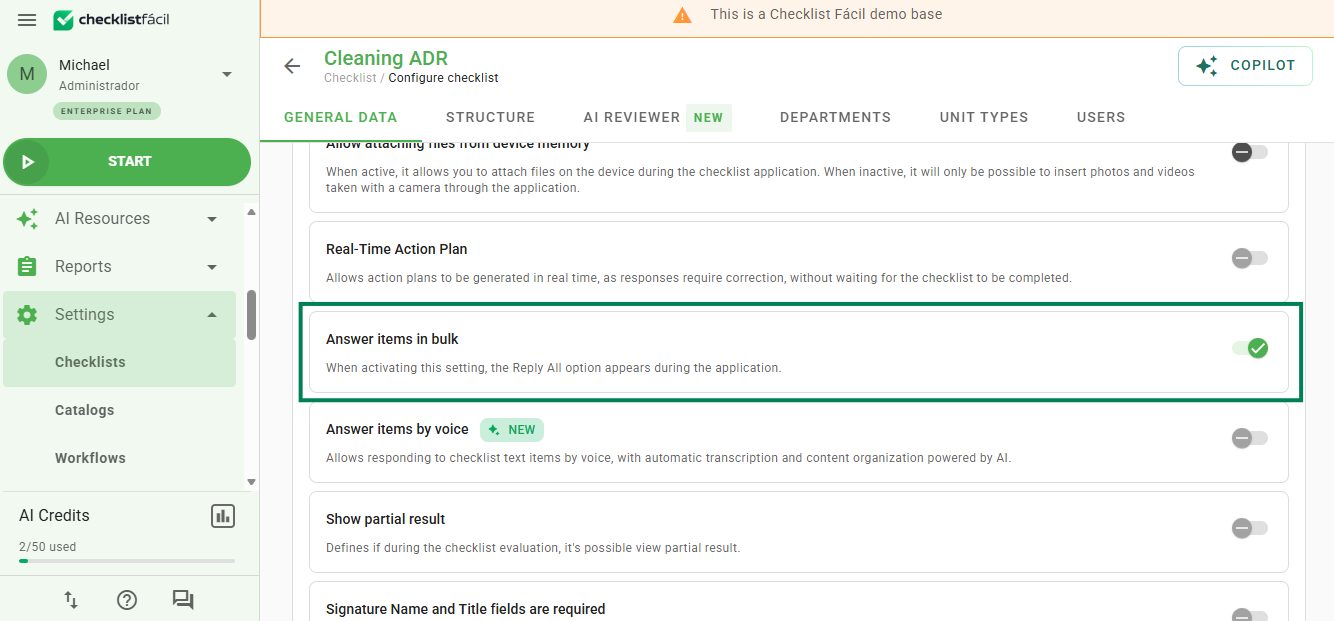
If the option does not appear during application, it must be activated in the checklist template settings.
1. Access the checklist editing page and go to the Registration Data tab;
2. Expand the Filling options section;
3. Check the checkbox corresponding to bulk response.
Frequently Asked Questions (FAQ)
1. Can I change a specific response after applying it to all?
Yes. The function initially fills in all items, but you can manually edit any item that requires a different response before finalizing the checklist.
2. The option does not appear on my app. What should I do?
First, verify if the feature was enabled in the template's "Registration Data" tab. Next, ensure that the area has at least one Evaluative type item. Finally, sync your app.
❓Tem dúvidas? Entre em contato com nosso time de suporte.