Automate the monitoring of data collected by smart sensors and ensure the excellence performance of your equipment.
- What are IoT Sensors?
- What are the advantages of integration with IoT Sensors?
- How to configure a new sensor device?
- How to configure triggers using sensors?
- How to manage sensors and triggers?
- How to view sensor charts?
- How to apply checklists using sensor data?
- Applied Checklists reports with sensor data
What are IoT Sensors?
IoT sensors are technologies that collect and communicate environmental information, allowing the various components of this system to exchange data with each other. This enables devices to share information and control themselves independently, making processes more efficient.
In this way, it is possible to monitor the data collected by the sensors and define triggers for when a sensor measurement is out of the ordinary.
What are the advantages of integration with IoT Sensors?
Through the IoT sensor integration module, you will have several advantages, the main ones being:
- Remote device monitoring: it is possible to remotely monitor equipment performance, providing flexibility in company asset management and enabling machine performance verification from anywhere, making this process agile and timely.
- More efficient maintenance management: maintenance management becomes more efficient thanks to the information generated by IoT sensors. Thus, the need for maintenance can be evaluated in advance, speeding up processes and bringing more security to the process as a whole.
- Reduction of machine and equipment downtime: another advantage is the reduction of machine downtime, ensuring continuous production and higher productivity of the production line. This occurs because, as mentioned above, asset maintenance can be managed in a more productive and efficient way.
- Cost reduction: by aiming for continuous improvement of a company's processes, i.e., seeking "zero defects", this integration is useful in cost reduction. IoT sensors can also help the company improve process control and make its operations safer, more productive, and more economical.
How to configure a new sensor device?
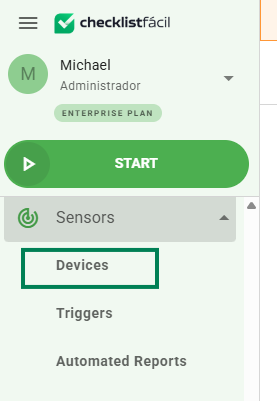
To configure a new device, go to the left side menu of Checklist Fácil, click on Sensors and then on Devices.
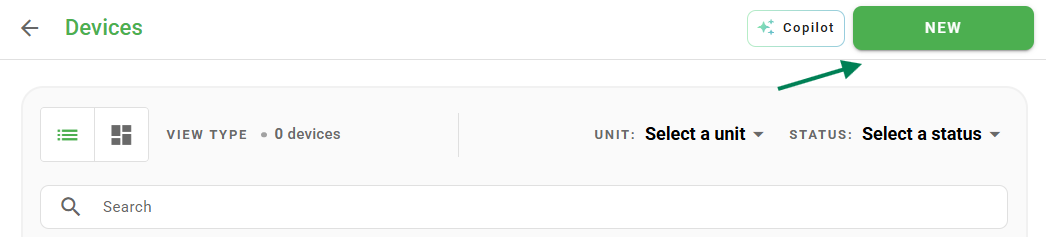
On the sensors screen, click New, in the top right corner:
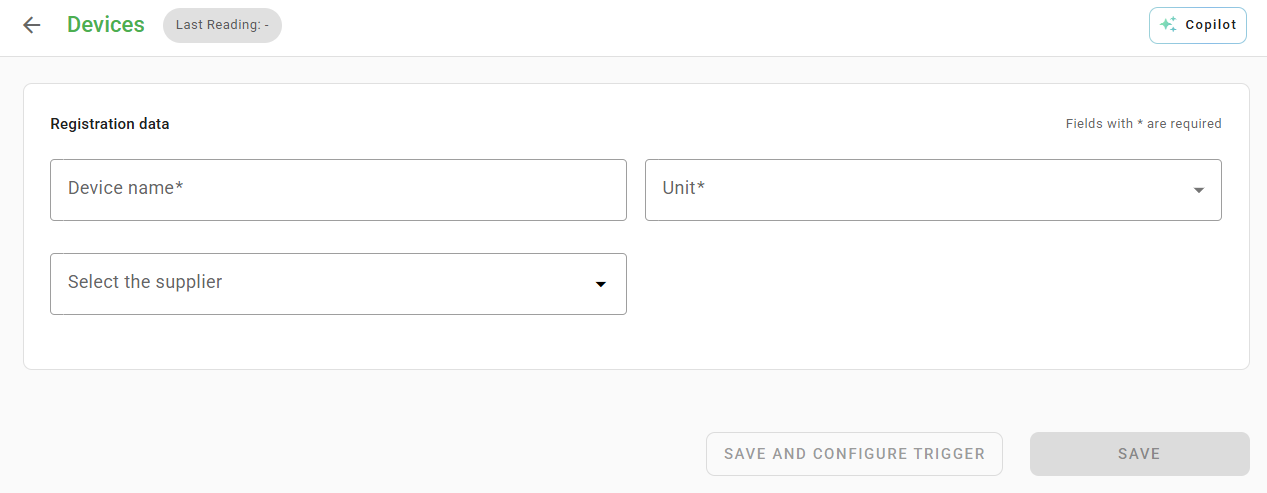
On the screen that opens, you must enter the device name, the unit to which it belongs, and the sensor supplier:
After selecting the supplier, you can enter other information, such as: Device and Serial number.
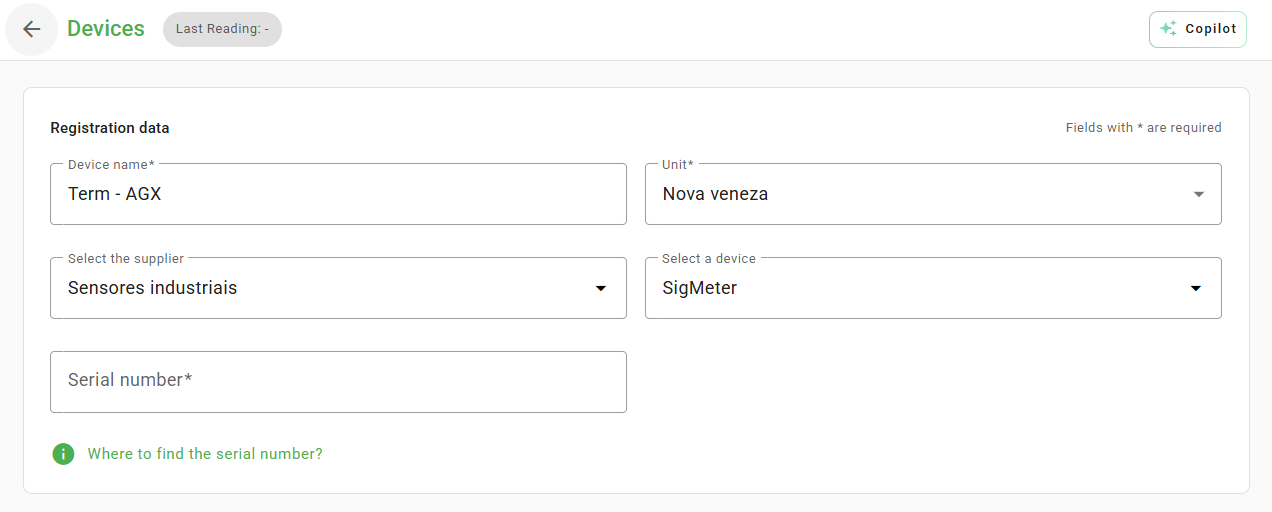
➕ Tip: Do you know how to find the serial number of your device?

The Sigmeter device serial number has 7 to 16 digits and can be located on the sides of the device and identified as "ID".

The SigPark device serial number is 6 characters. It can be located on the front or back of the device, along with a QR Code and the manufacturer's name.
Below there will be the available sensors for the device being configured. You can add a nickname for the sensors present and define Lower and upper margins for data collection.
The margins are optional, but it is this data that defines the range of values where the sensor should work.
If a range is defined and it is exceeded in a measurement, a problem status will be generated for the registered sensor.
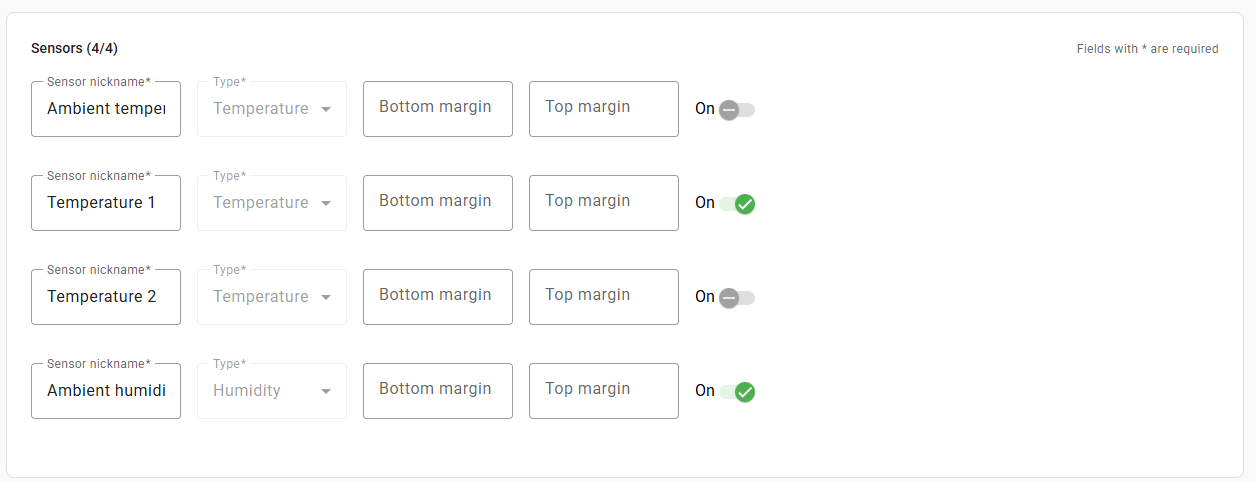
It is possible to activate or deactivate sensors through the checkboxes to the right of the margins. When a sensor is deactivated, it will no longer be displayed in the charts and trigger configuration.
Don't forget to Save when you finish the settings.
How to configure triggers using sensors?
Triggers are configurable automations using reading information coming from IoT device sensors. Through them, it is possible to configure various notification and action steps for specific users.
To configure a new trigger, go to the left side menu and click on Sensors and then on Triggers.
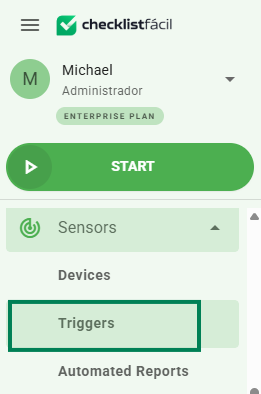
On the triggers screen, click New, in the top right corner:

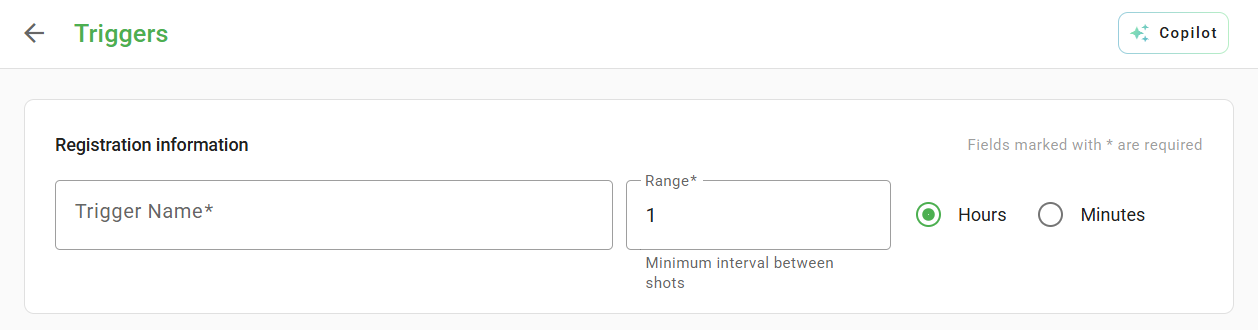
On the screen that opens, first you must enter the trigger name and the minimum interval between triggerings (in hours or minutes):
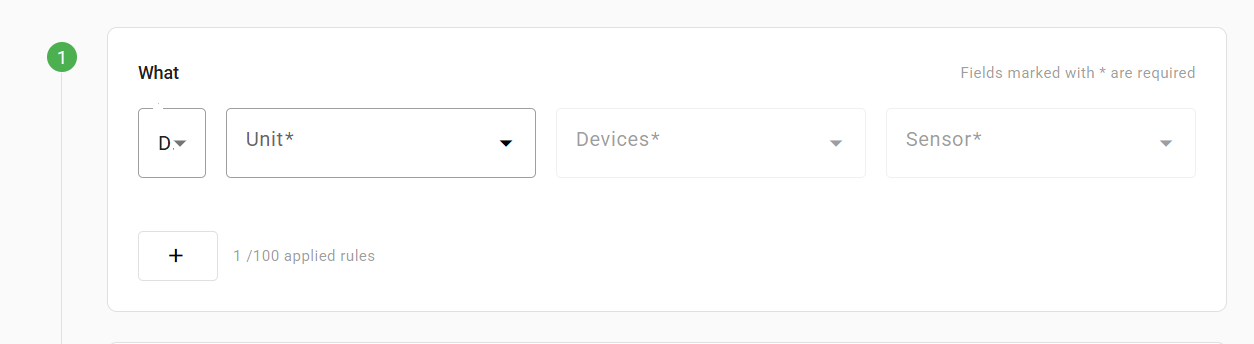
Below, you will define which sensor is used for this trigger (What). To do this, choose the unit it belongs to, the device you want, and the desired sensor.
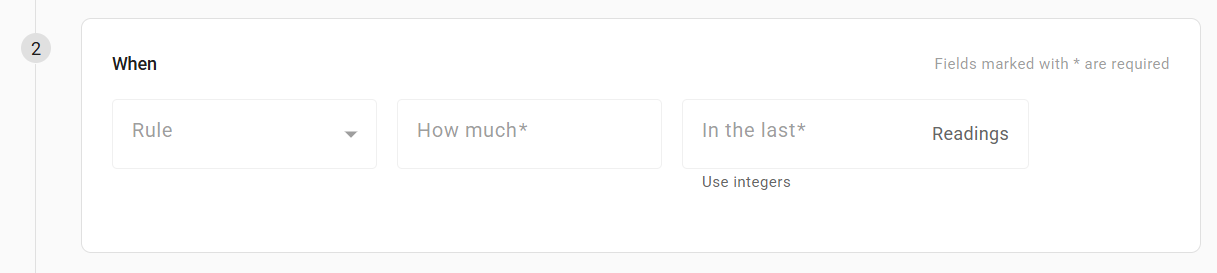
Subsequently, it's time to configure the conditions to activate the trigger (When). To do this, select a rule (condition), the value, and the number of last readings. It is possible to configure up to 10 rules for each trigger.
The third step consists of configuring the action to be performed if the trigger condition is met (Then) and the person responsible for the action (users or user types):
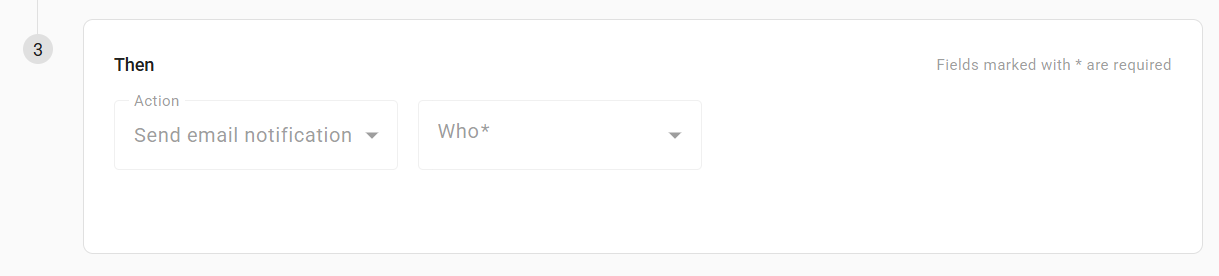
The actions that can be selected are:
- Send email notification: notifies the selected users or all users of a User Type about the sensor reading via email.
- Create Action Plan: enables the automatic creation of an action plan according to the sensor reading.
- Create checklist schedule: enables the creation of a schedule for the selected checklist for the selected user, defining a deadline in hours for completion.
- Send App notification: notifies the selected users or all users of a User Type about the sensor reading via the Checklist Fácil app;
After configuring the triggers, remember to click on Save, at the bottom of the page.
How to manage sensors and triggers?
To perform sensor management just go to the left side menu of the system and click on Sensors and then on Devices. On the page that opens, it is possible to register new sensors, as well as edit or delete existing ones.
To edit, just hover the mouse over the one you want and click on Edit:
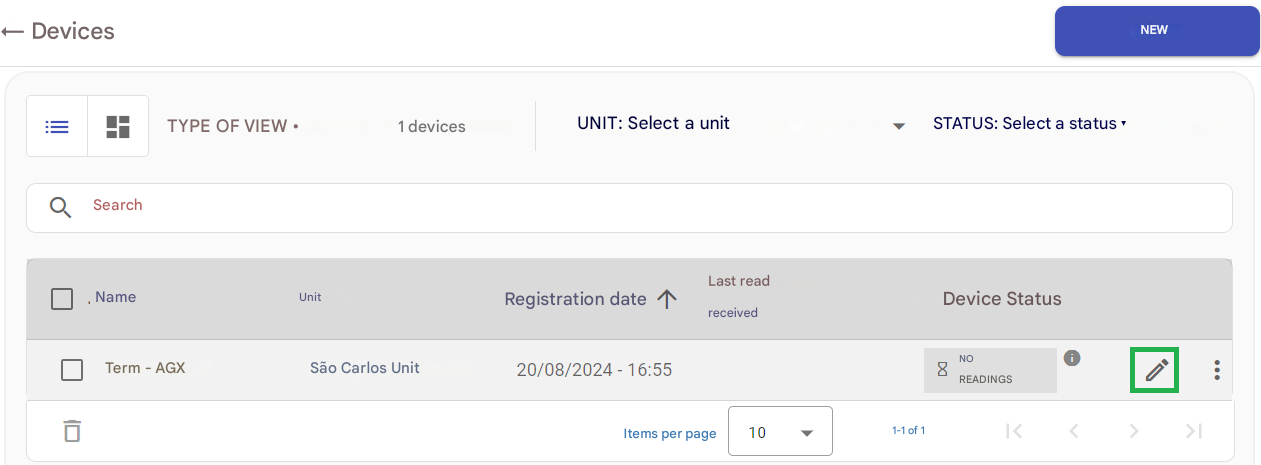
You can edit the registration data of the device, as well as nicknames and margins, in addition to activating or deactivating them.
If you want to delete a device, just hover the mouse over the one you want to delete, click on the three dots and then on delete.
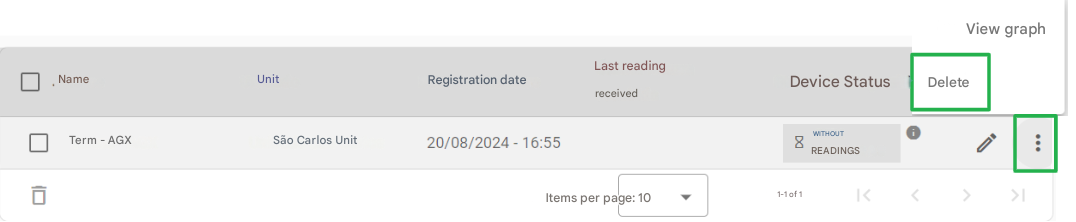
The trigger management works in the same way.
To disable a device or trigger you will have to type the code provided by the system and click on Delete.
How to view sensor charts?
On the devices page, it is possible to observe the collected data for analysis and reports.
In the list found on this page, find the desired sensor hub. When hovering the mouse over it, click on the three dots and then on View chart.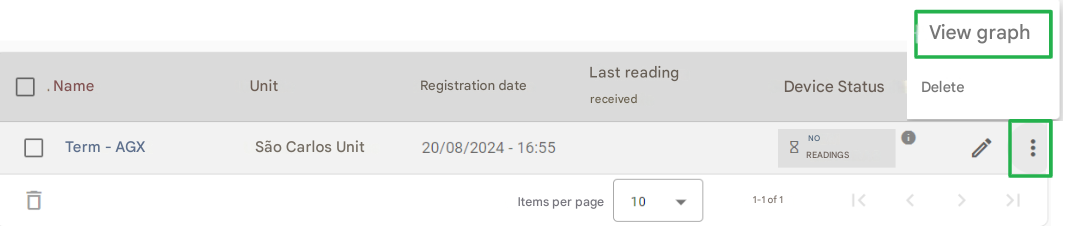
It is possible to select the Accuracy Level (in time), Unit, Devices, Sensor and the desired Data Type. By default, we will select the Unit and the Device according to the previously selected item. In addition, it is possible to configure the desired period.
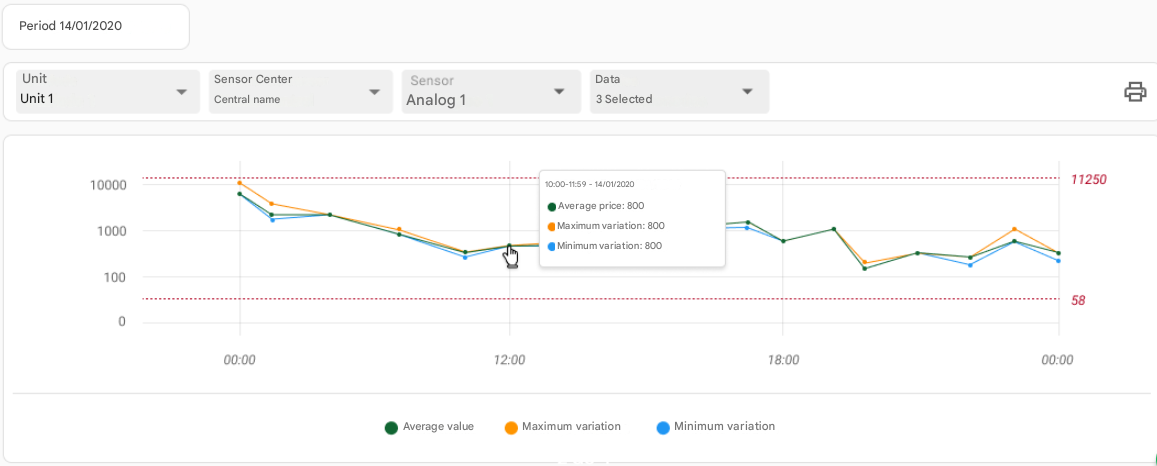
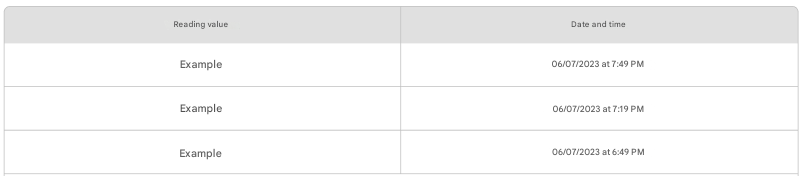
Below the filters you will find the chart and the data entry list, with the reading value and the moment the reading was performed.
Finally, it is possible to print the provided chart by clicking on Print.
How to apply checklists using sensor data?
To apply checklists using data from sensors, it is necessary to first configure the items present in your checklists' structure. In this sense, the use of sensor data is possible only for the following item types:
- Evaluative: Event
- Quantity: Counter / Odometer / Speed
- Decimal: Counter / Odometer / Speed / Temperature / Humidity / Flow / Level / Pressure / Numeric
- Temperature
Therefore, when registering an item, choose one that has one of the types mentioned above and then go to the item complement Data Collection at the bottom of the page and activate the option to answer item based on sensor reading.
If needed, you can block the item to be answered only with sensor reading. However, there may be cases where there are no registered devices in the inspection unit; in this case, the application will not perform the blocking.
Once the item type is configured, when starting a checklist application, the option to Select Sensor to collect the latest reading will be displayed:
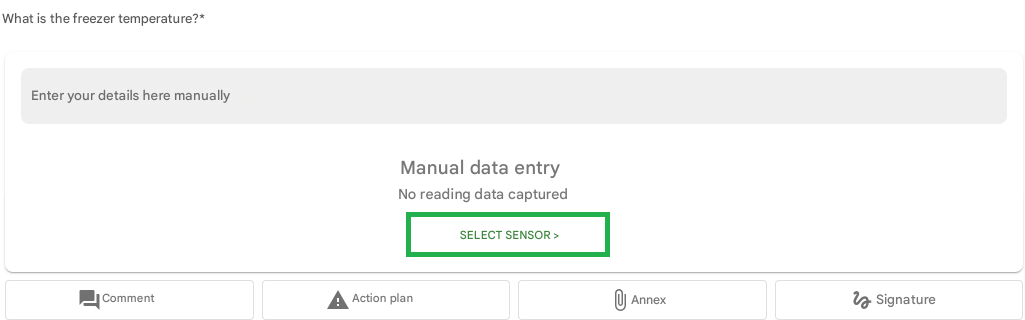
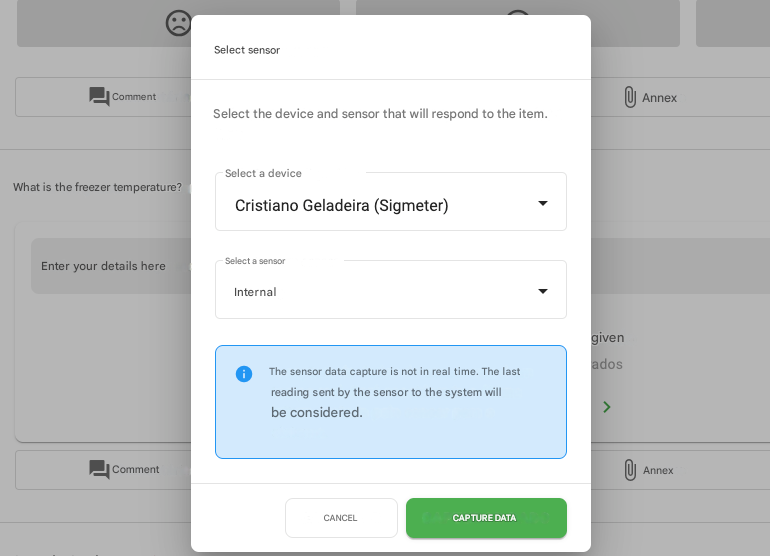

After selecting the device and sensor and capturing the data, the item will be answered with the last reading received by the device. On the screen and in the report, it will appear which sensor was used in the response and the date and time of the last reading.
If the item was not configured to block manual response when there is a sensor in the unit, then the user applying the checklist can provide a response manually and this information will also be displayed on the screen and in reports.
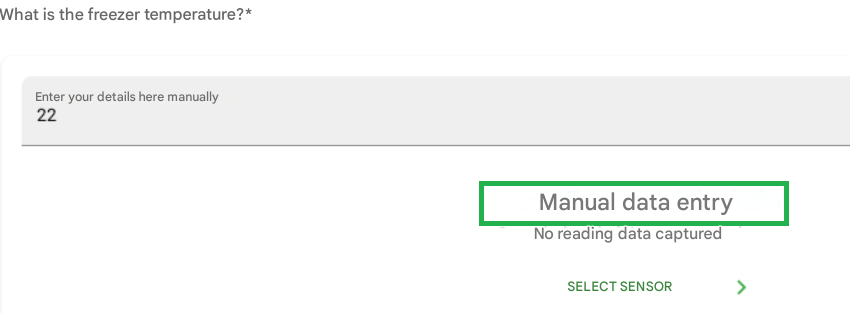
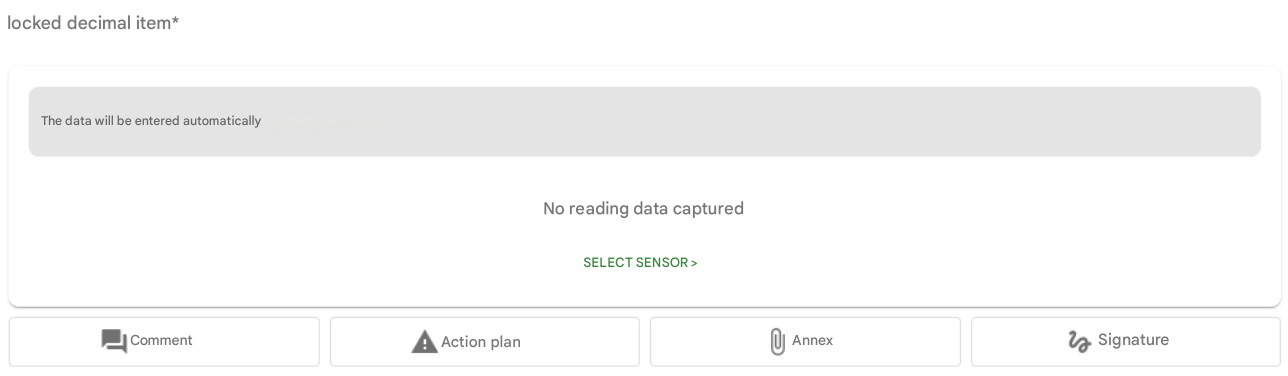
If the item has been configured to block manual response when there is a sensor in the unit, it is blocked and will not be available to answer manually, only with sensor data:
When starting a checklist application via mobile with items configured to collect data from sensors, the option to Select Sensor to collect the latest reading will be displayed:
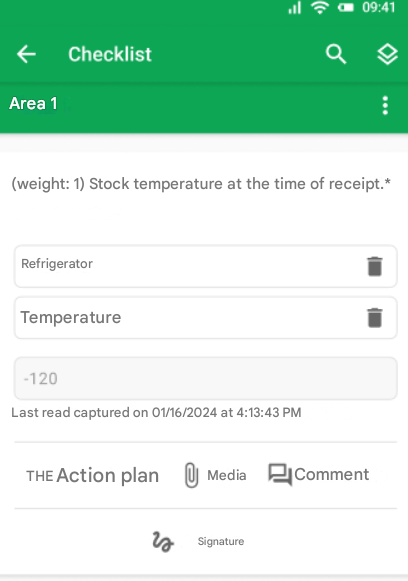
After selecting the device, the sensor, and capturing the data, the item will be answered with the last reading received. On the screen and in the report, it will appear which sensor was used in the response and the date and time of the last reading.
Applied Checklists reports with sensor data
In web and PDF reports, it will be possible to verify whether a sensor item was answered manually or through the sensor reading. See the differences in the following images:
Example of item answered by sensor reading:

Example of item answered manually:

❓Tem dúvidas? Entre em contato com nosso time de suporte.