Enable a filled response in a specific item to be contested.
- What is Item Contestation?
- How to configure item contestation?
- How to contest an item from a concluded checklist?
- How to analyze an item contestation?
- Contest again
What is Item Contestation?
Item contestation is a feature that allows users related to a unit to contest the response of one or more items from a concluded Checklist.
This refutation must be performed within a determined period, questioning if the completion is correct or presenting a solution for the nonconformity reported in the evaluation. After submitting the contestation request, it will undergo an analysis process by the responsible users and may be approved or not.
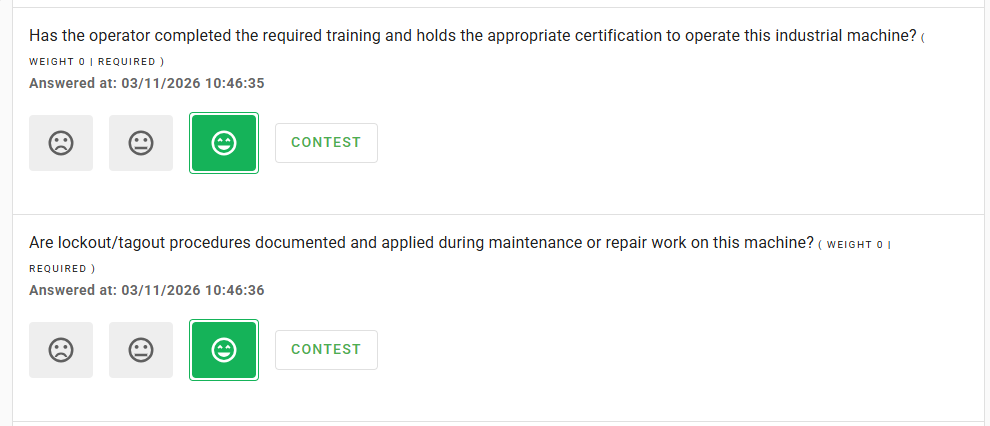
See an example of how the contestation option appears in the system for a concluded checklist:
How to configure item contestation?
First, it is necessary to enable contestation permission in the checklist items.
This process is very simple: just go to the left side menu of the Checklist Fácil system, click on Settings, then Checklists, hover over the one you wish to enable and click on the pencil icon to Edit.
In the Registration Data tab, scroll down to the Post-conclusion tab. Within this tab, you can configure the maximum number of days to contest a response after the checklist conclusion or define a period (start date and end date) for this contestation to happen.
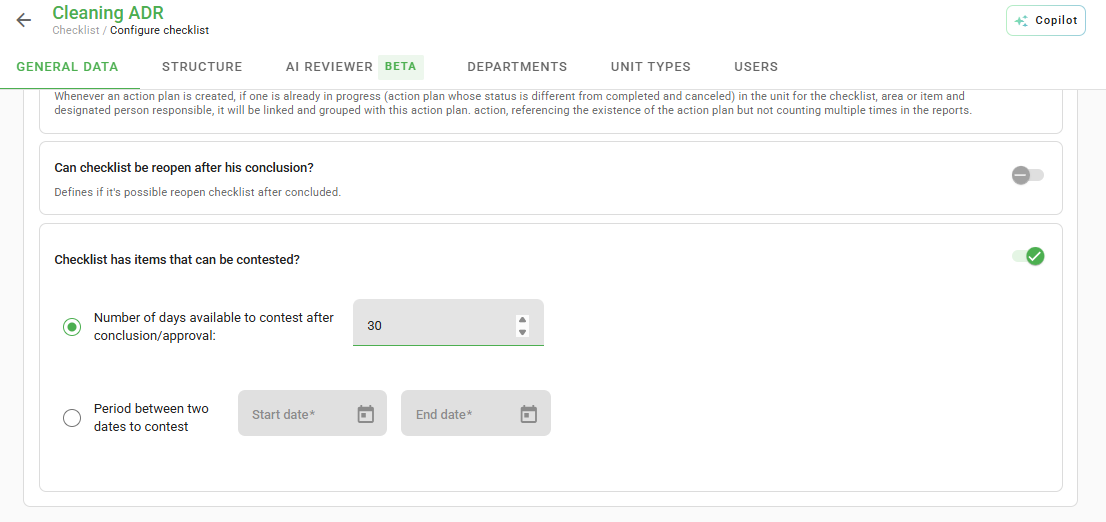
Do not forget to save the settings when you finish them.
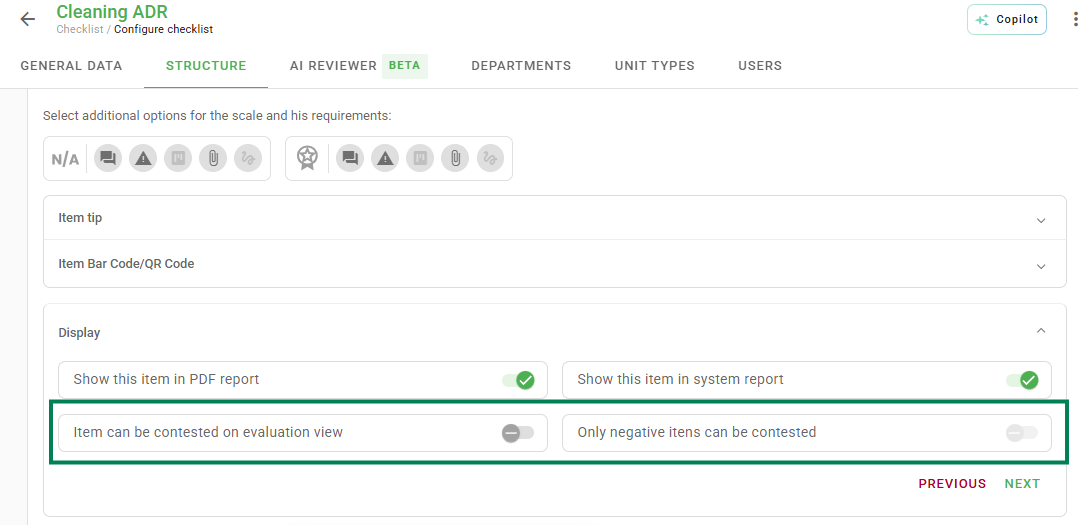
After activation and configuration of the Contestation period, it is necessary to configure the items that can be contested. In the Structure tab of the checklist, click on the item you want to include the contestation permission for. You will notice the tab will expand, showing the item type, desired supplements, evaluative scale, etc. Below, there will be some configuration options. Click on Display.
Then, enable the option "Item can be contested in evaluation view" and, if desired, also enable "Only negative items can be contested".
➕ Tip: It is possible to replicate the contestation enablement of an item to the other items in your checklist. In the Structure tab, click on an item you already enabled for contestation, then click on the three dots on the right side and select Replicate settings.Next, enable the checkbox regarding Display and click Next.
Then select all or only the items for which you want to replicate and then click Complete Replication.
Another configuration that must be performed consists of user type permissions, making them eligible to refute an item. To enable them, go to the left side menu of the system, click on Settings and then on User types.
Hover over the type you want to configure and click on the pencil icon - Edit. In Contestations, enable the boxes referring to refutations:
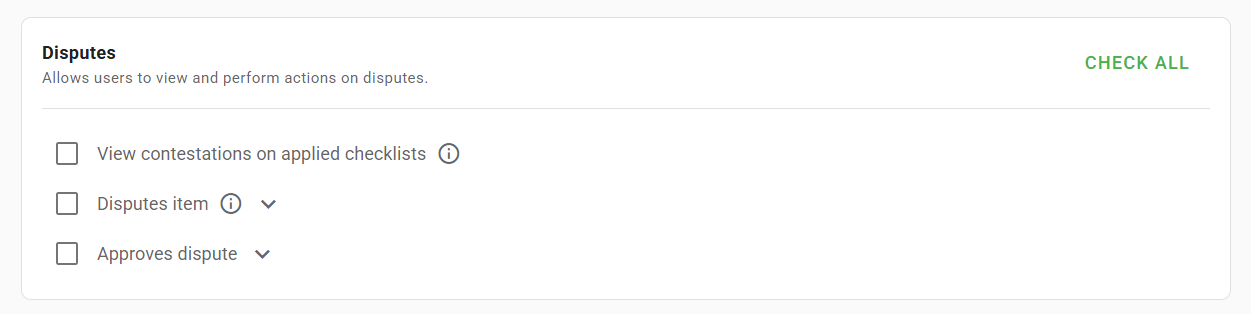
At the bottom of the page, click Save. Repeat the procedure for any other user types you desire.
How to contest an item from a concluded checklist?
If an item is previously configured to be contestable and you have this permission, the Contest button will appear during the visualization of the concluded checklist on the web.

Click on Contest and enter:
- The reason for the contestation;
- Attachments, if necessary.
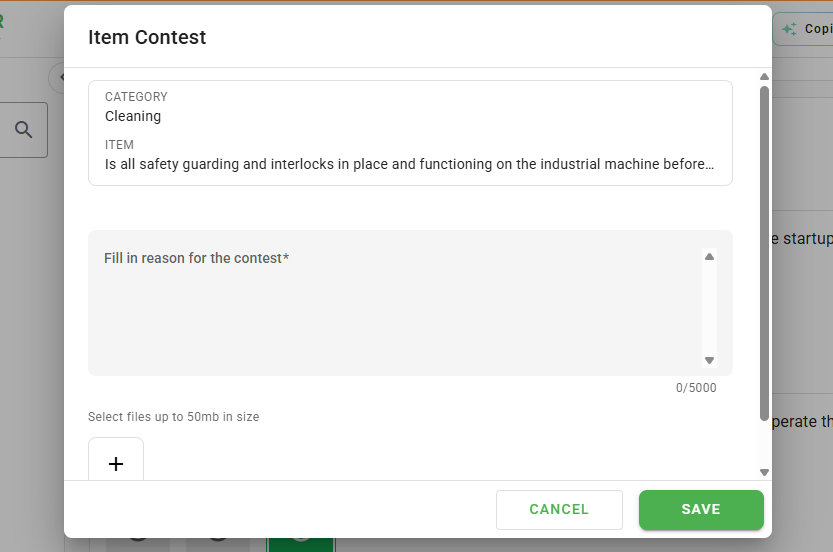
Click on Save. The contestation will be forwarded for analysis.
How to analyze an item contestation?
To analyze a contestation, it is necessary that your user type has this permission, as well as the reporting link with the checklist, unit, and department (if any) to which this item is linked.
To view and analyze a refutation, go to the left side menu of the system and click on Contestations.
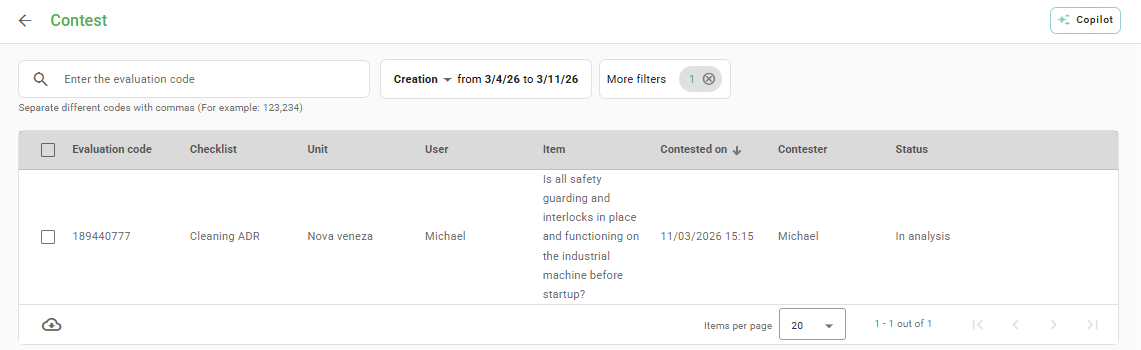
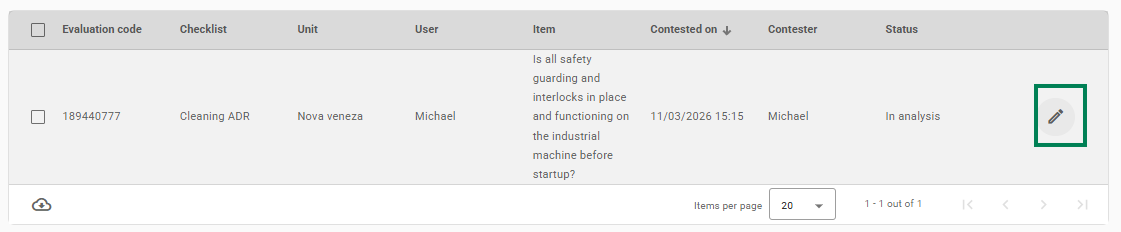
It is possible to filter items by evaluation code or creation date. After locating it, hover over it and click on the pencil icon - Edit.
On the next screen, you will be able to analyze the contestation and approve or disapprove it. It is also possible to add the reason for your approval or disapproval and replace the item response.
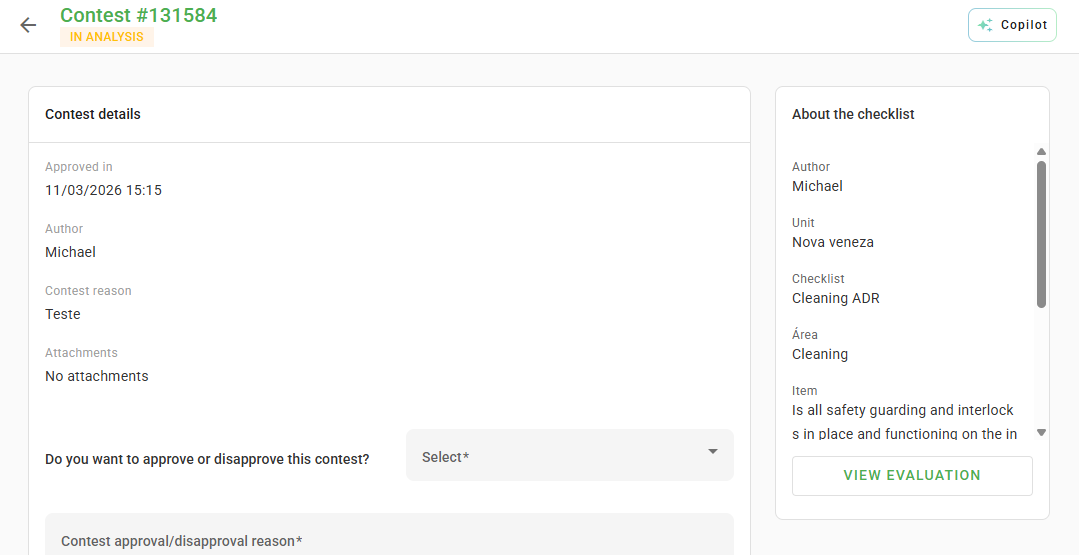
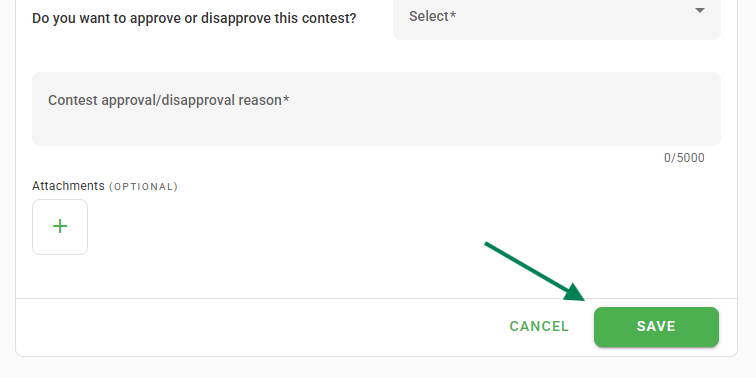
Once your analysis is complete, click Save.
Contest again
Items with a disapproved contestation can be contested again, provided that all previous contestations have also been disapproved. It is not permitted to open a new contestation if one is already under analysis or if any previous contestation has been approved.

The contestation history is available right below the response in the web report.
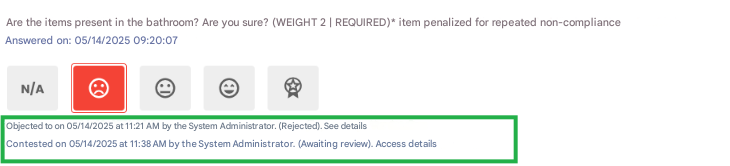
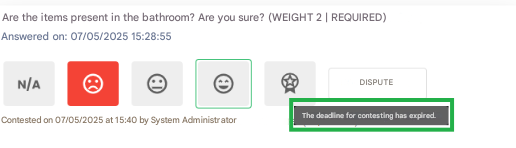
It is worth remembering that even if all previous contestations have been disapproved, it will not be possible to perform a new contestation if the deadline has already expired.
❓Tem dúvidas? Entre em contato com nosso time de suporte.