- What are Dashboards?
- How to access Dashboards?
- How to add and configure widgets?
- How to link a dashboard to a user type?
- Frequently Asked Questions (FAQ)
What are Dashboards?
Dashboards are visual panels that provide an overview of your checklist applications and action plans.
These panels offer greater ease and agility in data analysis, allowing for more effective decision-making and, consequently, increasing the operational efficiency of your department.
How to access Dashboards?
Dashboards can be accessed through the left side menu of the Checklist Fácil system:
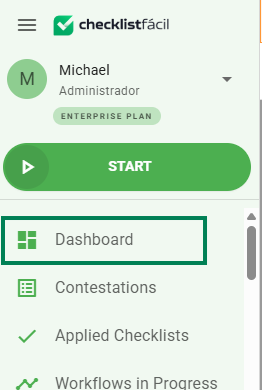
By clicking on Dashboard, you will have access to two native panels: Checklists and Action Plans.
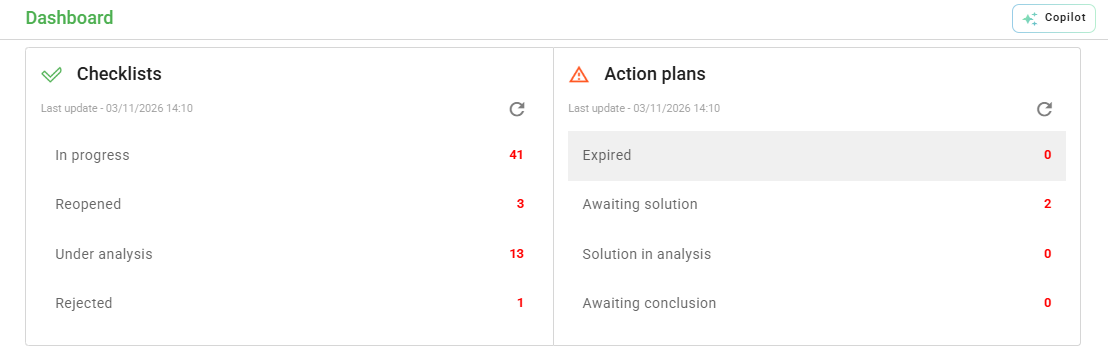
1. Checklists: In this dashboard, it is possible to view the quantity of checklists In Progress, Reopened, In Analysis, or Disapproved. By clicking on these statuses, you will be redirected to the "Applied Checklists" tab, where you can view more details about them.
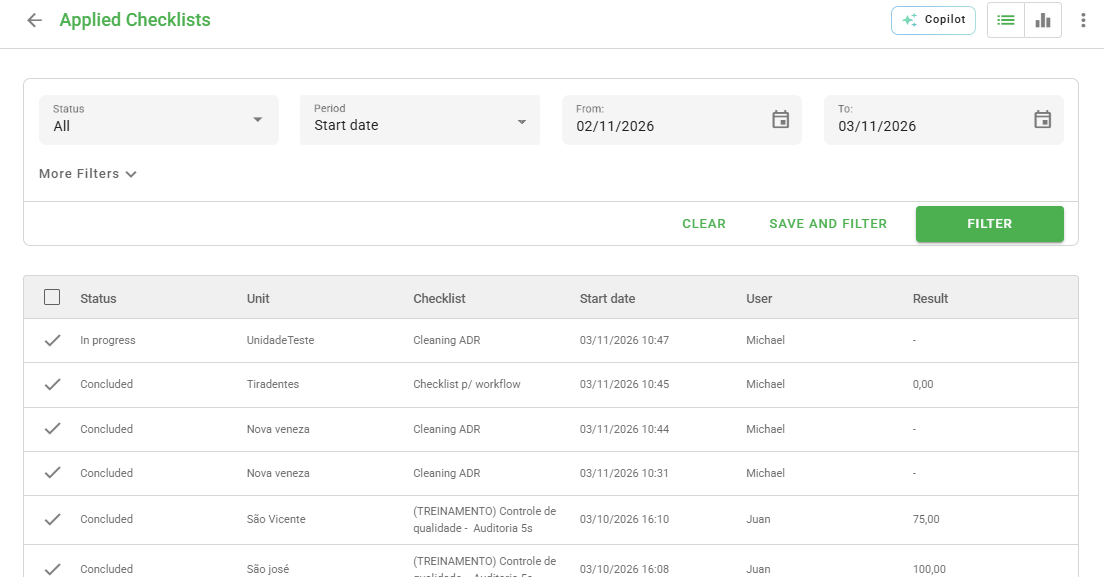
? Tip: Use the filters at the top of the screen to check the status and application period of your checklists.
2. Action Plans: In this dashboard, you can view some of the statuses of Action Plans that have not yet been Concluded and are Overdue, Waiting for Solution, with Solution Under Review, and Waiting conclusion. Similarly, by clicking on them, you will be redirected to the "Action Plans" tab.
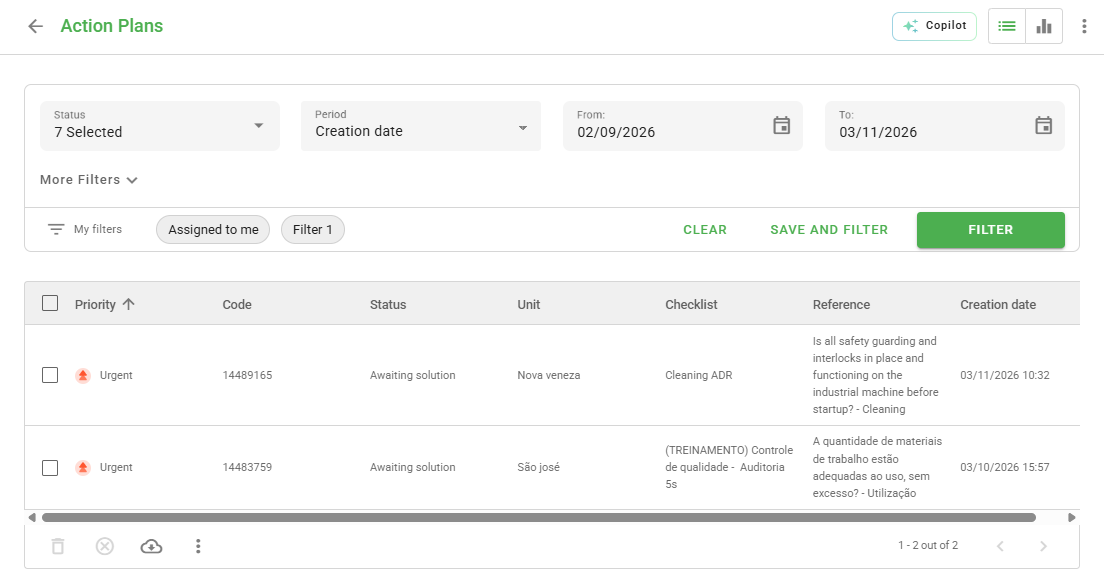
ℹ️ Important: Each user only views information related to the checklists and Action Plans with which their "User Type" is linked.

Want to know how to link your user types? Click here and Learn More.
How to add and configure widgets?
Widgets are like blocks that provide dynamic interaction over your operations. By adding one or more of these blocks, you can obtain more information about applications, units, and users. See the step-by-step guide:
Step 1: To add widgets to your dashboards, go to the left side menu and click on Settings and then on Dashboards.
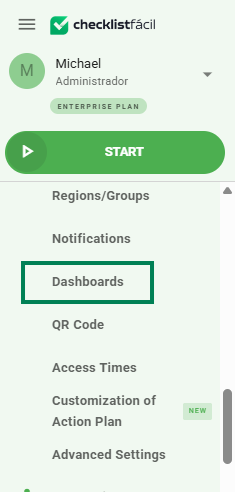
Step 2: In the Dashboards tab, click the New button in the upper right corner of the screen.

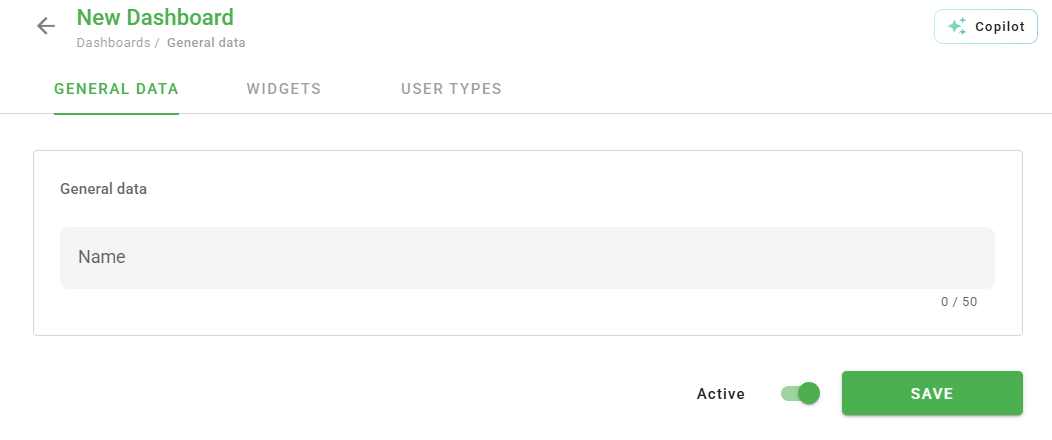
The new dashboard screen contains three tabs: Registration Data, Widgets, and User Types.
Step 3: In the Registration Data tab, enter a descriptive name for your new dashboard, leave it active, and click Save.
Step 4: In the Widgets tab, choose those that are important for your analysis. Just click Add in the upper right corner.

It is possible to add widgets related to checklists, schedules, action plans, and scores.
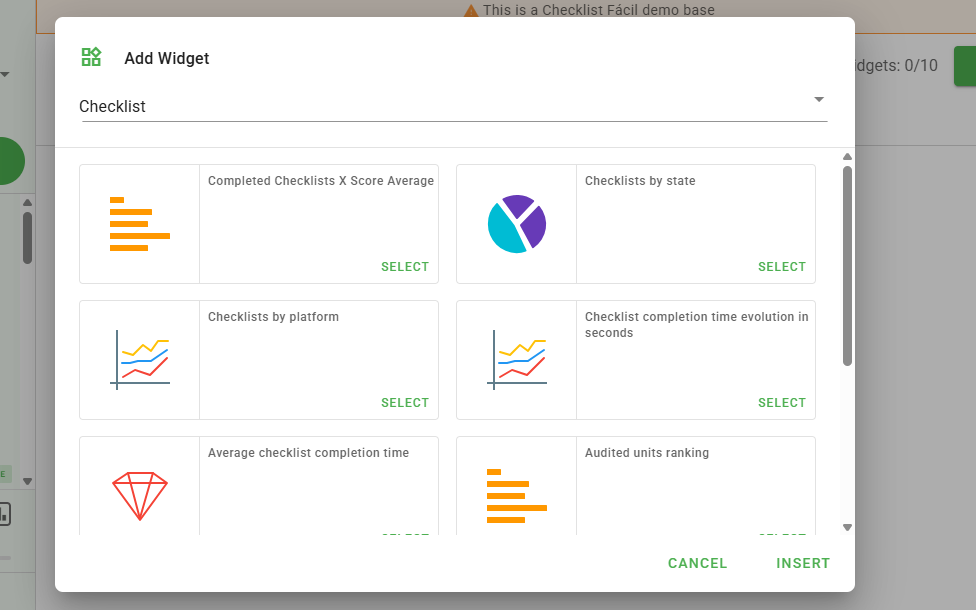
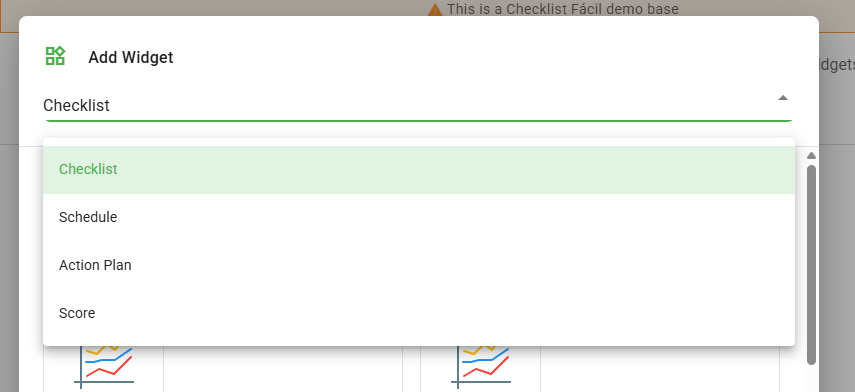
⚠️ Attention: Each dashboard can contain up to 10 widgets. Once you select one of interest, click Insert.
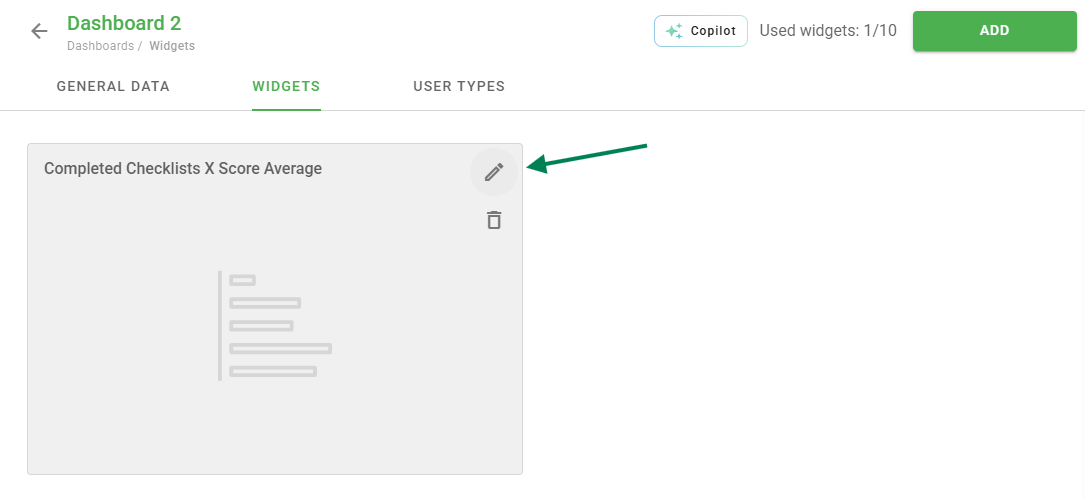
Step 5: To edit selected widgets, hover your mouse over them and click the pencil icon (edit).
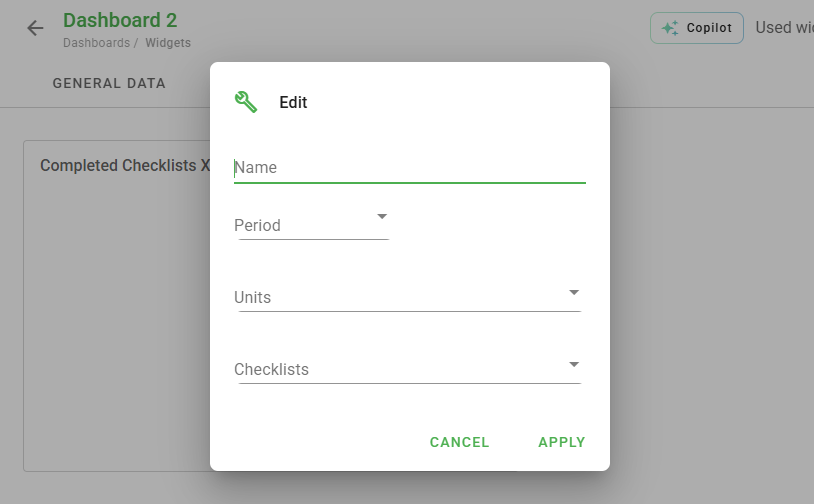
Personalize the chart name, define the viewing period (e.g., last 7 days), and select the desired units and checklists. Click Apply.
ℹ️ Note: The settings made here will influence the Widget display on the Dashboard home screen.
Done! The selected widgets will be displayed on the dashboard home page. You can also move them to adjust their position. Don't forget to Save at the bottom of the page.
How to link a dashboard to a user type?
In the User Types tab, you will select who will have access to this dashboard. It is possible to specify different panels for different profiles.
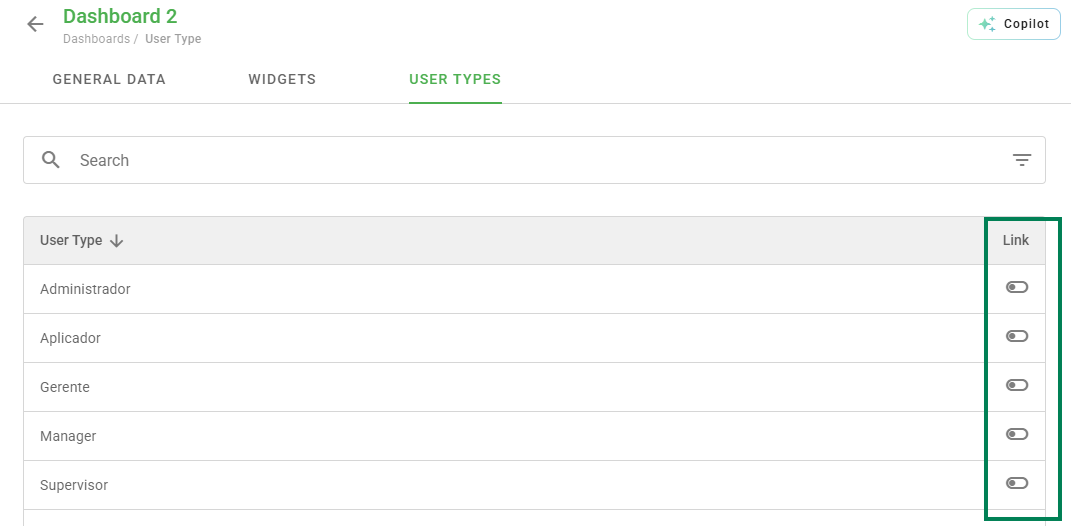
Select the checkboxes to establish the link and then click Save.
⚠️ Update Rule: Widgets will be updated daily, always showing data from the previous day (D-1). Ensure that filters are configured correctly.
Frequently Asked Questions (FAQ)
1. How many widgets can I add to a single dashboard?
Each dashboard allows the insertion of up to 10 customized widgets.
2. Is widget data shown in real time?
No. Widgets have a daily update (D-1), meaning they always show consolidated data from the previous day.
3. Can all users see all created dashboards?
No. Visibility depends on the link made in the "User Types" tab during dashboard configuration. The user will only see the panel if their profile type is checked.
❓Tem dúvidas? Entre em contato com nosso time de suporte.