- What is synchronization
- How to solve synchronization problems? (Step by Step)
- How to interpret error messages?
- What should I not do if I have synchronization errors?
- Couldn't solve it? Send Logs
- Frequently Asked Questions (FAQ)
What is synchronization
Synchronization is the process that connects your application to the web system to send concluded checklists, action plans, and attachments. When this process finishes, your data becomes available for consultation in Applied Checklists and in Reports.
To understand the basic step-by-step on how to perform synchronization, access the article: How to synchronize concluded checklists? : Checklist Fácil.
How to solve synchronization problems? (Step by Step)
If you are facing difficulties sending your data, identify the cause below and follow the correct guidance:
- Internet connection: Unstable networks prevent sending, especially media.
What to do: Perform a speed test (e.g., Speedtest or Fast.com). For efficient synchronization, it is necessary that your upload speed is at least 10Mbps. If it is below this, connect to a stable Wi-Fi and try again.
- Battery Saver Mode: This feature limits app processing and the network.
What to do: Disable battery saver before starting synchronization to ensure the system does not interrupt the process.
- Screen Lock and Background:
What to do: We recommend that the application be kept open in the foreground during the entire synchronization process. This speeds up communication, avoiding connection losses.
Background use (while using other apps like WhatsApp or YouTube) reduces the priority that Android assigns to synchronization, which may cause failures or partial synchronization.
Attention: When the phone is locked (screen off), the process is paused and can get “stuck”. If this occurs, end the app process, remove stuck notifications, and reopen the application to start a new attempt.
- Outdated App Data and Version: The app version and information regarding links and changes need to be recent.
What to do: In addition to keeping the app updated in the store (Play Store/Apple Store), use the Update button in the side menu to load the latest definitions. Learn more at: How to update app data?
How to interpret error messages?
The application displays alerts to help with the solution. They appear in two ways:
- Short Display: Message in red below the synchronization card (e.g., "Error sending files").
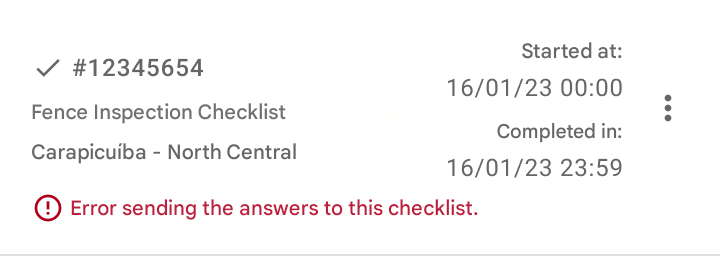
- Long Display: Details accessed by clicking on the error or on the three dots > Error log.
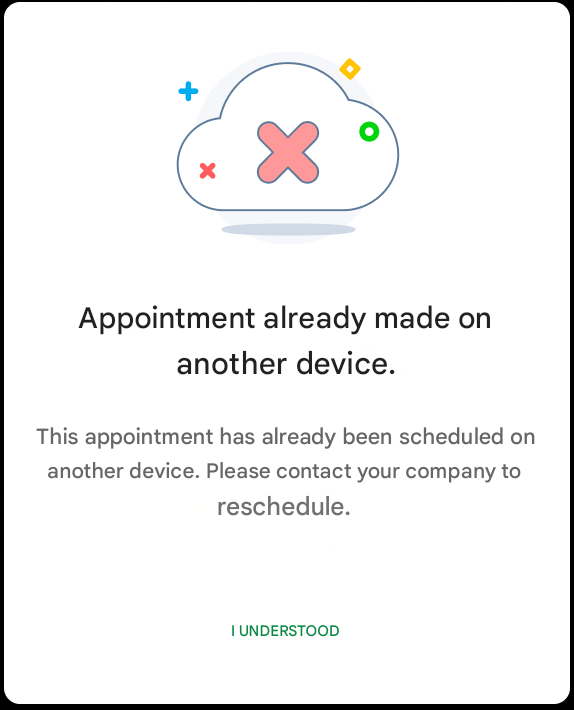
Main messages you may find:
- Error sending responses: Indicates network oscillation. Check your internet signal and upload speed.
- Schedule already made on another device: Someone has already concluded this checklist on another device or the schedule was canceled on the web.
- Error sending files/photos: Responses were sent, but media (photos or signatures) failed. Use the "Sync media" option in the three dots.
What should I do if I have synchronization errors?
Attention: Fundamental data security rules
• NEVER uninstall the application: This will permanently delete data that has not yet been synchronized.
• NEVER clear application data: Clearing cache/data removes information pending submission.
What to do instead (Strategies that work):
- Close the app and open it again: Just close the application tab and open it again.
Why does it work? This forces the synchronization process to start from scratch. Additionally, the team applies adjustments to the process that do not depend on version updates in the store, and this command ensures these adjustments are applied immediately.
- Restart the device: If just reopening the app does not solve it, restart your phone.
Why does it work? Generally, synchronization freezes at a specific point in the system. Restarting the device is the most effective way to clear stuck processes and ensure the submission cycle starts completely clean, drastically increasing the chances of success.
Couldn't solve it? Send Logs
If you followed all the guidelines and the error persists:
- Send Logs: In the App's side menu, access More+ > Settings > Help Center > Send Log.
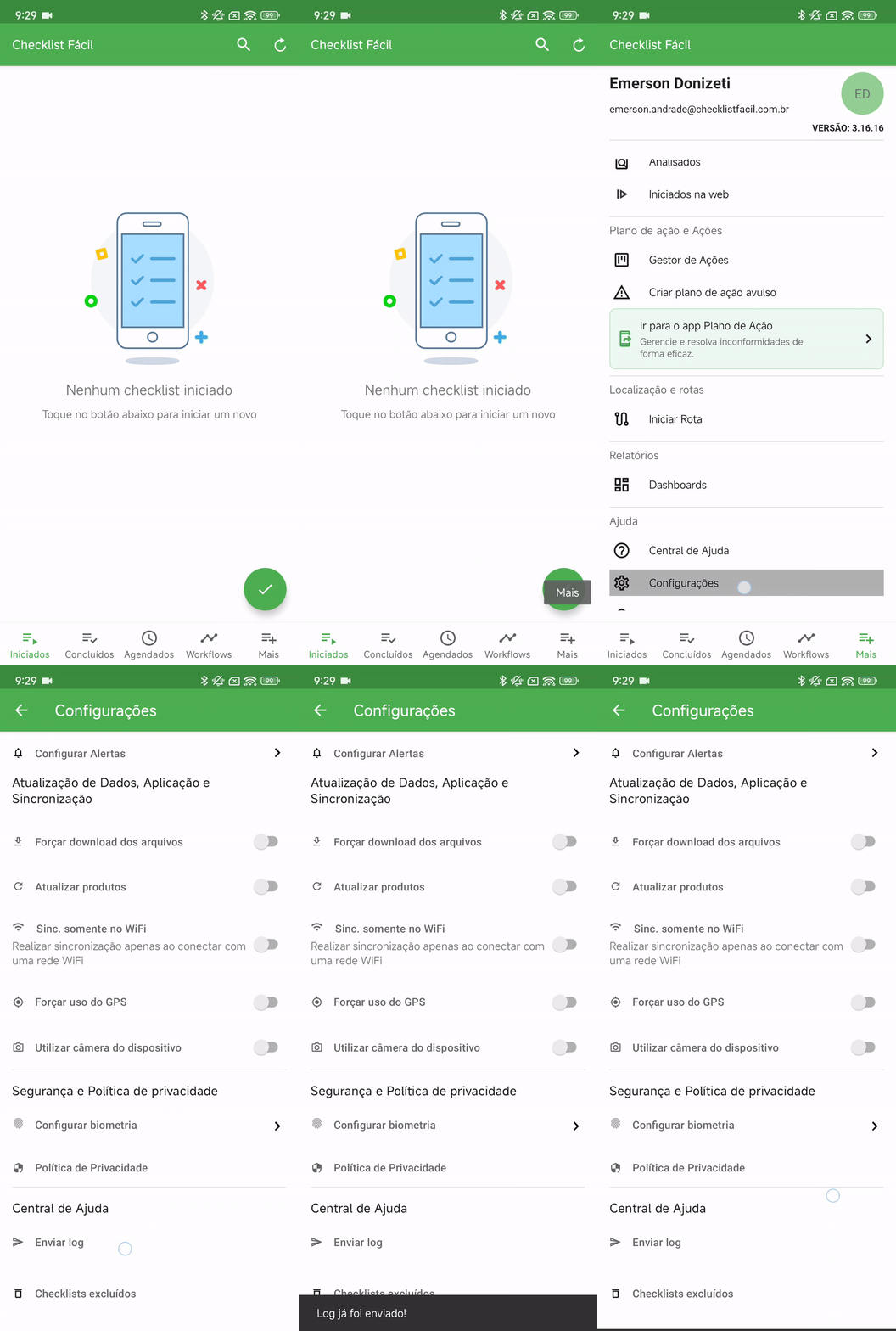
- Contact us: After sending the log, contact our support team for a detailed investigation (Contact our technical support: Checklist Fácil).
Frequently Asked Questions (FAQ)
1. Can I synchronize using mobile data (4G/5G)?
Yes, as long as the upload speed reaches the minimum requirements. For heavy checklists, Wi-Fi is always recommended.
2. What happens if the internet drops during synchronization?
The process is paused. The checklist will display the status "Waiting for synchronization". Simply restore the connection and try again.
```
❓Tem dúvidas? Entre em contato com nosso time de suporte.