In this article, find out what users are, how to register them, and much more!
- What are Users?
- How many users can be added to the Basic plan?
- How to register a user?
- How to link a user to a unit?
- How to link a user to a checklist?
- What is the Notifications tab?
- Is it possible to edit any user information?
- Can I delete a user?
- How to import users to Checklist Fácil?
What are Users?
Users are all individuals who use the Checklist Fácil system, whether to apply, manage, analyze, or configure checklists.
Users can belong to one or more User Types and have different accesses and permissions corresponding to the actions they will be responsible for within the system.
How to register a user?
The user registration process is very intuitive. See the steps below:
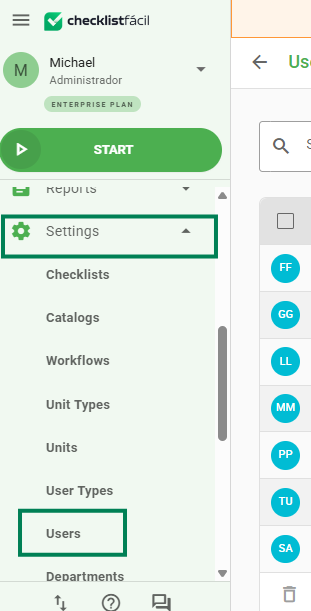
Step 1: In the left side menu, click on Settings and then on Users.
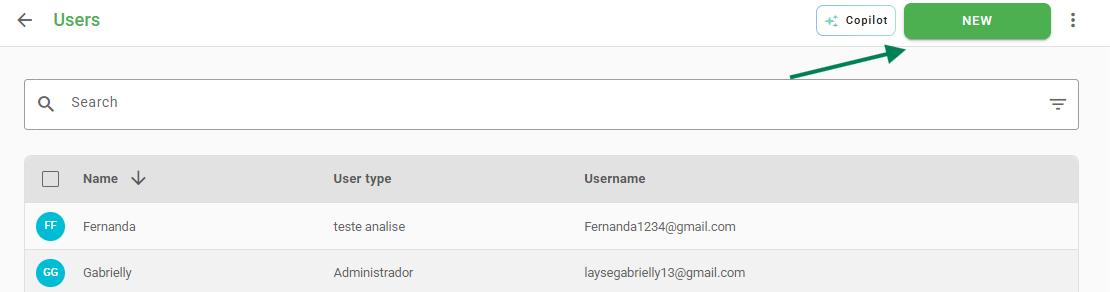
Step 2: Next, click on New, in the upper right corner of the screen:
Step 3: The new user screen contains four tabs: Registration data, Units, Checklists and Notifications.
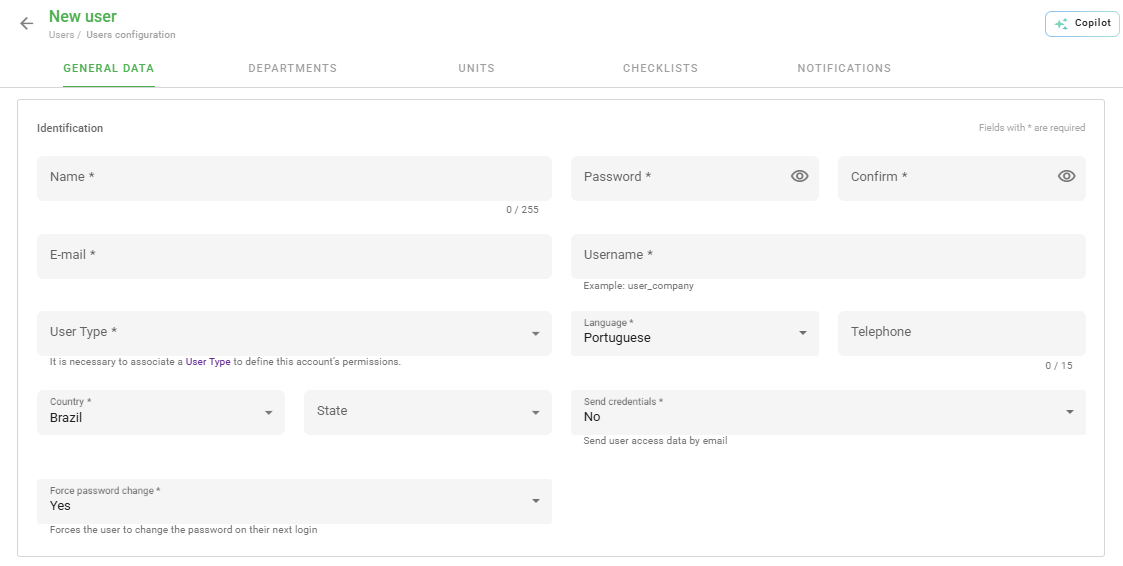
In the Registration Data tab, you will:
- Enter the user's name;
- Define a password for them to access the system;
- Enter the user's email;
- Enter a username (it doesn't necessarily have to be the person's name, but something you can identify them by);
- Define the User type to which they belong and that you previously registered;
- Select the language;
- Enter the phone number (optional field);
- Select the country and the state (optional field) where they are located;
- Select if you want to send credentials (if you choose to do so, this user will receive an email with the access link. This link is valid for 48h and, if the user does not log in within this period, they must click on the "forgot my password" option when entering the system);
- Select if you want to force password change (you can force the user to change the password you defined at the time of registration).
Step 4: After finishing the registration, keep this user active and click on Save. Done, a user has been created!
✅ Don't have user types registered yet? Access this article and learn how: ➡️Click here⬅️How to link a user to a unit?
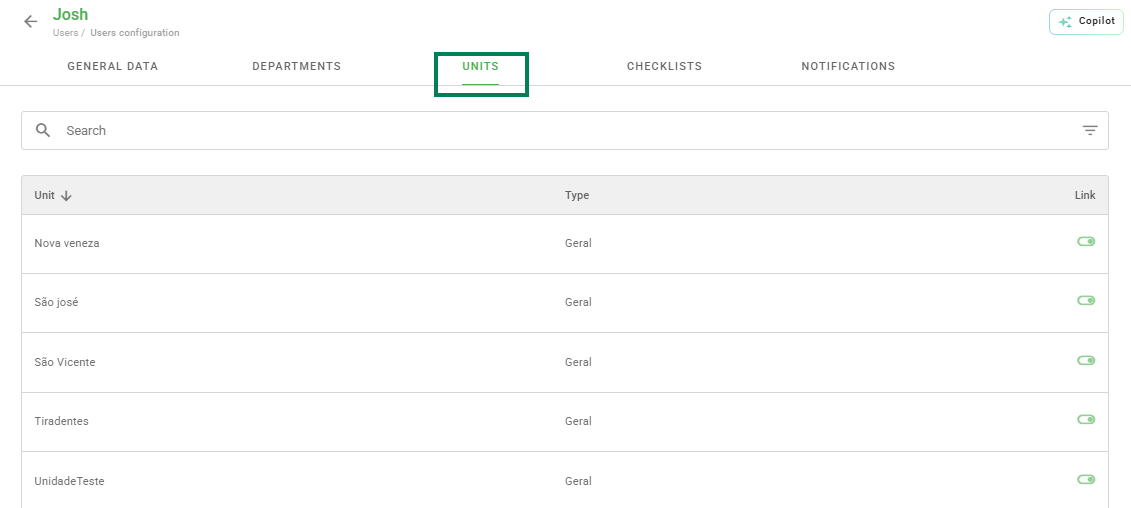
After creating a user in the Registration Data tab, it's time to link them to a registered unit.
To do this, click on the Units tab and link the user in the boxes corresponding to one or more units, as in the image below. Then, just save.
✅ Don't have units registered yet? Access this article and learn how: ➡️Click here⬅️How to link a user to a checklist?
After linking a user to a unit, it's time to link them to a checklist.
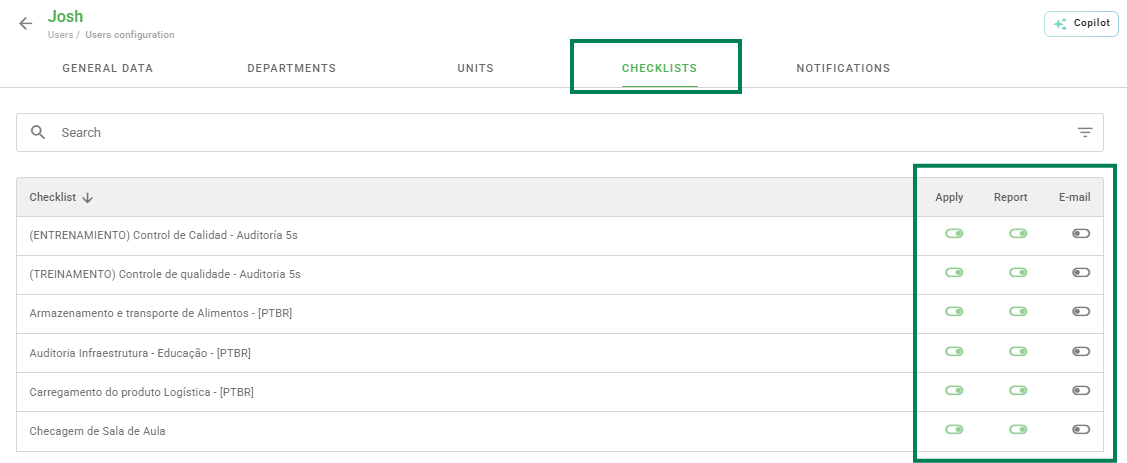
The process is very similar to those described above: click on the Checklist tab and define whether the user will be able to apply, view reports and/or receive emails related to each checklist they are involved in. Then, just save.
What is the Notifications tab?
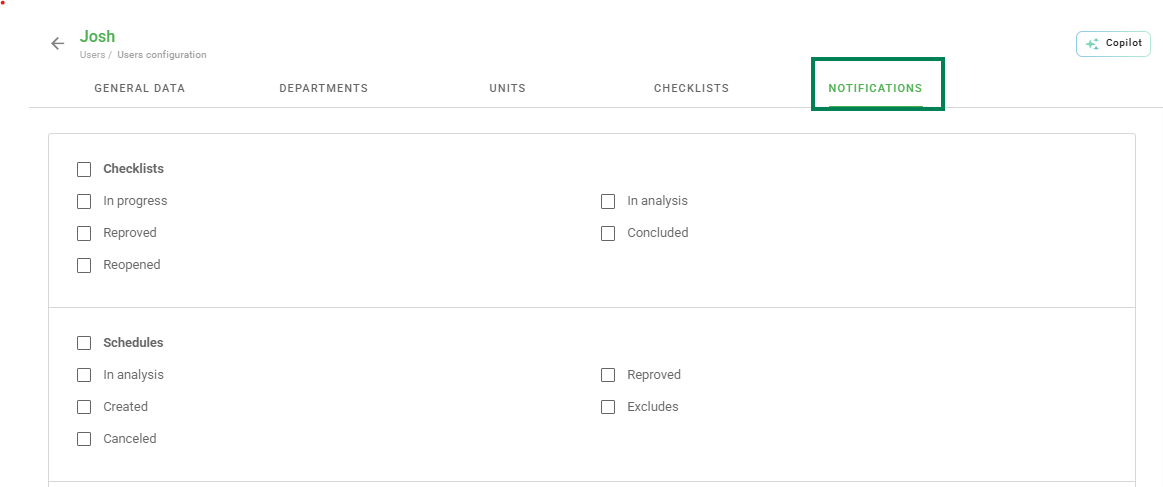
The fourth tab is Notifications, which aims to set up which types of emails this user will receive. Select as many options as necessary and click on save.
Is it possible to edit any user information?
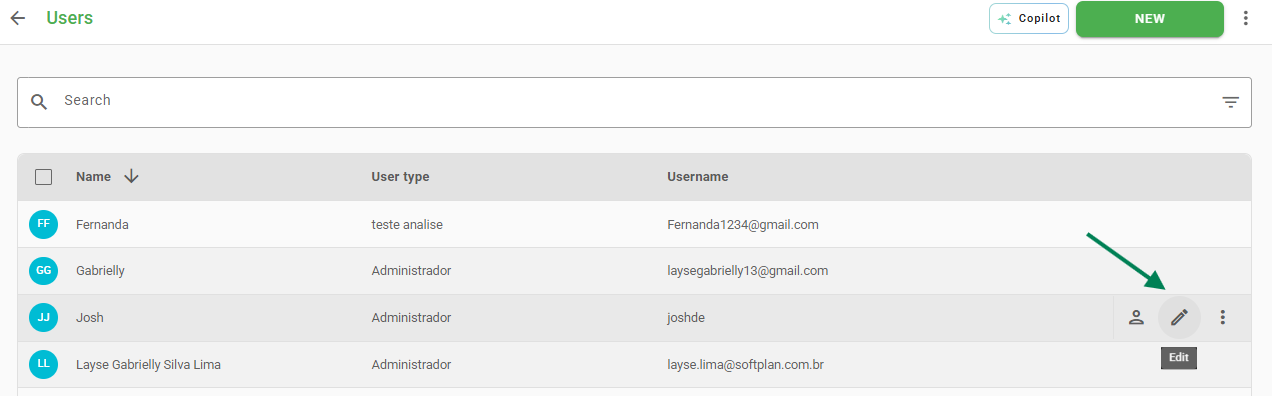
Yes, if you need to add or change any information regarding a user, simply go to the add users screen, hover the mouse cursor over the name you want to change, and click Edit on the icon highlighted in the following image:
The edit screen allows you to change the fields that were defined at the time of registration.
Similarly, it is possible to enable or disable the link of this user with units and checklists in the corresponding tabs, as well as change notifications.
After making the changes, click on Save.
Can I delete a user?
Next to the edit option, it is possible to delete or deactivate a user by clicking on the three dots and selecting the option you want:

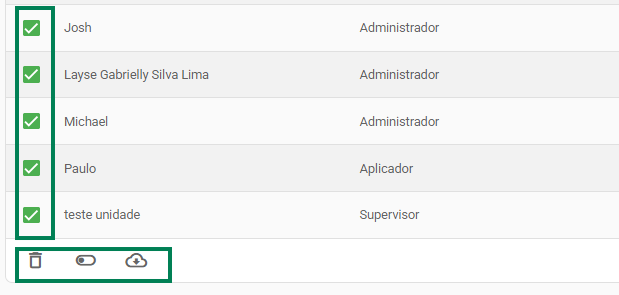
If you want to Delete, Deactivate, or Export multiple users at once, select the boxes corresponding to them and apply the bulk actions that are available at the bottom of the page:
How to import users to Checklist Fácil?
If you already have a spreadsheet with the users who will use the platform or if you want to add several at once, it is possible to perform an import.
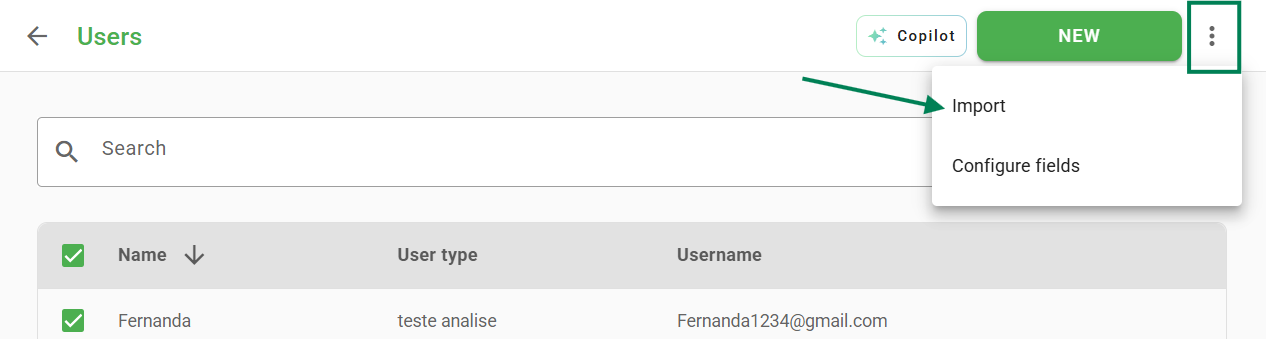
When accessing the add users screen, click on the three dots and then on Import:
A modal like the one in the image below will open. In it, you have the option to import registration data or links with checklists, units or departments, in addition to having the option to overwrite already existing data.
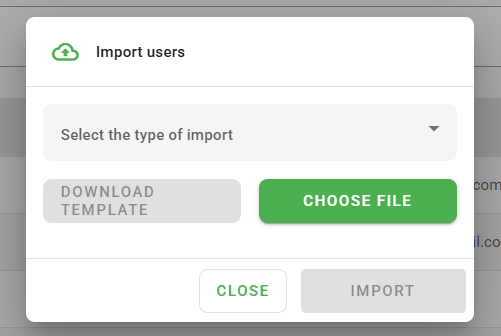
To import the data, simply click on Select File, locate the spreadsheet on your computer with the data to be imported, and click on Import.
If you do not have this spreadsheet yet, simply select the import type and click on Download Template. Once filled out, locate the file on your computer and click Import.
Frequently Asked Questions (FAQ)
1. How many users can be added to the Basic plan?
The user limit depends on the conditions contracted in your plan. In the Basic plan, check your available quota in the billing menu or with your Account Manager (CS).
2. Does the credential link sent by email expire?
Yes, the access link sent by email is valid for 48 hours. If it expires, the user must use the "forgot my password" option on the login screen.
3. Can I delete users who have already performed inspections?
To maintain the audit and inspection history, it is recommended to deactivate the user instead of deleting them permanently.
❓Tem dúvidas? Entre em contato com nosso time de suporte.