It is possible to structure a new checklist by filling out the spreadsheet template, and then import the information into the system.
Important: The option to import items via spreadsheet is only available for new checklists, in principle, the functionality is not allowed when editing existing questionnaires.
When accessing Settings > Checklists > New > New Checklist > Structure, the 'Import Items' button is available:
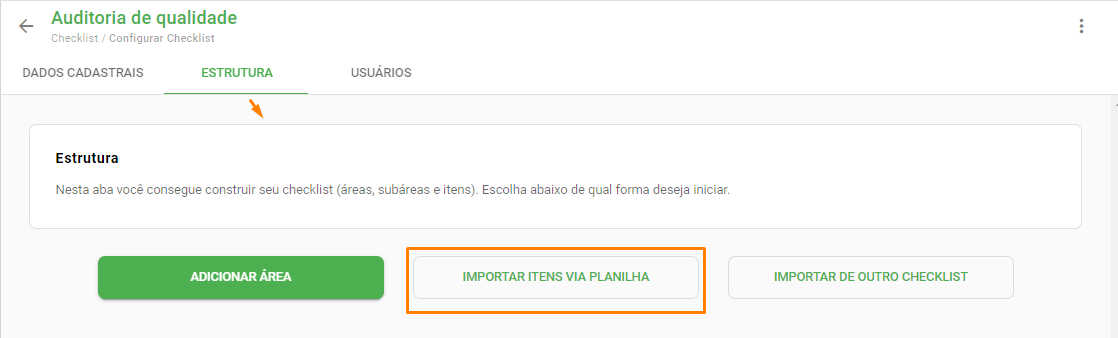
There are only 3 steps to import items:
Downloading the spreadsheet template;
Filling in the spreadsheet with the data of the checklist that is being created;
Importing the completed file into the system.
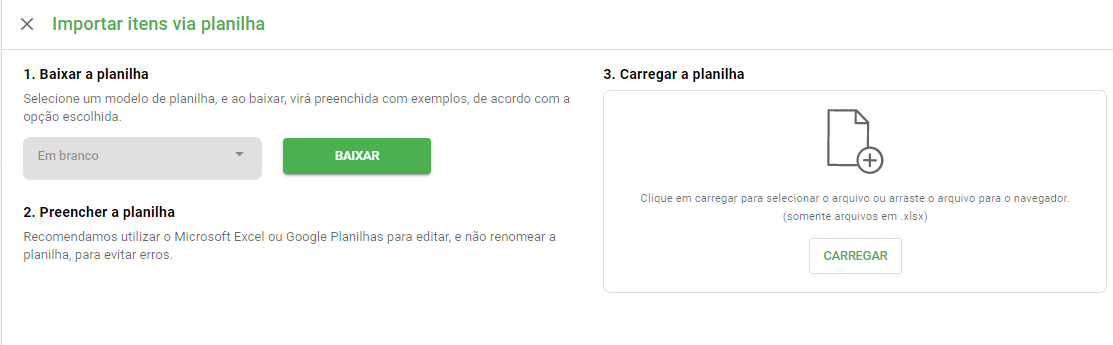
Currently there is only one spreadsheet template to be downloaded, for this reason the option to choose is blank, with the warning of 'Coming soon'.
The spreadsheet must be completed without changing its original format (position and name of columns). After filling out the spreadsheet, the file should be saved keeping the xlsx format.
To import the spreadsheet is very simple, just click on 'Upload', select the file on your device and then click on 'Start Import'.
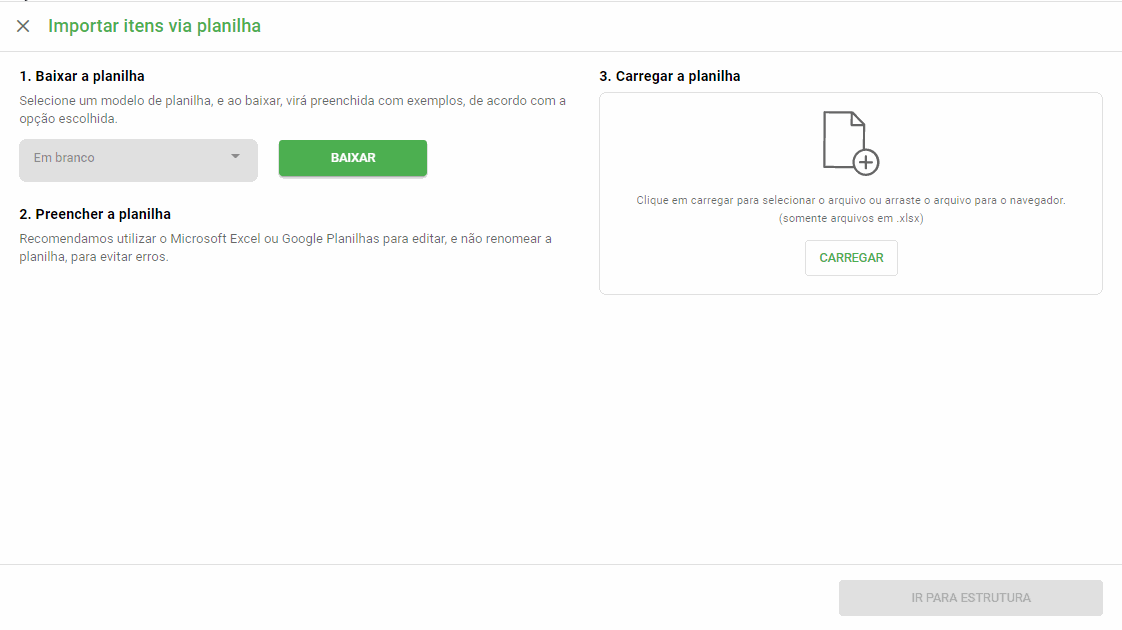
The import process can be followed on the same page, and will also be recorded in the Import/Export History
For more details, see the article "How to Fill Out the Item Import Worksheet."
➡️ Was this article useful? Leave your review!
❓Do you still have questions? Contact us via chat or ticket!
❓Tem dúvidas? Entre em contato com nosso time de suporte.