- How replication works
- Step-by-step to replicate settings
- Practical example of use
- Frequently Asked Questions (FAQ)
When creating extensive checklists, it is common for several items to share the same rules, such as score weight, photo requirement, or action plan configurations. Configuring them one by one can be laborious and prone to errors.
The Replicate Settings functionality allows you to configure a single model item and copy its definitions to dozens of other items within the same structure in a few seconds, enabling bulk configuration.
How replication works
The process works by copying the rules from a Source Item (the one already configured as desired) to one or more Destination Items (those that will receive the configuration).
You can choose exactly which attributes you want to copy. It is possible to replicate, for example, only the Weight, keeping the other original configurations, or copy all rules at once.
Step-by-step to replicate settings
1. Access the Settings > Checklists menu and click on Edit on the desired checklist.
2. Go to the Structure tab.
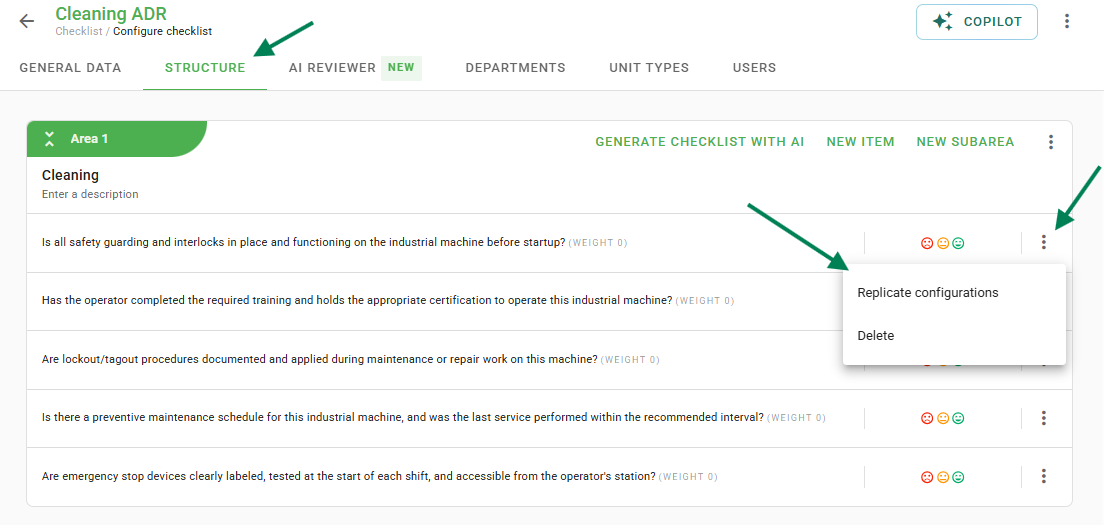
3. Locate the item that will serve as a model (Source Item). Click on the three dots next to it and select Replicate Settings.
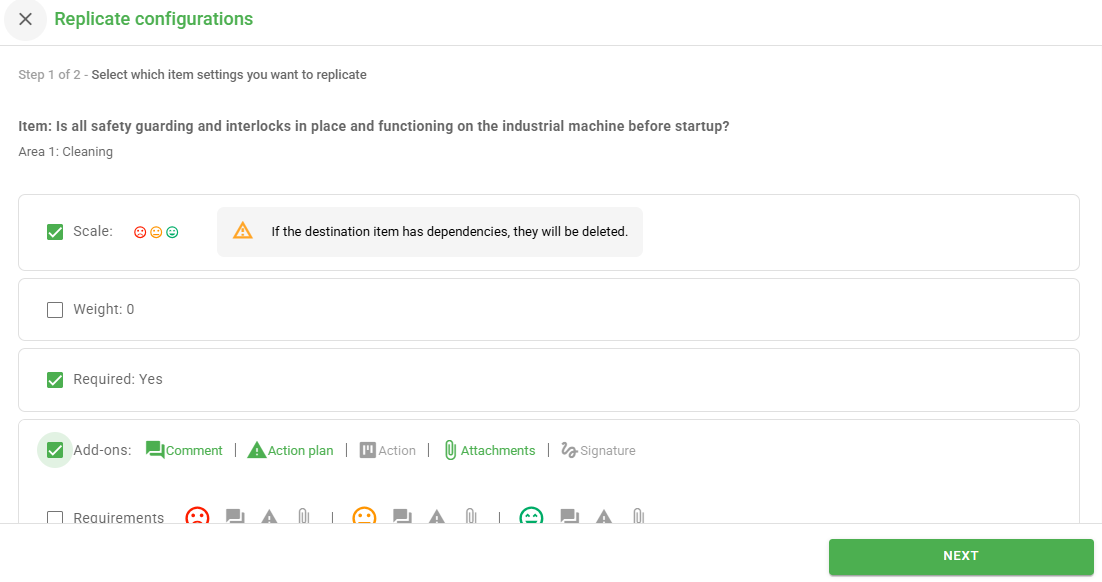
4. A window will open. Select which settings you want to copy (E.g.: Scale, Add-ons, Weight, Requirement, Action Plan, etc.).
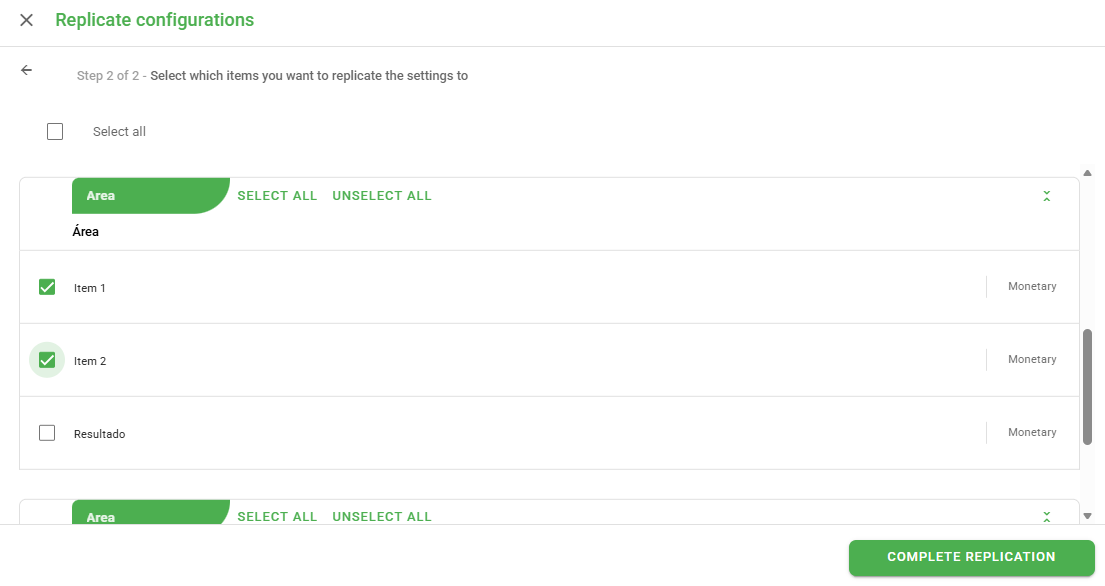
5. Proceed and select the Destination Items. You can select specific items or check entire checkboxes to apply in bulk.
6. Confirm the action to finish.
Attention: This action is irreversible. Upon confirming the replication, the previous configurations of the destination items will be replaced by the new definitions.
Practical example of use
Imagine that you have a "Store Audit" checklist with 50 items. All these items must have a Weight of 5 and must be Required.
- Without replication: You would need to open item by item (50 times) and change the weight and the requirement manually.
- With replication: You configure only the first item. Then, you use the "Replicate Settings" function, check the "Weight" and "Requirement" options, select the other 49 items, and save. In a few clicks, the entire checklist is standardized.
Frequently Asked Questions (FAQ)
1. Can I replicate configurations from one checklist to a different checklist?
No. The functionality to replicate items only works within the structure of the same checklist that you are editing. To copy between different checklists, use the Import Items function.
2. If I change the source item later, do the destination items update automatically?
No. Replication is a one-time copy. If you change the original item in the future, you will need to redo the replication process if you want the other items to follow the change.
3. Is it possible to replicate the question text (item name)?
No. The tool only replicates the settings (weight, categories, requirements, help, etc.). The name of the item and the columns remain unchanged to preserve the structure of your audit.
❓Tem dúvidas? Entre em contato com nosso time de suporte.