- What is transferred to the copy?
- Step by Step: How to duplicate
- Important Rules
- Golden Tip!
- Frequently Asked Questions (FAQ)
Need to create a new checklist based on a model you already use? Now, instead of starting from scratch, you can simply duplicate an existing structure!
This feature allows you to take advantage of all settings, questions, and links of a checklist or survey, saving time and ensuring the standardization of your processes.
What is transferred to the copy?
To facilitate your organization, we have separated what the system carries to the new file and what remains only in the original:
It is copied:
- Registration Data: General settings and observations.
- Structure: All sectors, groups, and questions.
- AI Reviewer Settings: If the original model uses AI, the copy will also have the same definitions.
- Links: All associations configured in the original model.
It is not copied:
- Response History: The new checklist is born "clean", without previous collections.
- Indicators and Dashboards: Results and charts remain linked only to the original.
- Schedules: Programmed triggers are not replicated automatically.
- Edit History: The new checklist starts its own change log.
Important: The copy receives a new internal identifier (ID). The original checklist ID is never reused or overwritten.
Step by Step: How to duplicate
1. Locate the Model: Access the list of Checklists or Satisfaction Surveys and locate the model you wish to duplicate.
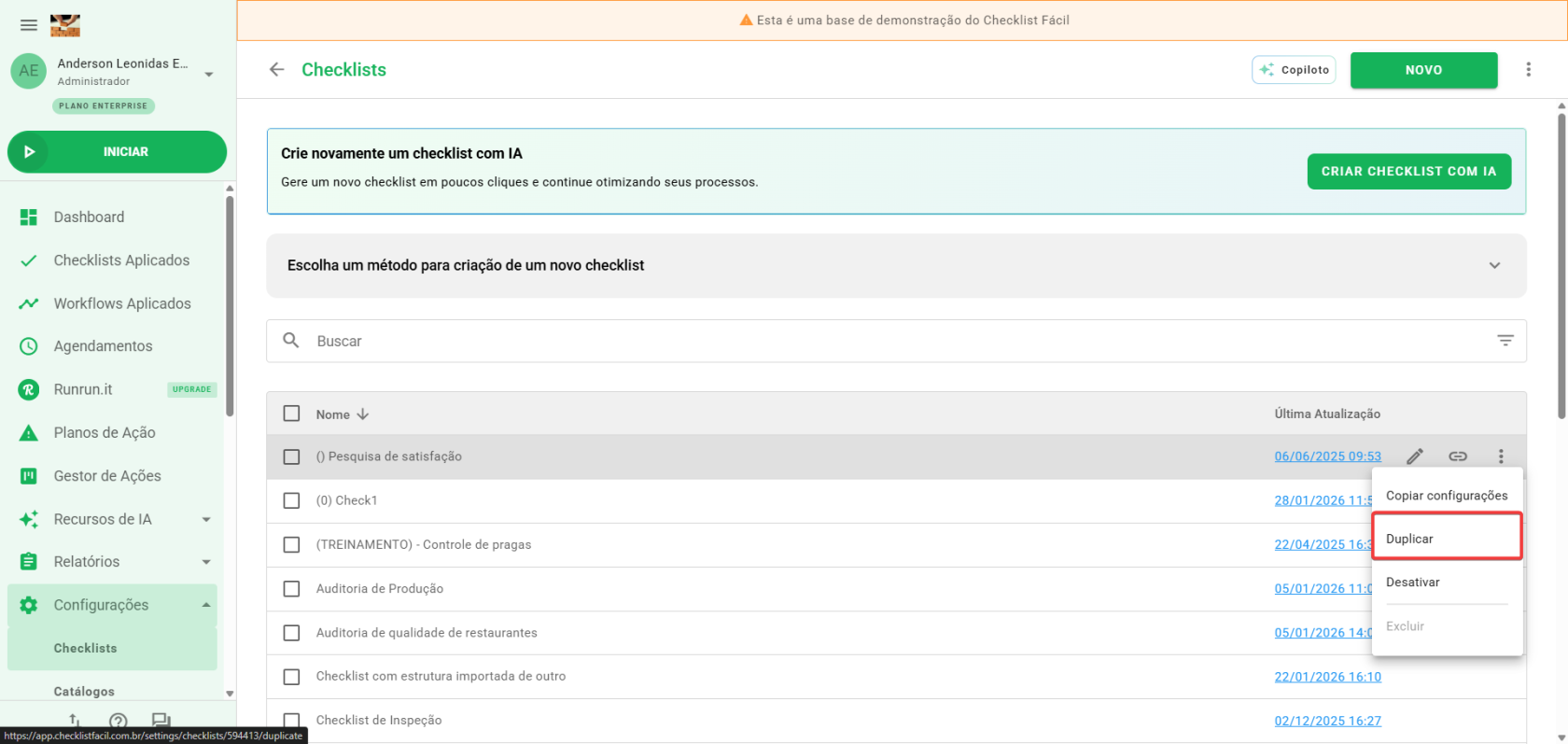
2. Select the Duplicate option: Click on the three dots and then on "Duplicate" (available for both active and inactive models).
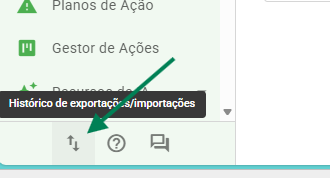
3. Follow the Process: The system will process the copy in the background. You can track the progress on the Import/Export screen.
4. Access the new Checklist: In the Import queue, as soon as the status is marked as "Concluded", click the Open button on the operation line to access the created structure.
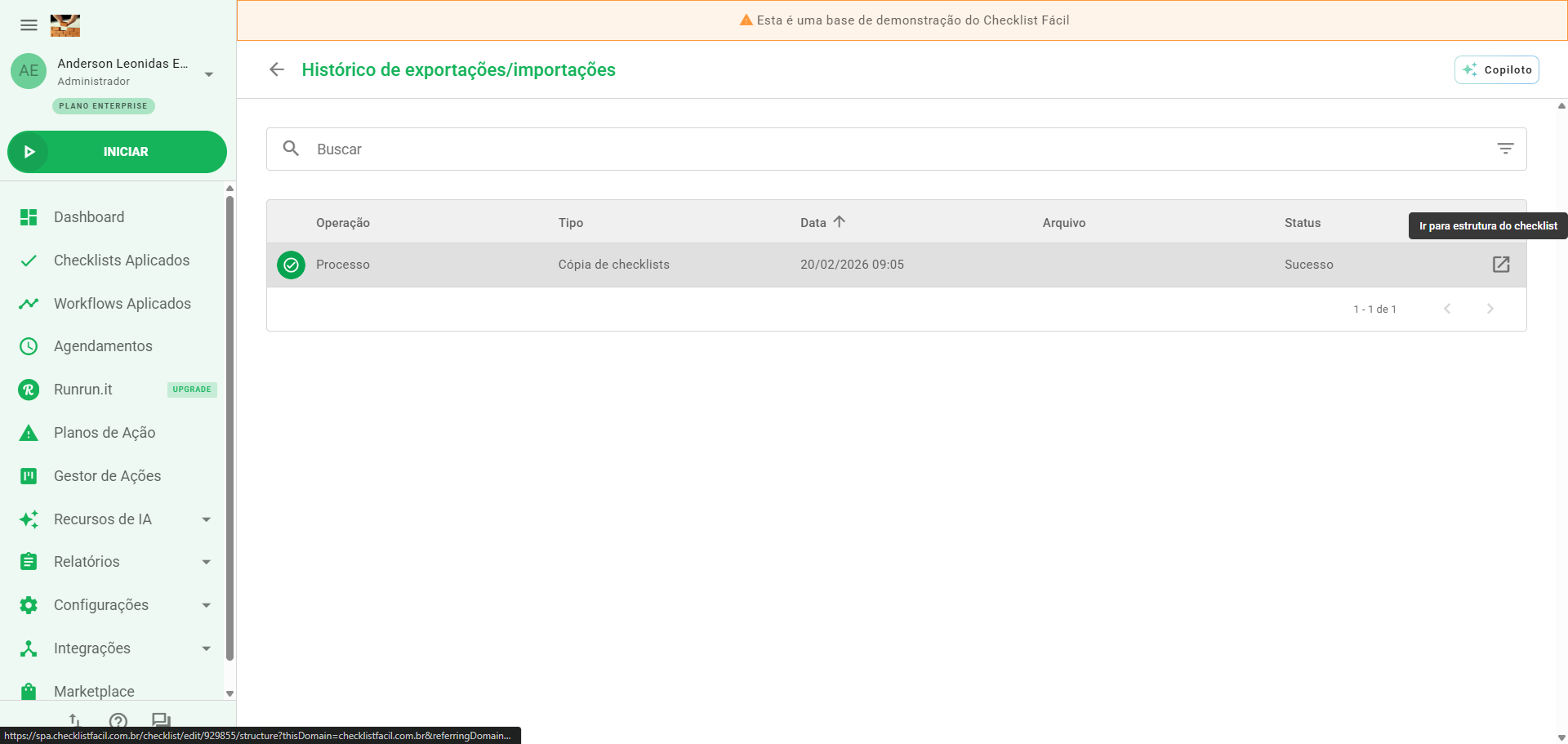
In case of error: If duplication fails (for example, if the original checklist is inaccessible at the moment), the operation will appear as Failed in the Import queue. No partial checklist will be created, and you can try the operation again.
Important Rules
- Initial Status: For security, every duplicated checklist is born with the status Inactive. This allows you to review the content and make adjustments before releasing it for use in the field.
- File Name: The new checklist will receive the original name followed by the suffix "(copy)". Example: “Audit Checklist” → “Audit Checklist (copy)”. You can change this name freely in the settings.
- Activation: When everything is ready, remember to Manually Activate the new checklist so that it becomes available for completion.
- Permissions: This function is available to all users who already have permission to create and edit checklists in the system.
Tip!
If you have many processes running in the Import queue, use the filter by Type and select "Checklist Copy". This way, you quickly find the link to start editing your new structure.
Frequently Asked Questions (FAQ)
1. Can I duplicate a checklist that is inactive?
Yes! The duplicate option is available for both active and inactive models, as long as they have not been deleted from the system.
2. What happens to the original checklist schedules?
They remain linked only to the original. If you want the new checklist to also have automatic triggers, you will need to configure the new schedules manually.
3. Does activating the copy deactivate the original checklist?
No. There is no automatic relationship between the two. If you wish to replace the old model with the new one, you will need to manually inactivate the original.
❓Tem dúvidas? Entre em contato com nosso time de suporte.