- Understanding Weight in Evaluation
- How to configure item weight?
- Item weight with Selection List
- How to configure recurrence with item weight?
- How to customize the evaluation scale?
This article explains how item weight influences the final calculation of a checklist. You will learn about the weighted average used and how to configure customized weights for your checklists.
Understanding Weight in Evaluation
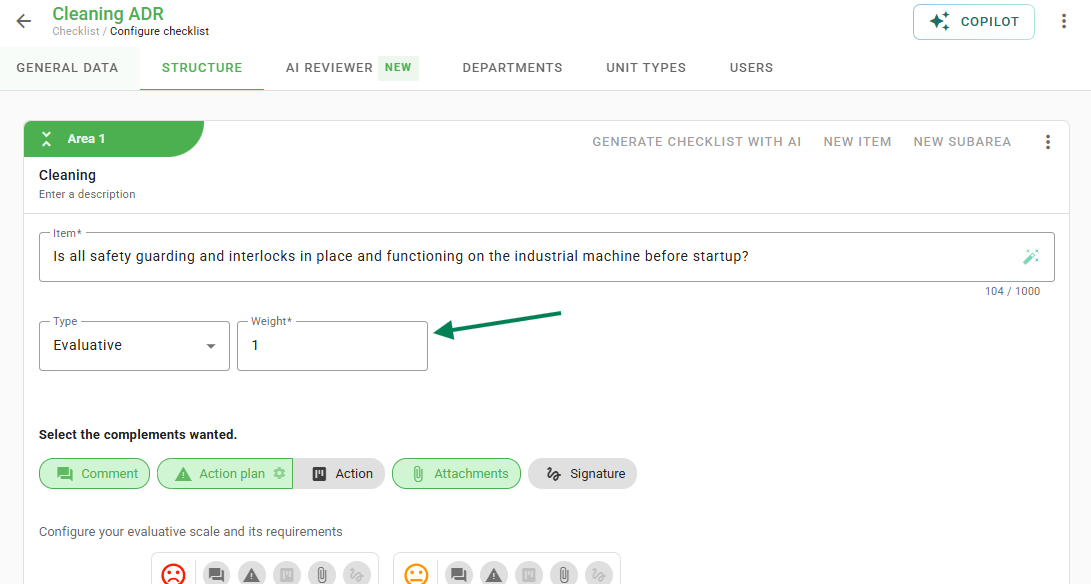
Weight is a value assigned to each item in a checklist, allowing you to define the impact of each one on the overall evaluation. Items with higher weight will have greater influence on the result. Only items of the Evaluation and Selection List types have weight in the score calculation.
Checklist Fácil uses the weighted average to calculate the result. The calculation is performed as follows:
Sum of Obtained Weights divided by the Sum of Possible Weights × 100
How to configure item weight?
It is possible to configure the item weight in the checklist structure directly within the item.
Tip: Need to define the same weight for several items? You do not need to configure them one by one. It is possible to apply weight in bulk using the Replicate Settings functionality. To learn the step-by-step process, access our article on Replicate Settings.
Item weight with Selection List
For Selection List items, you can consider the percentage that each option is worth based on the total weight of the item.
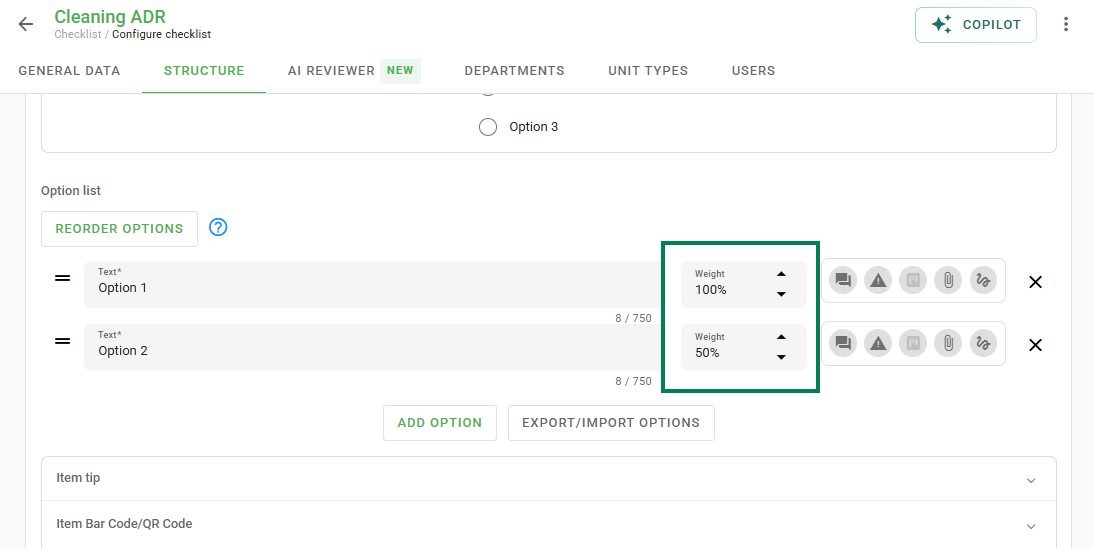
The weight selected as "Not applicable" disregards the item for the checklist score calculation.
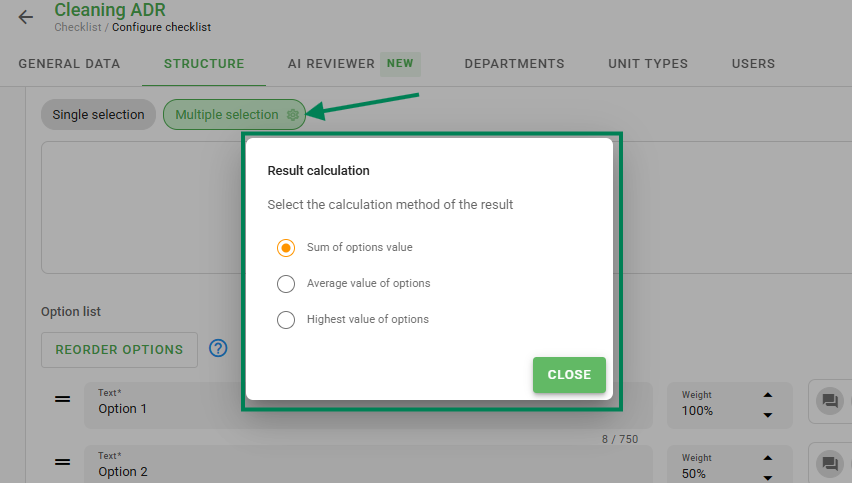
In the case of a Selection List where multiple options can be selected, the score calculation can be done using the sum of the options, the average of the options, or by considering only the option with the highest percentage.
How to configure recurrence with item weight?
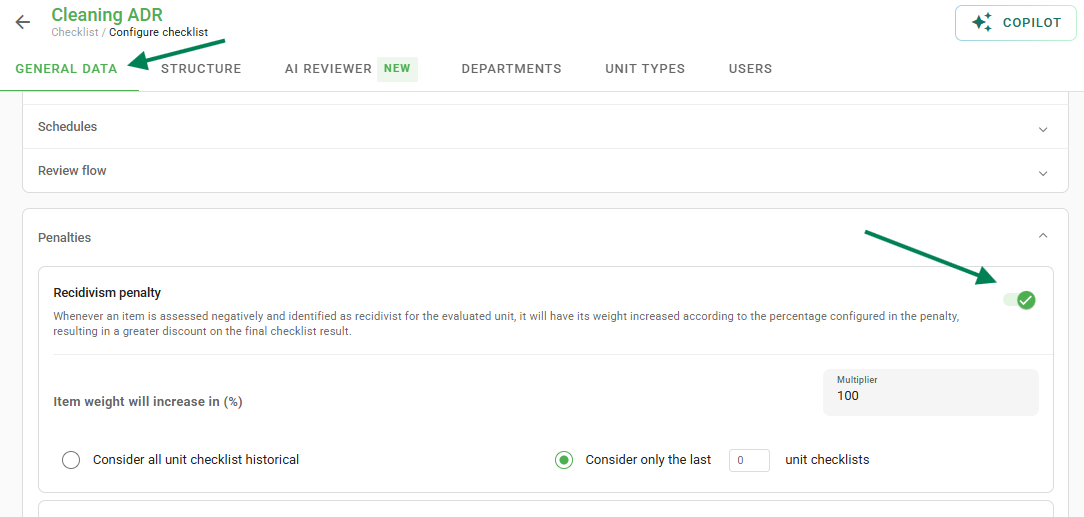
With the Recurrence Penalty functionality, whenever an item is evaluated negatively and identified as recurrent for the unit, its weight value will be increased according to the percentage configured in the penalty. This results in a larger deduction from the checklist score.
How to customize the evaluation scale?
The evaluation scale can also be customized for each item, allowing you to assign values in percentage (%) for each type of response. This percentage is proportional to the configured weight of the item.
These settings can be adjusted in Settings > Checklists > Edit Checklist > Registration Data > Reports > Customize Evaluation Scale.
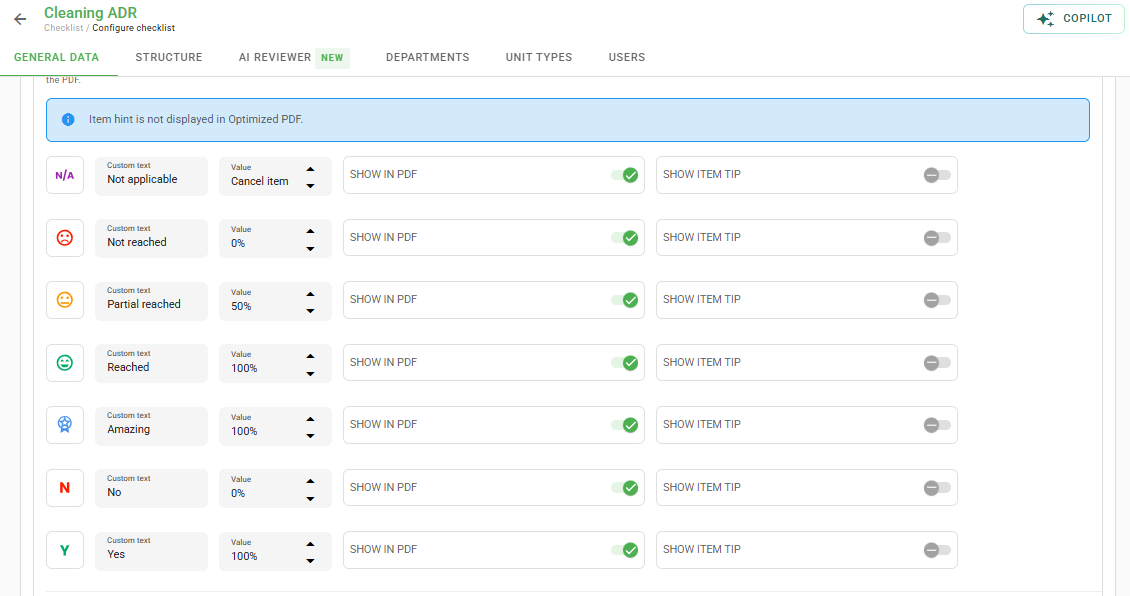
By default, the values are:
- Did not achieve: 0%
- Partially achieved: 50%
- Achieved: 100%
- Exceeded: 100%
- Not applicable: Nullifies the item
Values above 100% should not be entered in these fields.
Frequently Asked Questions (FAQ)
1. What happens when checking "Not applicable" on an item?
By selecting this option, the system completely disregards the item for the checklist score calculation, as if it did not exist in the evaluation.
2. Can I use values greater than 100% in the customized scale?
No. The system does not accept values higher than 100% in the customization of the evaluation scale.
❓Tem dúvidas? Entre em contato com nosso time de suporte.