- Information on the completion screen
- Path to configuration
- What you can configure
- Visual example in the application
- Frequently Asked Questions (FAQ)
When finishing the application of a checklist, you can define which fields and functionalities will be available to the user on the closing screen. This allows customizing the collection of feedbacks, signatures, and the sending of final evidence.
Path to configuration
To edit these options, access the side menu and follow the path: Settings > Checklists. Locate the desired template, click Edit and, on the Registration Data tab, go down to the Filling section, in the Information on the completion screen area.
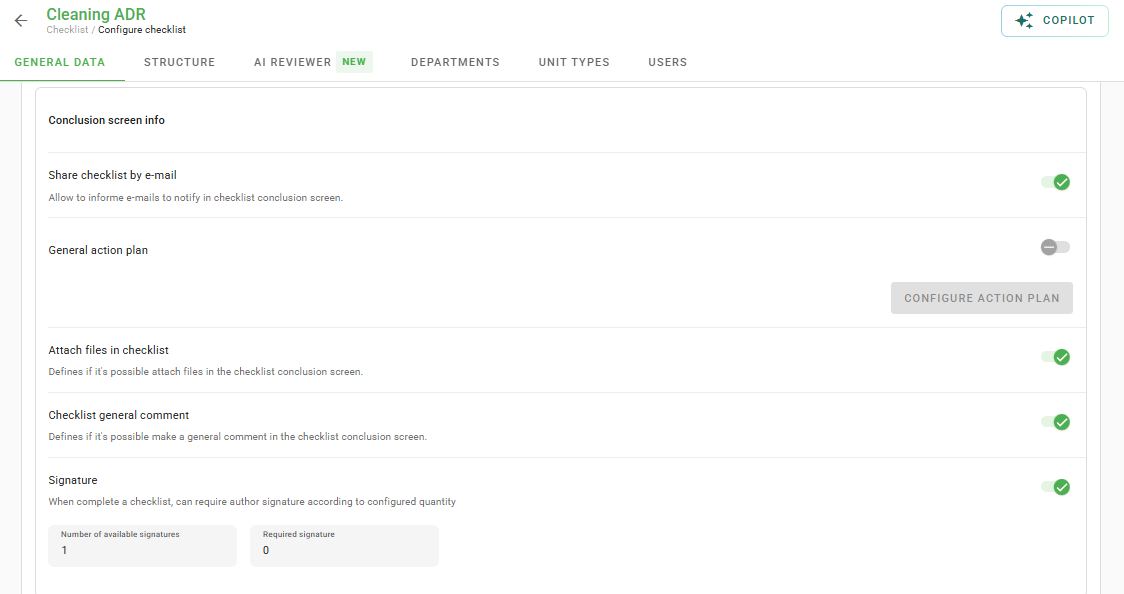
Remember to always click on Save at the bottom of the editing page so that the changes take effect for the next applications.
What you can configure
1. Share checklist by email: Determines whether, upon completion, it will be possible to enter emails so that third parties receive a notification and the finalization report.
2. General Action Plan: Allows the creation of a comprehensive action plan for the entire checklist at the time of closure.
3. Attach files to the checklist: Enables the field for sending photos or documents (evidence) that prove the completion of the work on a global level.
4. General comment on the checklist: Determines whether on the checklist completion screen it is possible to comment globally on the application.
5. Signature: Requests the digital signature of the user or person in charge. When activating, you define the number of available signatures (maximum limit) and the mandatory ones (minimum to save).
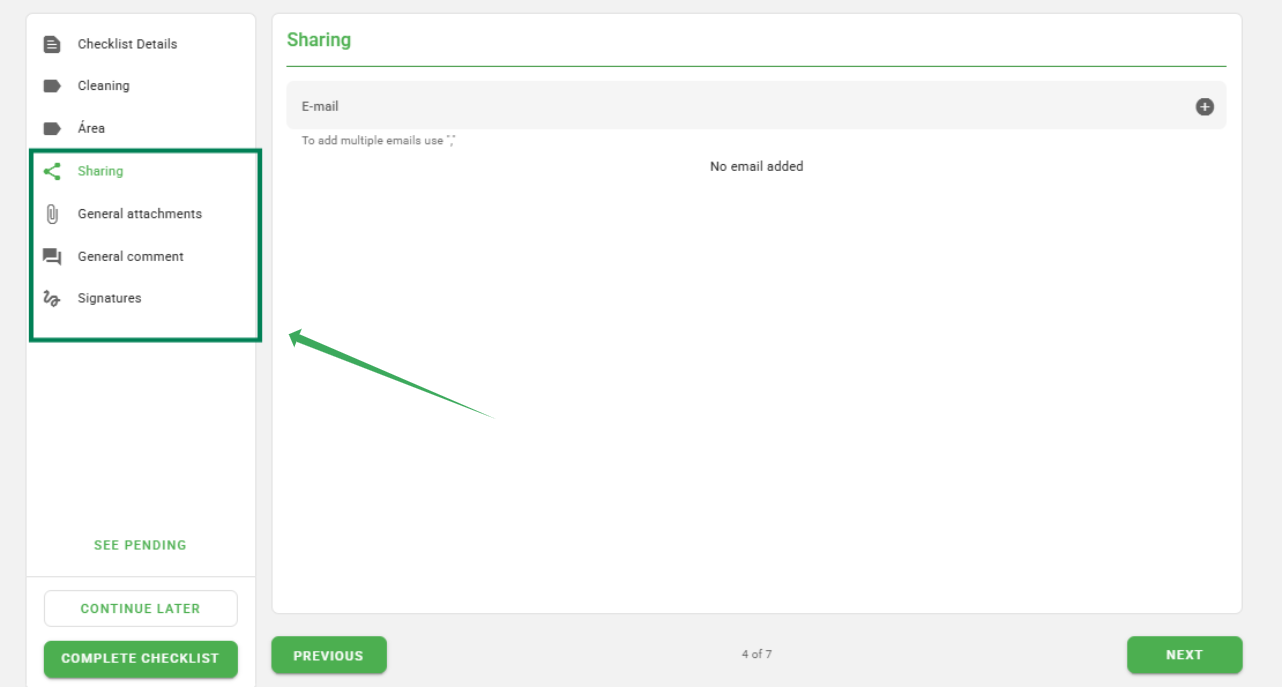
Visual example in the application
See how these fields appear to the user at the end of the checklist on the web version:
Frequently Asked Questions (FAQ)
1. Can the checklist be finalized without a signature?
It depends on your configuration. If you set a number greater than zero in the "Mandatory Signatures" field, the system will prevent finalization until the minimum number is collected.
2. How to deactivate the comments field at the end of the checklist?
Simply access the checklist editing, go to Registration Data > Filling and uncheck the option "General comment on the checklist".
3. How many signatures can I collect at most?
The limit is defined by you in the "Number of available signatures" field. This ensures that no more signatures are collected than necessary for your process.
❓Tem dúvidas? Entre em contato com nosso time de suporte.