- Benefits of Answering items by voice
- How to enable the feature
- Eligible Fields and Limits
- Use in Practice
- Frequently Asked Questions (FAQ)
The Answering items by voice feature was developed to facilitate daily operations, allowing users to answer checklist text fields using the audio resource. Through automatic transcription via Artificial Intelligence, we aim to reduce operational effort and significantly increase the speed of filling out forms in the field.
With this resource, the applicator ensures greater agility in data collection without losing information quality, maintaining technical vocabulary and clarity in descriptions of irregularities or action plans.
Benefits of Answering items by voice
Using voice for filling out brings direct advantages to management and to those in the field:
- Friction reduction: Facilitates filling out long texts in complex operational environments.
- Increased productivity: Optimizes the response time of checklist applicators.
- Data quality: AI organizes the text clearly, removing speech noise such as pauses and language habits.
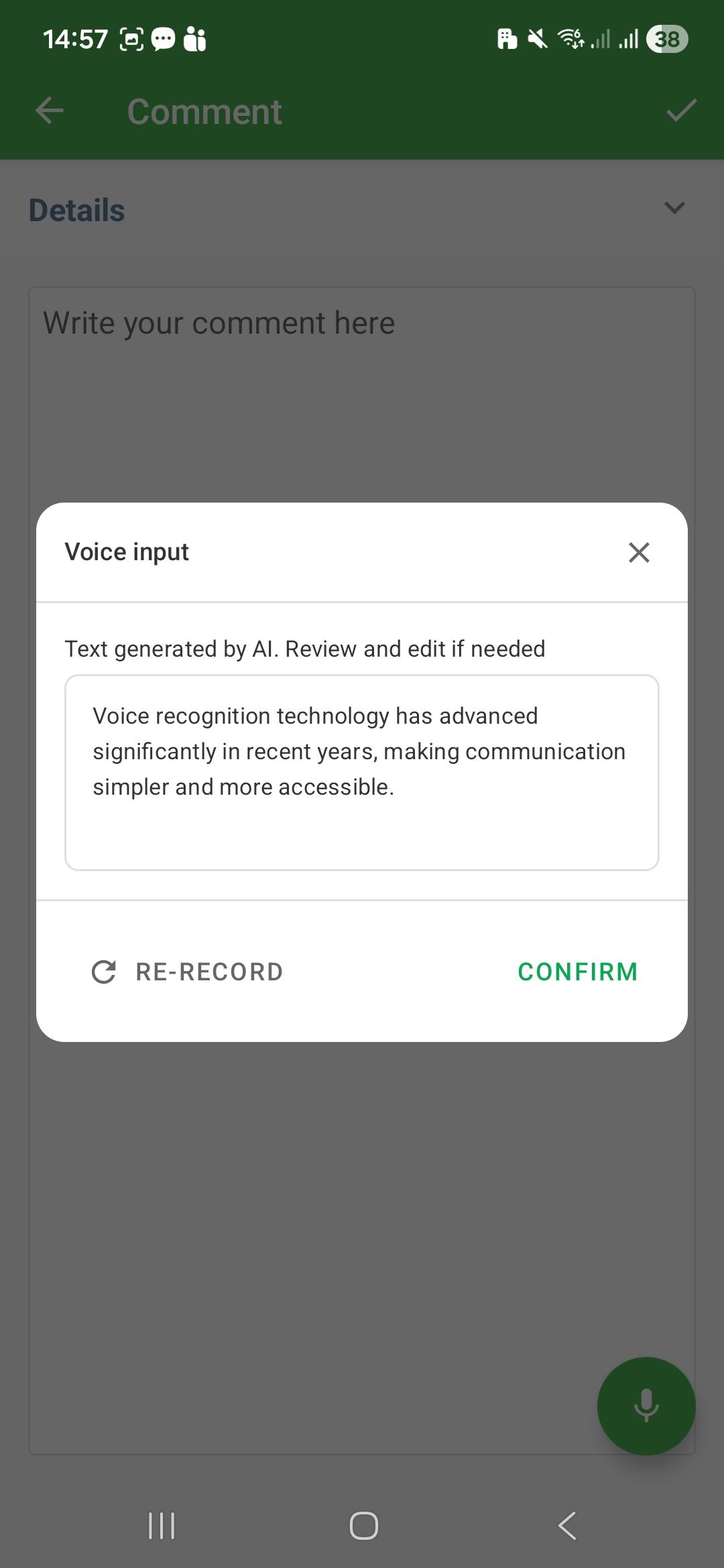
The AI only suggests the text. The user has full control to review and edit the content before confirming the entry in the checklist.
How to enable the feature
Important: The Answering items by voice feature is available exclusively for Enterprise plan customers. If you wish to check availability for your account, please contact your Account Manager (CS).
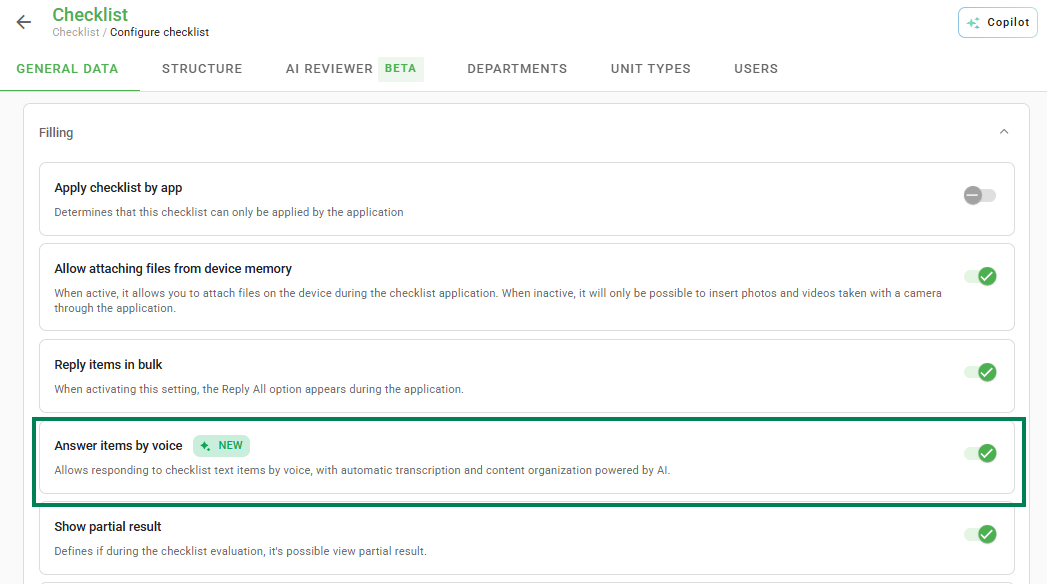
By default, the feature is already activated. If it is deactivated in your checklist, it is necessary to configure it at the checklist model level. Follow the path below:
1. Access the Checklist menu.
2. Go to Registration data.
3. Locate the Filling section.
4. Enable the Answering items by voice option.
Eligible Fields and Limits
The Answering items by voice feature is automatically applied to the following fields when activated:
- Short and Long Text Scale.
- Item Comments and General Comment.
- Action Plan and Actions text fields.
Recording limits:
- Short text fields and Action Plans: up to 30 seconds of audio.
- Long text fields and Comments: up to 60 seconds of audio.
Notice: Voice transcription depends on an internet connection. In case of instability, processing may fail. Check your connection and try again.
Use in Practice
When opening a configured checklist, you will see a microphone icon on the right side of eligible fields. The workflow is simple:
1. Tap the microphone: A Voice Input screen will open.
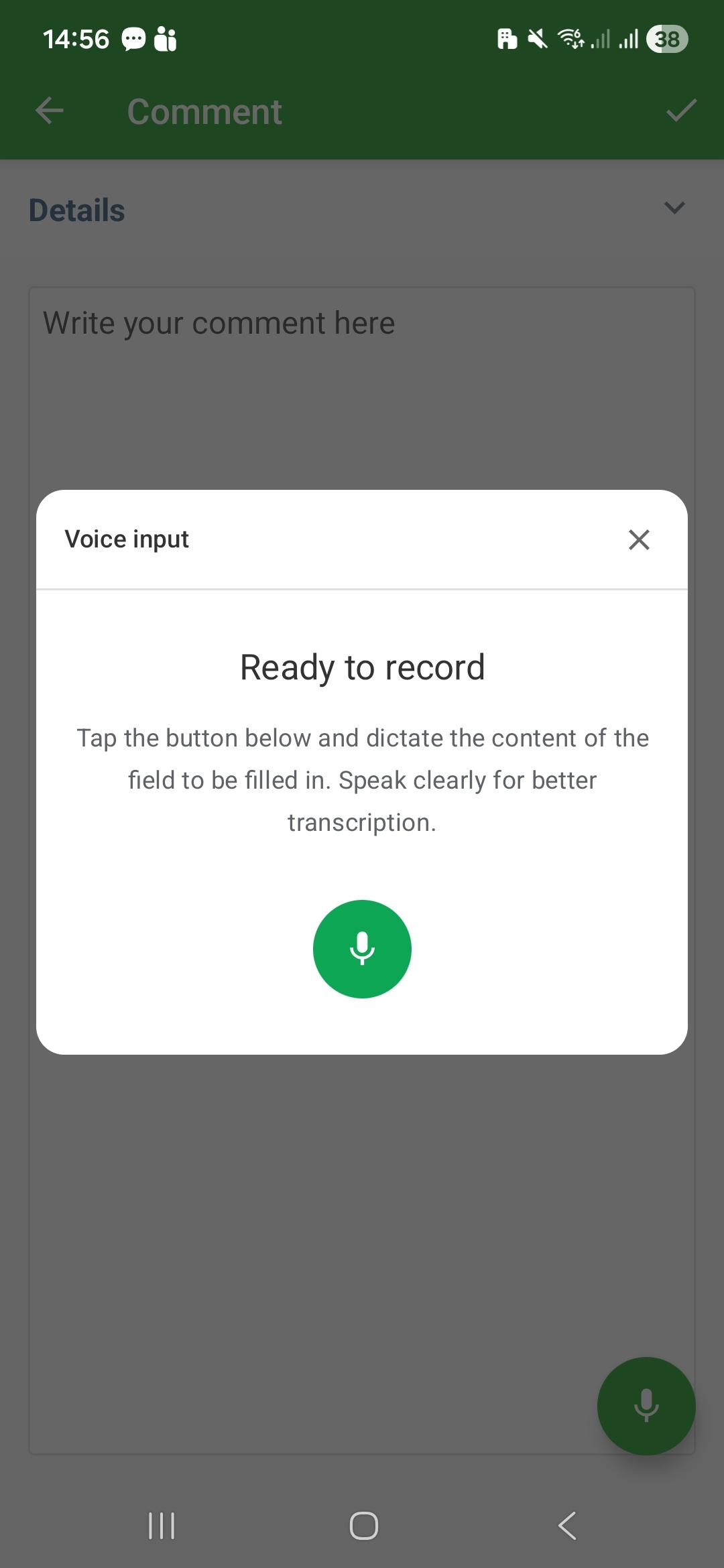
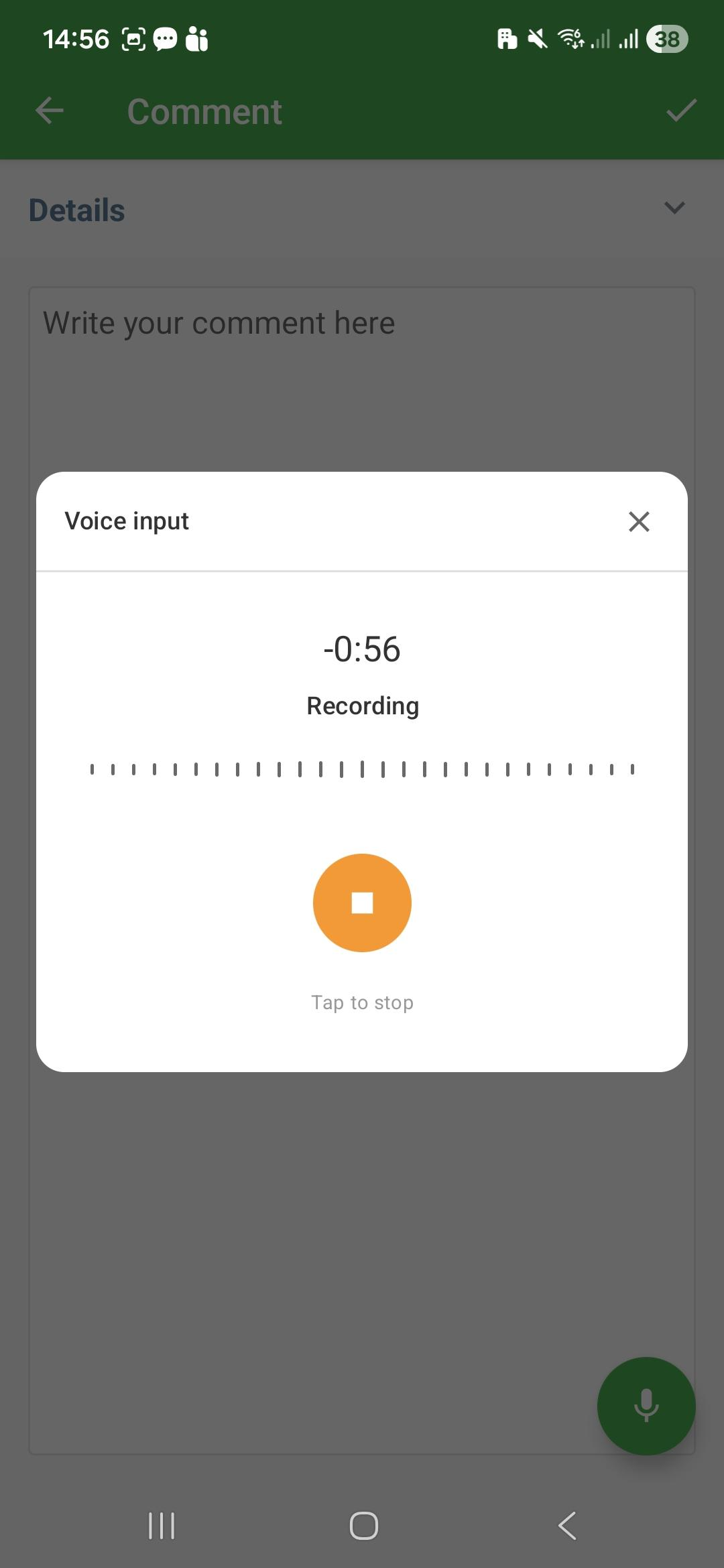
2. Record your speech: Tap the central button and dictate the content clearly. A countdown timer will show the remaining time.
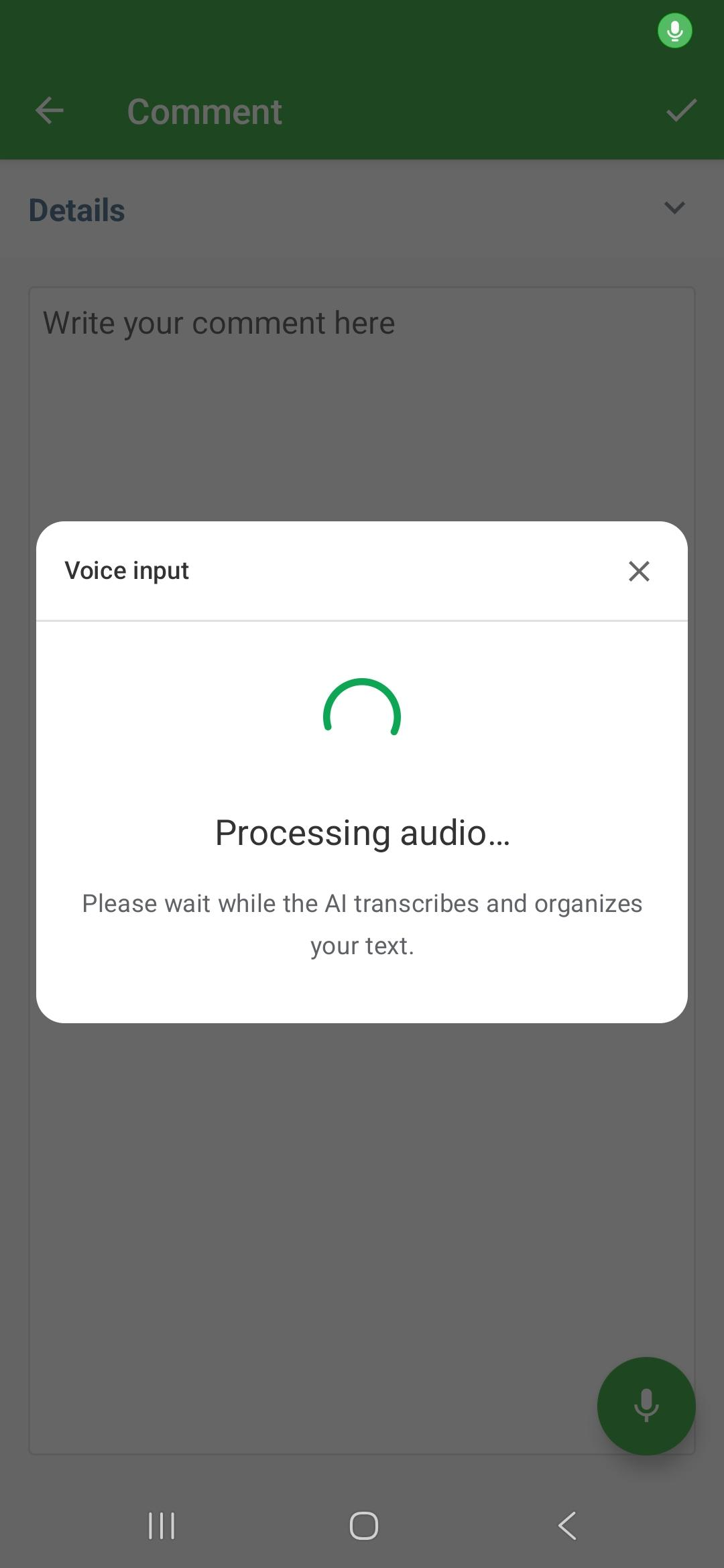
3. Wait for processing: AI will perform the transcription and organization of the text in a few seconds.
4. Review and confirm: The text will appear on the screen for review. You can edit manually or confirm so that it is inserted into the field.
Tip: For best results, speak in a steady tone and avoid places with extreme noise, although the AI is trained to filter common interference.
Frequently Asked Questions (FAQ)
1. Which languages are supported?
Currently, the system supports transcriptions in Portuguese, Spanish, and English. It is worth noting that the AI does not translate what is said; it only respects and transcribes the spoken language.
2. Can the AI summarize what I said?
No. The principle of our AI is to be faithful to what was said. It organizes sentences and removes language habits, but it does not summarize, expand, or infer information that was not stated by the user.
3. What happens if I click outside the review screen?
Clicking outside the modal does not close it. This ensures that you do not accidentally lose your transcription. To exit without saving, use the close button (X).
4. I tapped the microphone, but the recording does not start. What to do?
If the microphone does not start, check if the browser or application has permission to access your device's microphone. If necessary, enable permission in the settings and try again.
5. The audio is recorded, but the text is not generated correctly or does not appear.
If the transcription is not generated correctly, try again by speaking more clearly and, if possible, in an environment with less noise.
❓Tem dúvidas? Entre em contato com nosso time de suporte.