During the application of your checklists, it is possible to configure the system to require signatures from employees. This functionality increases the reliability of responses and ensures the validation of the survey or inspection process.
Note: Check the availability of this option for your plan with your Account Manager (CS) or with the Solution Team.
Signature Configuration
To activate and configure signatures, access the side menu and follow the path: Settings > Checklists. Locate the desired template and click on Edit.
Within the edition, go to the Registration Data tab and, in the Filling section, look for the Signature field.
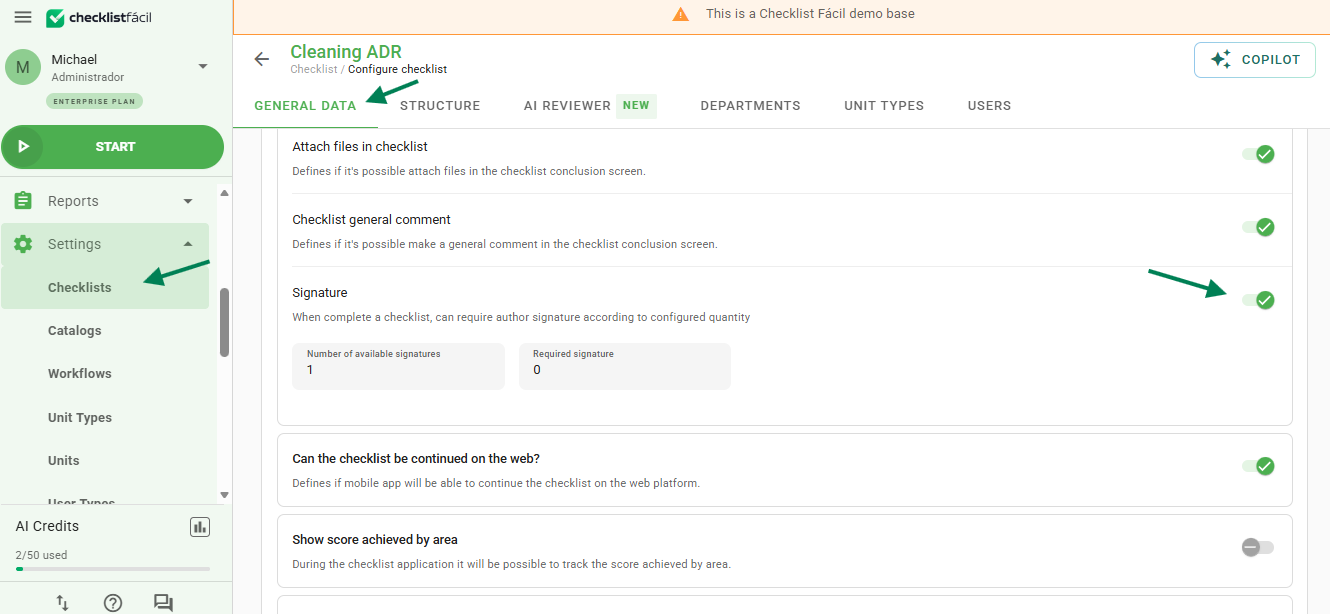
In this field, you can define the number of maximum signatures (limit of allowed signatures) and required signatures (minimum necessary to finalize the checklist).
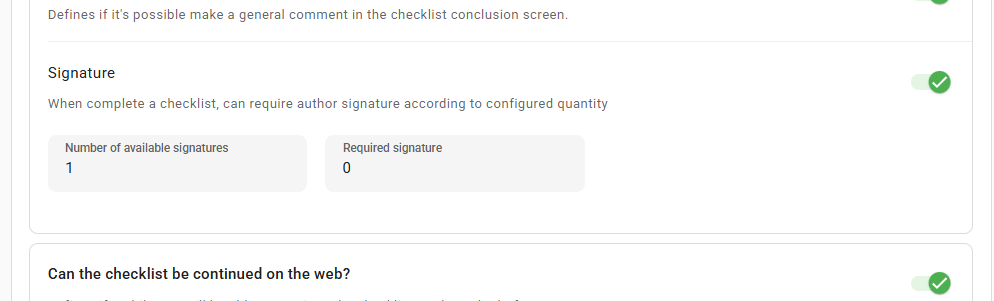
After making the desired settings, click on the Save button, located at the bottom of the page, to apply the changes.
Frequently Asked Questions (FAQ)
1. Can the checklist be finalized without a signature?
It depends on your configuration. If you define a number greater than zero in the "Required Signatures" field, the application will prevent completion until the minimum amount is collected.
2. How many signatures can I collect?
You can set the limit in the "Quantity of available signatures" field. This ensures that no more signatures are collected than necessary for the process.
❓Tem dúvidas? Entre em contato com nosso time de suporte.